Blog

  • Creating Your Own Stockfish in the Cloud

    Creating Your Own Stockfish in the Cloud

    Setting up Stockfish in the cloud can be a game-changer for chess enthusiasts and professionals alike. By leveraging the power of cloud computing, you can access high-performance chess analysis from any device, even if your personal laptop or desktop is underpowered. Whether you want faster calculations, the ability to run multiple analysis sessions, or just the convenience of a persistent remote setup, the cloud offers an ideal solution.

    IMPORTANT

    I just received word that Digital Ocean charges for CPU and RAM even though the service is switched off, as such, I will be adjusting this guild to use a different cloud provider, the steps should almost be identical. Amazon AWS, Google, Microsoft Azure who do charge if your platform is not running, but a minimal amount for storage. If you have followed this guide, please tear down your Droplets immediately to avoid costs and raise a ticket to complain about this, as it is not how most cloud computing organisations work. My sincerest apologies. I did not read the fine print and assumed that this was like most cloud platforms

    Recently, IM David Shahinyan reached out to me with a simple yet intriguing question: “Have you ever set up Stockfish in the cloud?” I hadn’t, but the idea immediately sparked my interest. It made perfect sense—cloud computing could provide unmatched power and flexibility for chess analysis, especially for those with hardware limitations. Inspired by his question, I decided to give it a shot.
    At first, I turned to online guides, hoping to find a straightforward solution. Unfortunately, most of the guides I came across were either too complex, incomplete, or didn’t quite work for me. After several failed attempts to get them fully working, I realized the best way forward was to start from scratch. I wanted to create a method that worked reliably and, just as importantly, document it in a clear and accessible guide to help others avoid the same frustrations I faced.
    This guide is designed specifically for Windows users. Along the way, we’ll install a few key pieces of software, do some light programming, and tackle the entire process step by step. I’ll include as much detail as possible to ensure you can follow along, whether you’re tech-savvy or completely new to cloud computing. By the end, you’ll have a fully functional cloud-based Stockfish setup—and hopefully learn a few new skills in the process! Let’s dive in and make this journey a success.

    1. PuTTY

    PuTTY is a free tool that helps you connect to other computers over the internet. Think of it as a remote control for a computer that’s far away—in this case, our cloud server. We’ll use PuTTY to securely log into the server, send commands, and manage it from your own computer.
    PuTTY also includes some helpful tools, like PuTTYgen, which we’ll use to create special keys that act like passwords but are more secure. These keys will help ensure that only you can access your server.
    In this guide, PuTTY will help us:

    1. Connect to the Cloud Server: It allows us to log in to our cloud server and control it remotely.
    2. Generate Security Keys: PuTTYgen, one of its tools, lets us create a secure way to access the server without needing to type a password every time.

    Steps to Install PuTTY

    1. Download PuTTY:
      • Go to the official PuTTY website: https://www.putty.org.
      • Download the PuTTY installer for Windows. If you’re not sure which version to pick, choose the 64-bit version, as most modern computers support it.
    2. Install PuTTY:
      • Double-click the downloaded file and follow the instructions to install PuTTY.
      • Make sure you include PuTTYgen during the installation (it’s usually selected by default).
    3. Generate Your Public and Private Keys:
      • Open PuTTYgen (it will be listed in your Start menu or desktop after installation).
      • Click Generate, and move your mouse around the empty area to create randomness for the keys.
      • Once the keys are created:
        • Save the private key to your computer in a safe place. Name it something like private.key.ppk and keep it secure.
        • Save the public key as a separate file, such as public.key.pub, in the same folder.
      • (Optional) You can set a passphrase for your private key. This adds an extra layer of protection if someone gains access to your private key file.

    What Are Private and Public Keys, and Why Are They Important?
    Private and public keys are like a special pair of digital locks and keys that work together to secure your connection to a server. The private key is your secret key, which you must keep safe and never share with anyone. It’s like a master key that allows you to unlock access to your server. The public key, on the other hand, is meant to be shared. It’s like a lock you give to the server, which can only be unlocked by your private key.
    This method of security, called public-key cryptography, ensures that only someone with the matching private key (you) can access the server. It’s much safer than a traditional password because even if someone intercepts the public key, they cannot guess the private key. By using this system, you can protect your server from unauthorized access and ensure a secure, encrypted connection for managing it remotely.

    That’s it! You’ve installed PuTTY and prepared your security keys, which we’ll use to access the cloud server in the next step.

    2. Setting Up Your Server

    A cloud platform is like renting a powerful computer that lives on the internet. It allows you to run programs and store data without relying on your own hardware. For this guide, we’ll use DigitalOcean, a popular cloud service that is beginner-friendly, cost-effective, and provides all the features we need to set up Stockfish.
    With DigitalOcean, you can create a virtual server (called a “droplet”) that runs 24/7 and is powerful enough to handle complex chess calculations. You also have the flexibility to switch the droplet on and off as needed, saving costs when it’s not in use.
    Why DigitalOcean?

    • Ease of Use: Its interface is simple and intuitive, making it a great choice for first-time users.
    • Affordable Pricing: You can start with a droplet for as little as $6/month.
    • Performance: A server with 4GB of RAM is sufficient for Chessbase and Stockfish.

    If you’d like to explore alternatives, here are some other widely used cloud platforms:

    • Amazon Web Services (AWS): Offers a free tier but has a steeper learning curve.
    • Google Cloud Platform (GCP): A flexible and scalable option with a free trial.
    • Microsoft Azure: Great for integration with other Microsoft products but more enterprise-focused.

    Important Note

    Cloud services will charge you while the server is running, even if you’re not actively using it. To avoid unnecessary costs, make sure to switch off the server when you don’t need it. Forgetting to turn it off can lead to unexpected charges. Additionally, when selecting a droplet size, you’ll see both the hourly and monthly costs. Keep this in mind to choose a plan that fits your budget and usage needs

    Step 1: Sign Up for DigitalOcean

    • Go to https://www.digitalocean.com and create an account.
    • Provide your billing information and take advantage of the free trial for new users.

    If you’d like to support my work, you can use the following affiliate link to sign up for DigitalOcean: https://m.do.co/c/21fa2a3f2212. You’ll receive $200 in free credits, and I’ll earn additional credits as well, which helps me continue creating content like this.

    Step 2: Create a Droplet

    • Log in to your account and click Create Droplet.
    • Choose Ubuntu as the operating system. This is a stable and popular Linux distribution suitable for running Stockfish.

    Step 3: Configure the Droplet

    • Select a droplet with at least 4GB of RAM to ensure Stockfish runs smoothly.
    • Review the hourly and monthly costs to select a plan within your budget.
    • Choose a data center region closest to your location for better performance. For example, if you’re in North America, choose New York or San Francisco. If you’re in Europe, consider Frankfurt or London.

    Step 4: Add Your Public Key

    • Select SSH Keys under authentication and click New SSH Key.
    • Open your public.key.pub file in a text editor like Notepad.
    • Copy only the key content without the ---- BEGIN SSH2 PUBLIC KEY ---- or ---- END SSH2 PUBLIC KEY ---- lines.
    ---- BEGIN SSH2 PUBLIC KEY ----
    Comment: "rsa-key-20250120"
    AAAAB3NzaC1yc2EAAAADAQABAAABAQC9XA2JVNQrNwVnu2k+O6hnAH6W+93Dr0Q7
    p6Z6VM8MUnxAooAyeqsZmGTgfxwzQ5jMMnqXV+pqBjT/yrQDnFV/9ubZFO/okHe+
    ckORuqNyEs++iqMFl4yzLAViJ2O6miKVveVJwFcRsueuvidC4/BNPiFVGyTR7xMW
    BLvaknSzF4i16zAo/n41h8OFIUuhW+HT4+HWhIKqOqqaqszUPyTe6I8XHxpp18sX
    r75RCwClxPY1o54lfY7BzaTYUEx/0hS6kLyulZNCB3g+985+tDL+GQHU3P3aJLr5
    7ZOWtzvf9fcv3dlmx7ZERjccX9XIdCcl8JrGWuWrlIgpbDHBoMgT
    ---- END SSH2 PUBLIC KEY ----
    • Combine the lines into one continuous string and add ssh-rsa at the beginning of the key, followed by a space. For example:
    ssh-rsa AAAAB3NzaC1yc2EAAAADAQABAAABAQC9XA2JVNQrNwVnu2k+O6hnAH6W+93Dr0Q7p6Z6VM8MUnxAooAyeqsZmGTgfxwzQ5jMMnqXV+pqBjT/yrQDnFV/9ubZFO/okHe+ckORuqNyEs++iqMFl4yzLAViJ2O6miKVveVJwFcRsueuvidC4/BNPiFVGyTR7xMWBLvaknSzF4i16zAo/n41h8OFIUuhW+HT4+HWhIKqOqqaqszUPyTe6I8XHxpp18sXr75RCwClxPY1o54lfY7BzaTYUEx/0hS6kLyulZNCB3g+985+tDL+GQHU3P3aJLr57ZOWtzvf9fcv3dlmx7ZERjccX9XIdCcl8JrGWuWrlIgpbDHBoMgT

    Important Note

    This has to be a single line otherwise you will get a error.

    • Paste this single-line key into the Ssh Key Content box.
    • Give the key a recognizable name, such as MyLaptopKey.

    Step 5: Finalize and Test the Connection

    • Click Create Droplet to complete the setup. DigitalOcean will display the droplet’s IP address (something like 161.35.239.189) once it’s ready.
    • Open PuTTY and enter the droplet’s IP address in the Host Name field.
    • Add your private key by navigating to Connection > SSH > Auth in PuTTY’s settings and selecting your private.key.ppk file.
    • Click Open to connect to your droplet. Log in as root (the default user). Since you’re using an SSH key, you won’t need a password.

    Note: When you connect to your droplet using PuTTY for the first time, you may see a security alert stating, “The server’s host key is not cached in the registry.” This message is normal and occurs because PuTTY has not seen the server’s key before. Simply click Accept to proceed. This will cache the server’s key for future connections, ensuring secure and seamless logins.

    In this section, you learned how to set up a DigitalOcean droplet, configure it with the right specifications, and securely connect using an SSH key to prepare for running Stockfish in the cloud.

    3. Installing Stockfish on Your Ubuntu Server

    Stockfish is one of the strongest open-source chess engines in the world. By installing it on your cloud server, you can leverage its power for high-performance analysis, regardless of your local machine’s capabilities.

    Step 1: Connect to Your Ubuntu Server

    • Open PuTTY and enter your droplet’s IP address in the Host Name field.
    • Ensure your private key (private.key.ppk) is loaded under Connection > SSH > Auth.
    • Click Open to connect to your server.
    • Log in as root (the default administrator user). You won’t need to enter a password since you’re using an SSH key.

    Step 2: Update Your System

    • Run the following commands to ensure your server is up-to-date: sudo apt update and then sudo apt upgrade -y
    • These commands update the list of available packages and install the latest updates for all installed software.

    Note: During the installation or update process, you may be prompted with a message about OpenSSH configuration changes, asking whether to keep the local version or install the package maintainer’s version. Select Keep the local version installed to avoid overwriting any custom SSH configurations you may already have set up. This ensures your existing SSH connection settings remain intact.

    What is apt?
    apt (Advanced Package Tool) is a command-line tool used in Ubuntu and other Debian-based Linux distributions to manage software packages. It allows you to:

    • Install software: Download and install applications from official repositories.
    • Update packages: Ensure installed software is up-to-date with the latest versions.
    • Remove software: Uninstall packages no longer needed.
    • Search for packages: Find software available in the repositories.

    When you use apt, it ensures that all dependencies (additional software or libraries needed by the package) are installed automatically, making the process seamless.
    For example:

    • sudo apt install stockfish installs Stockfish.
    • sudo apt update refreshes the list of available packages.
    • sudo apt upgrade upgrades all installed software to the latest versions.

    What is sudo?
    sudo stands for “superuser do” and is a command used to run tasks with administrative (root) privileges. Many system-level operations, like installing software or modifying system files, require elevated permissions for security reasons. Using sudo ensures that only authorized users can perform these tasks.
    For example:

    • apt install stockfish will fail if run without sudo, as installing software requires administrative rights.
    • Adding sudo before the command, as in sudo apt install stockfish, temporarily grants the necessary permissions to complete the task.

    Step 3: Install Stockfish

    • Install Stockfish using the apt package manager: sudo apt install stockfish -y
    • This will download and install the latest stable version of Stockfish available in Ubuntu’s repository.

    Step 4: Verify Stockfish Installation

    • Check if Stockfish is installed correctly by running: stockfish
    • If the installation is successful, you’ll see the Stockfish prompt (Stockfish 15.1 by the Stockfish developers) appear.
    • At the Stockfish prompt, you can test the server’s computational strength by running the bench command, you should see the following:
    Total time (ms) : 3892
    Nodes searched  : 2593605
    Nodes/second    : 666393

    The bench command runs a built-in performance benchmark that evaluates the speed of Stockfish on your server. It provides information such as the number of nodes calculated per second (nps), which indicates the server’s strength for chess analysis.

    • Review the output to get an idea of how well Stockfish performs on your server. Higher nps values indicate faster analysis capabilities.
    • Once done, exit Stockfish by typing: quit

    Note: The apt package manager installs the stable version of Stockfish available in the Ubuntu repository. If you need the latest development version or want to customize Stockfish, you’ll need to build it from source. For most users, the version installed via apt will be sufficient.

    With these steps, we have successfully set up a cloud server, installed Stockfish, and configured secure communication via SSH using PuTTY, allowing you to harness the power of a remote chess engine for high-performance analysis.

    5. Creating a Proxy to Connect Stockfish to Chessbase

    Chessbase requires an executable (.exe) file to connect to external engines. Since Stockfish runs on your Ubuntu server, a proxy is needed to bridge Chessbase and Stockfish. The provided Python script leverages plink.exe (installed as part of PuTTY) to establish an SSH connection to your server and relay commands between Chessbase and Stockfish.

    Note: Before deciding to create my own proxy, I explored tools like Polyglot and other similar options to bridge Chessbase with Stockfish. However, after spending considerable time trying to make these tools work without success, I decided to build my own proxy from scratch. This approach allowed me to have full control over the setup and functionality, leading to a simpler, more customizable solution.

    Step 1: Install Python

    1. Download Python:
    2. Run the Installer:
      • Double-click the downloaded file to start the installation process.
      • On the first screen, check the box labeled Add Python to PATH (this is important to run Python from the command line).
      • Click Install Now.
    3. Verify the Installation:
      • Open a command prompt and type: python --version
      • This should display the installed Python version (e.g., Python 3.x.x).
    4. Install pip (if not already installed): python -m ensurepip --upgrade

    Python is a versatile and beginner-friendly programming language known for its simplicity, readability, and extensive library support. Widely used in fields like web development, data analysis, machine learning, and automation, Python’s clean syntax makes it easy to write and test code quickly. Its cross-platform compatibility ensures it runs seamlessly on Windows, macOS, and Linux, making it ideal for projects involving remote servers. With libraries like subprocessthreading, and logging, Python simplifies complex tasks like managing SSH connections and handling parallel processes. Backed by an active community, Python is an excellent choice for automating workflows and bridging systems—like connecting Chessbase to a remote Stockfish instance—making it an indispensable tool for developers of all levels.

    Step 2: Create the Proxy (remote_stockfish.py)

    • Create a file called named remote_stockfish.py with the following:
    import subprocess
    import threading
    import sys
    import os
    import json
    import logging
    import queue
    ## Function to set up logging for the application
    def setup_logging(config):
        """
        Configure logging for the application, only if logging is enabled in the config.
    
        Args:
            config (dict): Configuration dictionary loaded from config.json.
        """
        if config.get("logging_enabled", False):  # Check if logging is enabled in the configuration
            logging.basicConfig(
                filename="debug.log",  # Log file name
                level=logging.DEBUG,  # Log level (DEBUG includes detailed information)
                format="%(asctime)s - %(levelname)s - %(message)s"  # Format for log messages
            )
            logging.info("Logging initialized.")  # Log that logging has started
        else:
    ## If logging is disabled, suppress all log levels except CRITICAL
            logging.basicConfig(level=logging.CRITICAL)
    ## Function to load configuration from a JSON file
    def load_config():
        """
        Load configuration from config.json located in the same directory as the script.
    
        Returns:
            dict: Loaded configuration data.
        """
        config_path = os.path.join(os.path.dirname(sys.argv[0]), "config.json")  # Get the config file path
        try:
            with open(config_path, "r") as file:  # Open the config file
                return json.load(file)  # Parse JSON and return as a dictionary
        except FileNotFoundError:
            logging.error(f"Configuration file '{config_path}' not found.")  # Log if the file is missing
            sys.exit(1)  # Exit the script with an error
        except json.JSONDecodeError as e:
            logging.error(f"Error parsing configuration file: {e}")  # Log if JSON is malformed
            sys.exit(1)
    ## Function to handle output from Stockfish and log it
    def handle_output(process, output_queue, terminate_event):
        """
        Continuously read output from Stockfish (via Plink) and write it to stdout and logs.
    
        Args:
            process: The subprocess running Stockfish (via Plink).
            output_queue: Queue to store output lines for sequential processing.
            terminate_event: Event to signal when to stop reading output.
        """
        try:
            while not terminate_event.is_set():  # Loop until termination signal is received
                output = process.stdout.readline()  # Read a line from Stockfish's stdout
                if not output:  # Stop if no output is received
                    break
                output = output.strip()  # Remove extra whitespace from the output
                logging.debug(f"Stockfish output: {output}")  # Log the output
                output_queue.put(output)  # Add the output to the queue for processing
                sys.stdout.write(output + "\n")  # Print the output to the console
                sys.stdout.flush()  # Ensure it appears immediately
        except Exception as e:
            logging.error(f"Error reading Stockfish output: {e}")  # Log any errors
    ## Function to wait for a specific marker in the output queue
    def wait_for_marker(output_queue, marker):
        """
        Wait for a specific marker in the output queue.
    
        Args:
            output_queue: Queue containing Stockfish output.
            marker: The marker to wait for.
        """
        try:
            while True:  # Continuously check for the marker
                output = output_queue.get()  # Get the next output line from the queue
                if marker in output:  # If the marker is found in the output
                    logging.debug(f"Marker '{marker}' found in output.")  # Log that the marker was found
                    break  # Exit the loop
        except Exception as e:
            logging.error(f"Error waiting for marker '{marker}': {e}")  # Log any errors
    ## Main function to run the remote Stockfish engine
    def run_remote_stockfish(config):
        """
        Starts the remote Stockfish engine using plink and processes input sequentially.
    
        Args:
            config: Dictionary containing configuration parameters.
        """
    ## Build paths to plink and the key file
        plink_path = os.path.abspath(config["plink_path"])
        key_file_path = os.path.abspath(os.path.join(os.path.dirname(sys.argv[0]), config["key_file"]))
        host = config["host"]
        username = config["username"]
        remote_command = config["stockfish_command"]
    ## Build the plink command to run Stockfish remotely
        plink_command = [
            plink_path,
            "-batch",  # Run in batch mode (non-interactive)
            "-ssh",  # Use SSH for connection
            "-i", key_file_path,  # Path to the private key file
            f"{username}@{host}",  # Remote username and host
            remote_command  # Command to run Stockfish on the remote server
        ]
        logging.info(f"Plink command: {' '.join(plink_command)}")  # Log the full command
    
        try:
    ## Start the plink process
            process = subprocess.Popen(
                plink_command,
                stdin=subprocess.PIPE,  # Input to the process
                stdout=subprocess.PIPE,  # Output from the process
                stderr=subprocess.PIPE,  # Error output from the process
                text=True,  # Use text mode for input/output
                bufsize=1  # Line buffering
            )
            logging.info("Plink process started successfully.")  # Log success
    ## Initialize synchronization tools
            terminate_event = threading.Event()  # Event to signal thread termination
            output_queue = queue.Queue()  # Queue to hold Stockfish output
    ## Track if Stockfish is analyzing a position
            is_analyzing = False
            pending_command = None  # To store a queued command
    ## Start a thread to handle Stockfish output
            output_thread = threading.Thread(target=handle_output, args=(process, output_queue, terminate_event))
            output_thread.daemon = True  # Run the thread in the background
            output_thread.start()
    ## Main loop to process user input
            while True:
                try:
                    user_input = input()  # Read user input from the console
                    logging.debug(f"User input: {user_input.strip()}")  # Log the input
    
                    if user_input.strip().lower() == "quit":  # Check for quit command
                        process.stdin.write(user_input + "\n")
                        process.stdin.flush()
                        terminate_event.set()  # Stop the output thread
                        break
    
                    if is_analyzing and user_input.strip().lower() != "stop":
    ## If the engine is analyzing, send "stop" before a new command
                        logging.info("Engine is analyzing. Sending 'stop' command.")
                        pending_command = user_input
                        process.stdin.write("stop\n")
                        process.stdin.flush()
                        wait_for_marker(output_queue, "bestmove")  # Wait for bestmove response
                        is_analyzing = False
                        continue
    ## Send the command to Stockfish
                    process.stdin.write(user_input + "\n")
                    process.stdin.flush()
    ## Update the analyzing state based on the command
                    if user_input.strip().startswith("go infinite"):
                        is_analyzing = True
                    elif user_input.strip().lower() == "stop":
                        is_analyzing = False
    ## Handle specific markers for commands
                    if user_input.strip() == "uci":
                        wait_for_marker(output_queue, "uciok")
                    elif user_input.strip() == "isready":
                        wait_for_marker(output_queue, "readyok")
                    elif "go" in user_input and "infinite" not in user_input:
                        wait_for_marker(output_queue, "bestmove")
    ## Process any pending command after "stop"
                    if pending_command and not is_analyzing:
                        logging.info(f"Processing queued command: {pending_command.strip()}")
                        process.stdin.write(pending_command + "\n")
                        process.stdin.flush()
                        pending_command = None
    
                except EOFError:  # Handle end-of-file (e.g., when stdin closes)
                    logging.warning("EOFError: stdin closed unexpectedly.")
                    terminate_event.set()
                    break
                except KeyboardInterrupt:  # Handle Ctrl+C
                    logging.info("KeyboardInterrupt: Exiting...")
                    terminate_event.set()
                    break
                except Exception as e:  # Catch unexpected errors
                    logging.error(f"Error processing user input: {e}")
    ## Wait for the output thread to finish
            output_thread.join()
    ## Terminate the plink process
            process.terminate()
            logging.info("Plink process terminated.")
    
        except Exception as e:
            logging.error(f"Error running Stockfish with Plink: {e}")  # Log any errors
        finally:
            logging.info("Remote Stockfish wrapper terminated.")  # Final cleanup log
    ## Main script entry point
    if __name__ == "__main__":
        config = load_config()  # Load configuration
        setup_logging(config)  # Initialize logging
        logging.info("Starting remote Stockfish wrapper.")  # Log startup message
        run_remote_stockfish(config)  # Run the main function

    Summary of the code:

    • Logging Setup: Configures logging based on the config.json file, writing debug information and errors to a debug.log file when enabled.
    • Configuration Management: Loads customizable settings from a config.json file, including server IP (host), username, private key path (key_file), plink.exe path, Stockfish command, and logging preferences.
    • Stockfish Output Handling: Reads and processes output from Stockfish via plink.exe, logs it, and uses a queue to manage sequential processing.
    • Marker Synchronization: Waits for specific markers (uciokreadyokbestmove) in Stockfish’s output to ensure proper command synchronization.
    • Command Processing: Accepts user input from the terminal, handles common commands like uciisreadygo infinite, and automatically sends stop if Stockfish is analyzing when new input is given.
    • Threading for Output: Runs Stockfish output handling in a separate thread, allowing real-time interaction and preventing blocking.
    • Plink Integration: Uses plink.exe to establish an SSH connection to the remote server, securely running Stockfish and relaying commands.
    • Error Handling: Catches and logs errors during configuration loading, Stockfish interaction, and terminal input.
    • Graceful Shutdown: Cleans up resources by terminating threads and the plink.exe process when the script exits or the quit command is issued.

    Note: I’m not a professional Python developer, but this script has been tested and should work for the most part. If you encounter any issues, they might require some minor troubleshooting or adjustments based on your specific setup. Feel free to modify the script to better suit your needs!

    Step 3: Set Up the Configuration File (config.json)

    • Create a file named config.json in the same directory as your Python script. This file allows you to configure the proxy without modifying the script.
    {
      "host": "165.22.120.233",
      "username": "root",
      "key_file": "private.key.ppk",
      "plink_path": "C:\\Program Files\\PuTTY\\plink.exe",
      "stockfish_command": "stockfish",
      "logging_enabled": false
    }
    • Replace "your_server_ip" with the IP address of your droplet.
    • Update "key_file" to point to the location of your private key (.ppk) file (this assume the same directory as the executable).
    • Ensure "plink_path" points to the correct location of plink.exe. By default, it is installed with PuTTY in: C:\\Program Files\\PuTTY\\plink.exe
    • Set "logging_enabled" to true if you want logs saved in a debug.log file.

    JSON (JavaScript Object Notation) is a lightweight data format used for storing and exchanging information in a structured way. It is easy for humans to read and write, while also being simple for machines to parse and generate. JSON represents data as key-value pairs, arrays, or nested objects, making it highly versatile for configuration files, APIs, and data serialization.

    Step 4: Test the Proxy Script

    • Ensure that the remote_stockfish.pyconfig.json and your private key is in the same directory.
    • Open a command prompt, navigate to the script’s directory, and run: python remote_stockfish.py
    • The script will:
      • Use plink.exe to connect to your server.
      • Start Stockfish remotely.
      • Relay commands between Chessbase and Stockfish.
      • Type in uciisready to see the response. Type quit to exit stockfish.

    Command Prompt Commands
    The Command Prompt is a built-in tool in Windows that allows users to interact with their computer through text-based commands. It provides a direct way to perform tasks such as navigating directories, managing files, and running programs without using the graphical interface. Command Prompt is often used for troubleshooting, automation, and accessing advanced features not available through the standard Windows interface. It’s a powerful tool for both beginners and advanced users.

    • cd [folder name]: Change directory (move to a different folder).
    • cd ..: Go up one level to the parent folder.
    • cd \: Return to the root directory of the drive.
    • dir: List all files and folders in the current directory.
    • [drive letter]:: Switch to a different drive.
    • [file name]: Run an executable file in the current directory.
    • cls: Clear all text from the Command Prompt screen.
    • cd: Display the current folder you’re working in.

    Step 5: Create an Executable with pyInstaller

    PyInstaller is a powerful tool that allows you to convert Python scripts into standalone executables. These executables can run on systems without requiring a Python installation, making it easy to distribute and share your Python-based applications with others. PyInstaller packages your script, dependencies, and even configuration files into a single file or folder, ensuring everything needed to run the application is included.

    • Open a command prompt and run: pip install pyinstaller
    • Use pyInstaller to package the Python script into a standalone executable: pyinstaller --onefile remote_stockfish.py
    • After the process completes, you’ll find the executable (remote_stockfish.exe) in the dist folder.

    Step 6: Verify and Configure the Executable

    • Ensure that remote_stockfish.exe and config.json are in the same directory. The script uses config.json for its settings, so this file must accompany the executable.
    • Test the executable by running: remote_stockfish.exe
    • If everything is set up correctly, the proxy will start, and Stockfish will run on your server via the executable.

    6: Connecting the Remote Stockfish Engine to Chessbase

    Now that your remote Stockfish engine is set up and accessible via the proxy script, the final step is to integrate it into Chessbase as a new engine. This allows Chessbase to communicate with the proxy, which in turn connects to Stockfish running on your server.

    Step 1: Open Chessbase and Access the Engine Management

    • Launch Chessbase on your computer.
    • Navigate to the Engines menu and select Create UCI Engine.

    Step 2: Add the Proxy Executable as a New Engine

    • In the Create UCI Engine dialog box:
      • Click Browse and locate the remote_stockfish.exe file you created using pyInstaller.
      • Select the .exe file and click Open.
      • Give the engine a name (e.g., “Stockfish (remote)“).
    • Leave other settings at their default values and click OK.

    Step 3: Test the Engine

    • Once added, test the engine by analyzing a position:
      • Open a chessboard or a game in Chessbase.
      • Go to the Engines tab and select the newly added “Remote Stockfish” engine.
      • Start the engine to see if it begins analyzing the position.

    Step 4: Troubleshooting

    If the engine doesn’t connect or analyze:

    • Ensure that your remote_stockfish.exe and config.json files are in the same directory.
    • Verify that your Python proxy script is properly configured (e.g., correct server IP, SSH key path, and plink.exe location).
    • Check that your server is running and Stockfish is accessible remotely.
    • Enable logging in config.json by setting "logging_enabled": true to check the debug.log file for errors.

    Summary

    In this guide, we’ve walked through the entire process of setting up and using a remote Stockfish engine in the cloud. Starting with creating a secure and cost-effective server on DigitalOcean, we installed Stockfish on Ubuntu and configured secure SSH communication using PuTTY. We then built a Python-based proxy to connect Chessbase to the remote engine, allowing seamless communication between your chess software and the powerful Stockfish engine hosted in the cloud. Finally, we integrated the proxy into Chessbase, enabling high-performance analysis without relying on local computing resources.
    By following these steps, you now have a scalable and flexible setup that combines the power of cloud computing with the capabilities of Stockfish and Chessbase. Whether you’re analyzing games, exploring complex positions, or running multi-threaded analysis, this setup gives you the tools to take your chess studies to the next level. Have fun experimenting, learning, and improving your chess with this robust setup!

    Note on Improving Security

    The primary aim of this blog was to help you get up and running with a remote Stockfish setup. However, for enhanced security, you should consider implementing the following measures:

    • Create a Non-Root User to limit privileges for routine connections.
    • Whitelist Your IP to restrict server access to your own computer.
    • Disable Password Authentication to enforce key-based SSH logins.
    • Change the Default SSH Port to reduce the risk of automated attacks.
    • Enable a Firewall to allow only necessary ports, such as SSH.
    • Regularly Update Software to ensure the latest security patches are applied.
    • Monitor Access Logs to identify unauthorized login attempts.
    • Set Up Fail2Ban to block IPs with repeated failed login attempts.
    • Use Strong Private Key Passphrases to protect your SSH keys.
    • Enable Two-Factor Authentication (2FA) for added SSH security.

    If you’re unsure how to implement the security measures mentioned above, you can use tools like ChatGPT or other AI assistants to guide you step-by-step. Simply ask for detailed instructions on topics like creating non-root users, configuring firewalls, or setting up Fail2Ban, and you’ll receive tailored advice to help you secure your server effectively.

    Important Note

    Now that you’ve completed the setup, don’t forget to tear down your Droplet to avoid incurring unnecessary costs! Digital Ocean charges even if your Droplet is off.

    I hope you enjoyed this blog and found it helpful! If you have any questions or need assistance, feel free to leave a comment in the section below.

  • Chess Web Programming: Part Nine: Chessground

    Chess Web Programming: Part Nine: Chessground

    Exploring Lichess Chessground

    In this tutorial, we’ll build a simple and interactive chess application using ReactChessground.js, and Chess.jsChessground.js, developed by the creators of Lichess, a renowned online chess platform, is a powerful library designed to render a sleek and customizable chessboard. It offers a range of features such as draggable pieces, square highlighting, arrow drawing, board flipping, and coordinate display, making it suitable for casual play, chess training, or advanced game analysis. As the engine behind Lichess’s board interface, Chessground is lightweight, fast, and seamlessly integrates into modern web applications.
    To handle move validation and game logic, we’ll use Chess.js, a robust library that enforces the rules of chess. Chess.js validates moves, manages game states, and handles special rules like castling, en passant, and pawn promotion, ensuring a realistic and rule-compliant gameplay experience.
    We’ll also use Vite, a modern build tool, to set up and run the project. Vite’s speed and ease of use make it an excellent choice for building and testing React applications, especially for dynamic projects like this chessboard application.
    By the end of this tutorial, you’ll have a fully functional chessboard that validates moves, enforces chess rules, and ensures invalid moves snap back to their original positions. This project not only provides a complete chess-playing experience but also lays the groundwork for exploring advanced Chessground features, such as move suggestions, real-time annotations, or integration with a chess engine for analysis. Let’s dive in!

    Note: Before starting this tutorial, ensure that npm (Node Package Manager) is installed on your system. npm comes bundled with Node.js, so you can install Node.js to get npm. Visit the Node.js official website and download the latest LTS (Long-Term Support) version for your operating system.

    Note: In my previous blogs, I used create-react-app to set up React projects and react-chessboard to implement the chessboard interface. This is what I used for chessboardmagic.com. However, for this blog, I decided to explore new tools by using Chessground.js for its advanced board customization and features, and Vite for its modern, fast, and efficient development setup.

    Setting Up the Project

    To get started, we’ll set up a React project using Vite, a modern build tool known for its speed and simplicity. This section will guide you through creating a new project, installing the necessary dependencies, and preparing the environment for building a chess application. With just a few commands, you’ll have a fully configured project ready to integrate Chessground.js for the chessboard interface and Chess.js for move validation and game logic. Let’s dive in!

    Step 1: Create a New React Project

    Start by creating a new Vite project using the following command:

    npm create vite@latest

    Note: If you’re new to using the terminal or command prompt, running a command means typing the exact text provided into your terminal and pressing Enter. The terminal is a text-based interface that lets you interact with your computer. Here’s how to open it:

    • Windows: Press Win + R, type cmd, and hit Enter to open the Command Prompt. Alternatively, search for “Terminal” in the Start menu.
    • macOS: Press Command + Space, type Terminal, and hit **Enter`.
    • Linux: Open your applications menu and search for “Terminal.”

    When prompted:

    • Enter chessground-app as the project name.
    • Select React as the framework.
    • Choose JavaScript as the variant.

    Next, navigate to the project directory and install the dependencies:

    cd chessground-app
    npm install

    Step 2: Run the Development Server

    Before adding any custom functionality, let’s ensure the project is set up correctly and running. Start the development server with:

    npm run dev

    This command starts the Vite development server, which hosts your application locally. After running the command, you’ll see an output similar to this:

     VITE v6.0.3  ready in 399 ms
    
        Local:   http://localhost:5173/
        Network: use --host to expose
        press h + enter to show help

    Open your browser and go to the URL provided (e.g., http://localhost:5173). You should see the default Vite React screen, which confirms the setup is successful.
    image.png
    With the development server running, any changes you make to the code will automatically update in the browser. Let’s move on to preparing the CSS files for Chessground.

    Preparing Chessground CSS Files

    Chessground.js provides a visually appealing chessboard, but its appearance depends on specific CSS files for styling the board and rendering chess pieces. These files are not automatically included in your project and must be manually added to ensure everything looks and functions as expected. In this section, we’ll locate the required CSS files in the Chessground library, copy them into our project, and include them in our HTML file. By the end of this step, your project will be ready to render a beautifully styled chessboard.

    Step 1: Locate Chessground CSS Files

    Chessground’s visual appearance relies on three CSS files:

    • chessground.base.css
    • chessground.brown.css (the board theme)
    • chessground.cburnett.css (the piece sprites)

    These files are located in node_modules/chessground/assets/.

    Step 2: Copy CSS Files to the Public Folder

    To make these files accessible, copy them to the public/css folder of your project. You can use either the command-line method or manually copy and paste the files:

    • Command-Line Method:
    mkdir -p public/css
    cp node_modules/chessground/assets/chessground.base.css public/css/
    cp node_modules/chessground/assets/chessground.brown.css public/css/
    cp node_modules/chessground/assets/chessground.cburnett.css public/css/
    • Manual Copy-Paste Method:
      1. Open node_modules/chessground/assets/ in your file explorer.
      2. Copy the files:
        • chessground.base.css
        • chessground.brown.css
        • chessground.cburnett.css
      3. Paste them into the public/css folder in your project directory.

    Step 3: Add CSS Links to index.html

    Once the CSS files are in place, update your index.html file to include them:

    <!DOCTYPE html>
    <html lang="en">
      <head>
        <meta charset="UTF-8" />
        <link rel="icon" type="image/svg+xml" href="/vite.svg" />
        <!-- Chessground CSS -->
        <link rel="stylesheet" href="/css/chessground.base.css" />
        <link rel="stylesheet" href="/css/chessground.brown.css" />
        <link rel="stylesheet" href="/css/chessground.cburnett.css" />
        <meta name="viewport" content="width=device-width, initial-scale=1.0" />
        <title>Chessground Chess Application</title>
      </head>
      <body>
        <div id="root"></div>
        <script type="module" src="/src/main.jsx"></script>
      </body>
    </html>

    With the Chessground CSS files copied and linked in your index.html, your project is now ready to render a fully styled chessboard. These files ensure that the board and pieces display correctly and provide the foundation for customizing the appearance of your application.

    Building the Chess Application

    With the project setup complete and the necessary CSS files in place, it’s time to bring the chessboard to life. In this section, we’ll use Chessground.js to create an interactive chessboard and integrate Chess.js to validate moves and manage the game’s logic. We’ll also implement features like snapping back pieces after invalid moves and updating the board dynamically after valid ones. By the end of this step, you’ll have a fully functional chessboard that enforces chess rules and handles gameplay interactions seamlessly.

    Step 1: Install Chessground.js and Chess.js

    Install the required libraries for the chessboard and move validation:

    npm install chessground chess.js

    Step 2: Updated the src/App.jsx

    Replace the contents of src/App.jsx with the following code. This creates a chessboard with move validation and snap-back for invalid moves:

    import { useEffect, useRef, useState } from "react";
    import { Chess } from "chess.js"; // Import Chess.js for move validation
    import { Chessground } from "chessground"; // Import Chessground for the board
    
    const App = () => {
      const [chess] = useState(new Chess()); // Initialize Chess.js
      const boardRef = useRef(null); // Reference for the Chessground container
      const groundRef = useRef(null); // Store Chessground instance
    
      useEffect(() => {
        // Initialize Chessground
        groundRef.current = Chessground(boardRef.current, {
          fen: chess.fen(), // Start position in FEN format
          draggable: {
            enabled: true, // Enable dragging pieces
          },
          movable: {
            events: {
              // Triggered after a piece is moved
              after: (from, to) => {
                console.log(`Attempting move: ${from} -> ${to}`);
                try {
                  const move = chess.move({
                    from,
                    to,
                    promotion: "q", // Assume pawn promotion to queen
                  });
    
                  if (move) {
                    console.log("Move valid:", move);
                    // Update board to the new position
                    groundRef.current.set({ fen: chess.fen() });
                  }
                } catch (error) {
                  console.error(error.message);
                  // Reset board to the last valid position
                  groundRef.current.set({ fen: chess.fen() });
                }
              },
            },
          },
        });
    
        // Clean up Chessground instance on component unmount
        return () => {
          groundRef.current.destroy();
        };
      }, [chess]);
    
      return (
        <div>
          <h1>Chessground Chess Application</h1>
          <div
            ref={boardRef}
            style={{
              width: "400px", // Set board width
              height: "400px", // Set board height
              margin: "0 auto", // Center board
              border: "1px solid #ccc", // Add a border
            }}
          ></div>
        </div>
      );
    };
    
    export default App;

    Code explanation:

    1. Imports
      The code imports React hooks (useEffectuseRefuseState) to handle component lifecycle, state management, and references. It also imports Chess.js for validating moves and managing chess logic, and Chessground.js for rendering the interactive chessboard.
    2. State and References
    • The chess state initializes a Chess.js instance to manage the chess game’s rules and logic.
    • boardRef provides a reference to the container where the Chessground chessboard will be rendered.
    • groundRef stores the Chessground instance to allow interaction with the chessboard programmatically.
    1. useEffect Hook
      This hook initializes the Chessground instance when the component mounts and cleans it up when the component unmounts.
    • Chessground Initialization:
      • Uses boardRef to render the chessboard in the referenced DOM element.
      • Sets the initial board position using the FEN string from the Chess.js instance.
      • Enables dragging pieces via the draggable.enabled property.
    • Movable Configuration:
      • The movable.events.after function is triggered after a piece is moved. It:
        • Logs the attempted move.
        • Validates the move using Chess.js. If the move is valid, it updates the Chess.js state and the Chessground board.
        • If the move is invalid, it resets the Chessground board to the last valid state using the current FEN from Chess.js.
    • Cleanup:
      • Destroys the Chessground instance when the component is unmounted to free up resources.
    1. Rendering
      The return statement renders:
    • A heading for the application.
    • div container styled as a chessboard, where Chessground renders the board. The boardRef reference connects this container to the Chessground instance.

    Visit http://localhost:5173 in your browser. You’ll see a chessboard where you can move pieces. Moves will snap back if they are invalid, and valid moves will update the board state dynamically.
    image.png

    Summary

    By following this tutorial, you’ve created a React-based chess application using Chessground.js for the interactive chessboard and Chess.js for game logic and move validation. You now have a fully functional chessboard that ensures legal play and handles invalid moves gracefully. But there’s so much more to explore! Chessground offers features like drawing arrows and highlighting squares, flipping the board dynamically, enabling coordinates, and more. You could even extend this application by integrating chess puzzles, AI opponents, or multiplayer functionality. The possibilities are endless—happy coding!
    If you have any questions or need clarification on any step, please feel free to post them in the comments, and I’ll be happy to help!

    Learn More

    • Vite Vite is a modern build tool optimized for speed and developer experience. It offers instant server startup, fast hot module replacement, and optimized builds, making it an excellent choice for React and other front-end projects.
    • React React is a popular JavaScript library for building user interfaces. It allows you to create reusable components and manage complex application states efficiently, making it ideal for interactive applications like this chessboard.
    • Chessground.js Chessground.js, developed by Lichess, is a lightweight and highly customizable library for rendering interactive chessboards. It’s packed with features like draggable pieces, highlighting, flipping the board, and more, making it perfect for chess-related projects.
    • Chess.js Chess.js is a robust library for chess move validation and game logic. It enforces the rules of chess, supports special moves like castling and en passant, and allows you to track the game state and manage moves dynamically.
    • Node.js Node.js is a JavaScript runtime that allows you to run JavaScript on the server. It includes npm (Node Package Manager), which we used to install and manage project dependencies.

    These tools and libraries combine to provide a powerful foundation for building interactive chess applications and much more!

  • Chess Web Programming: Part Eight: Chess.com API

    Chess Web Programming: Part Eight: Chess.com API

    Working with the Chess.com API

    My journey into programming chess applications started with Chessboard Magic, a personal project that turned into a platform with over 34 unique chess-based applications. This blog continues my Chess Web Programming series, diving into one of the most exciting aspects of modern development: working with APIs. In this installment, we’ll explore the Chess.com API, learn how to interact with it, and create a React application to fetch and display games from any Chess.com user in a structured and beginner-friendly way.

    Recap of the Previous Parts

    Before we dive into the Chess.com API, here’s a quick recap of the earlier blogs in the series:

    1. Getting Started: Using react-chessboard and chess.js to set up a functional chessboard.
    2. Integrating Stockfish: Enhancing the application by suggesting the best move using Stockfish.
    3. Deploying Your Application: A guide to hosting your chess application online.
    4. Customizing the Chessboard: Styling and implementing features like custom piece sets and square highlighting.
    5. Game Review: Adding features like move highlighting and navigation for game analysis.
    6. Essential Resources: Tools, libraries, and learning materials to support chess application development.
    7. Lichess API: Learning how to use the Lichess.org API.

    Note: This blog assumes that you’ve followed the previous parts of the series, particularly Blog 1, which covers setting up the foundational tools and concepts. You should already have the necessary software installed (e.g., Node.js, Visual Studio Code) and a basic understanding of React web programming. If you haven’t reviewed Blog 1 yet, we recommend starting there to ensure you’re set up for success.

    What Are APIs?

    APIs (Application Programming Interfaces) act as intermediaries that allow software applications to communicate with one another. They provide a set of rules and protocols for accessing a service or application’s features or data. For example, when you check the weather on your phone, the app fetches the data from a server using APIs. Similarly, we’ll use the Chess.com API to retrieve chess game data.

    What Is a RESTful API?

    A RESTful API (Representational State Transfer API) is a type of API that adheres to specific architectural principles. It uses standard HTTP methods such as GETPOSTPUT, and DELETE to manage resources (like game data or user profiles).
    RESTful APIs:

    • Are stateless, meaning every request from the client to the server must contain all the information needed to process the request.
    • Use endpoints (specific URLs) to access different resources.

    For instance, the chess.com API uses endpoints to provide access to specific types of data. Here’s an example:

    • Endpointhttps://api.chess.com/pub/player/{username}/games/{year}/{month}
    • Purpose: Fetches games played by a given Chess.com user.

    In this blog, we’ll focus on the Games endpoint to fetch and display a user’s game history.

    What Is HTTP?
    HTTP (HyperText Transfer Protocol) is the foundation of communication on the web. It defines how messages are formatted and transmitted between clients (like a browser or application) and servers. For example, when your application sends a request to the Chess.com API, it uses HTTP to communicate. Common HTTP methods include:

    • GET: Retrieve data from a server.
    • POST: Send data to a server.
    • PUT: Update data on a server.
    • DELETE: Remove data from a server.

    The Chess.com API

    The Chess.com API is a RESTful API that provides developers access to various chess-related data. It allows you to retrieve information about players, games, tournaments, and more.
    Here are some of its key features:

    • User Profiles: Fetch details about a specific Chess.com user, including ratings, titles, and membership status.
    • Game Archives: Access a player’s monthly game archives, which include all games played during a specific month.
    • Clubs and Tournaments: Retrieve details about clubs, tournaments, and events.

    For this tutorial, we’ll use the Game Archives endpoint to:

    • Fetch a user’s game history for a specific month.
    • Include details like the result, time controls, and opening name.

    Example Endpoint: Game Archives

    To fetch the game archive for a Chess.com user:

    https://api.chess.com/pub/player/{username}/games/{year}/{month}

    For example:

    https://api.chess.com/pub/player/hollowleaf/games/2024/11

    By understanding how endpoints work, you’ll be able to explore other parts of the Chess.com API and integrate additional features into your application in the future.

    Setting Up a React Application

    In this section, we’ll create a React application from scratch using Create React App. This will serve as the foundation for our Chess.com API integration.

    Step 1: Create a New React Application

    React is a popular JavaScript library for building user interfaces. To get started, we’ll use a tool called Create React App, which sets up a new project with all the necessary configurations and dependencies pre-installed.

    1. Open Your Terminal
      You’ll need a terminal or command-line tool to run commands. On Windows, you can use Command Prompt or PowerShell. On macOS or Linux, use the built-in terminal.
    2. Run the Create React App Command
      In your terminal, type npx create-react-app chessdotcom-api-app. The npx command ensures that you’re using the latest version of Create React App, while chessdotcom-api-app is the name of your project folder. This command downloads and installs all the dependencies required for a React project. It might take a few minutes depending on your internet connection.
    3. Navigate Into Your Project Folder
      Once the installation is complete, use the cd chessdotcom-api-app command to navigate into the folder where your new React project is located.
    4. What’s Inside the Folder?
      Your project folder contains several files and directories:
      • node_modules folder with all the dependencies installed for your project.
      • public folder that includes static assets like the index.html file.
      • src folder, which is the main location for your React components and logic.
      • package.json file, which lists project metadata and dependencies.
      • README.md file, which contains instructions and information about your project.

    At this stage, your new React application is ready, and you’re set to begin building your project.

    Open the Project in VS Code

    Once your React application is created, the next step is to open it in a code editor. We’ll use Visual Studio Code (VS Code), a popular editor for web development.

    1. Launch VS Code
      Open Visual Studio Code from your operating system’s application menu.
    2. Add the Project Folder to Workspace
      In VS Code:
      • Click on File in the top menu bar.
      • Select Add Folder to Workspace.
      • In the file explorer that appears, navigate to the folder where you created your React project (chessdotcom-api-app).
      • Select the folder and click Add.
      This step ensures that all files and folders in your project are accessible from within VS Code.
    3. Explore the Workspace
      Once the folder is added, you’ll see the project structure in the VS Code Explorer panel on the left. Key elements include:
      • src folder: This is where you’ll write your React code.
      • public folder: Contains the index.html file, where your React application is injected.
      • package.json: Lists project dependencies and configuration.
    4. Open the Terminal in VS Code
      To run commands directly from VS Code:
      • Go to the top menu and select View Terminal.
      • A terminal window will open at the bottom of the editor, starting in your project folder.
    5. Verify Everything is Set Up
      In the terminal, start the development server by typing npm start. This will run your React application and open it in your default web browser at http://localhost:3000.
      If you see the default React welcome page in your browser, everything is set up correctly.

    Note: If you have another server running on your machine (for example, another React project), you may encounter a message like:
    “Something is already running on port 3000.”
    In this case, you will be given two options:

    1. Use a Different Port: React will prompt you to run the application on a different port, such as http://localhost:3001. You can press Y to confirm.
    2. Shut Down the Other Server: If you prefer to run your application on port 3000, you’ll need to stop the other server. To do this, go to the terminal where the other server is running and press Ctrl + C (or Cmd + C on macOS) to terminate it.

    Introducing Material UI

    In this section, we’ll enhance the user interface of our React application using Material UI, a popular library of pre-styled and customizable components. Material UI allows us to quickly build professional, modern-looking interfaces without having to write extensive CSS. By the end of this section, we’ll have a clean and responsive form with the following features:

    • An input field for the Chess.com username.
    • Input fields for the Year and Month.
    • A button to trigger the API call and fetch the games.

    This form will lay the groundwork for integrating the Chess.com API in the next section.

    Why Use Material UI?

    Material UI (MUI) is based on Google’s Material Design principles, focusing on clean, consistent, and user-friendly interfaces. Here are some reasons to use it:

    1. Pre-Styled Components: Includes a library of pre-designed components like buttons, tables, and input fields.
    2. Customizability: You can easily tweak the styles using inline styling, theming, or CSS overrides.
    3. Accessibility: Material UI components are built with accessibility in mind, making your application more user-friendly.
    4. Ease of Use: You can achieve professional designs with minimal effort, reducing the need to write custom CSS.

    By using Material UI, we can focus more on building the application logic rather than spending time on UI design from scratch.

    Step 1: Install Material UI

    To begin using Material UI, we need to install the required packages. These include:

    • [@mui](/@/mui)/material: The core Material UI component library.
    • [@emotion](/@/emotion)/react and [@emotion](/@/emotion)/styled: Required for styling the Material UI components.

    Install these packages by running the following command in your terminal:

    npm install [@mui](/@/mui)/material [@emotion](/@/emotion)/react [@emotion](/@/emotion)/styled

    The [@emotion](/@/emotion)/react and [@emotion](/@/emotion)/styled packages are necessary for Material UI’s styling to work. Once installed, you can start using Material UI components in your project.

    Step 2: Create the Basic Form

    Now, we’ll set up a basic form in App.js with:

    • An input field for the Chess.com username.
    • An input field for the year and month.
    • A button to fetch games.

    Replace the content of src/App.js with the following:

    import React, { useState } from 'react';
    import { TextField, Button, Container, Typography, Box } from '[@mui](/@/mui)/material';
    
    function App() {
      const [username, setUsername] = useState(''); // State to store the Chess.com username
      const [year, setYear] = useState(new Date().getFullYear()); // State to store the year, defaults to the current year
      const [month, setMonth] = useState(new Date().getMonth() + 1); // State to store the month, defaults to the current month
    
      // Function to handle the fetching of games
      const fetchGames = () => {
        console.log(`Fetching games for ${username} from ${year}-${month}`); // Logs the form values to the console
      };
    
      return (
        <Container>
          {/* Title for the application */}
          <Typography variant="h4" gutterBottom>
            Chess.com Game Fetcher
          </Typography>
    
          {/* Container for inputs and button aligned in a row */}
          <Box display="flex" justifyContent="flex-start" alignItems="center" gap={2} style={{ marginTop: '20px' }}>
            {/* Input for Chess.com username */}
            <TextField
              label="Chess.com Username"
              variant="outlined"
              value={username}
              onChange={(e) => setUsername(e.target.value)} // Updates the username state
            />
    
            {/* Input for year */}
            <TextField
              label="Year"
              variant="outlined"
              type="number"
              value={year}
              onChange={(e) => setYear(e.target.value)} // Updates the year state
            />
    
            {/* Input for month */}
            <TextField
              label="Month"
              variant="outlined"
              type="number"
              value={month}
              onChange={(e) => setMonth(e.target.value)} // Updates the month state
            />
    
            {/* Button to fetch games */}
            <Button
              variant="contained"
              color="primary"
              onClick={fetchGames} // Calls fetchGames when clicked
            >
              Fetch Games
            </Button>
          </Box>
        </Container>
      );
    }
    
    export default App;

    Step 3: Understanding the Code

    • Container: A Material UI layout component that centers content and adds padding.
    • Typography: Styles text elements like headings. Used for the title “Chess.com Game Fetcher.”
    • TextField: Input components for:
      • Chess.com username.
      • Year (defaults to the current year).
      • Month (defaults to the current month).
    • Button: Triggers the fetchGames function when clicked.
    • useState Hooks:
      • username: Stores the entered Chess.com username.
      • year: Stores the year for the game archive.
      • month: Stores the month for the game archive.
    • fetchGames Function: Logs the entered usernameyear, and month values to the console. Will later fetch data from the Chess.com API.

    Step 4: Preview the Form

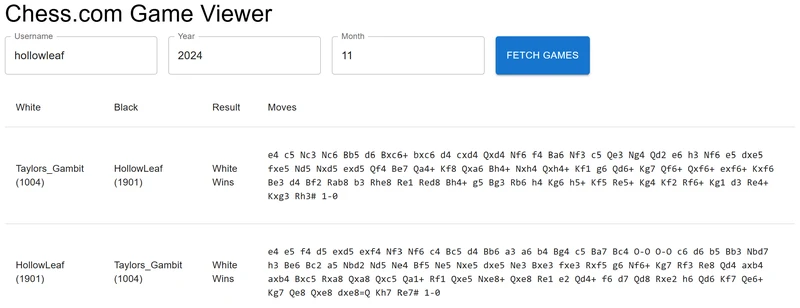
    Save your changes and check the browser. You should see:

    • A title labeled “Chess.com Game Fetcher.”
    • Three input fields for the username, year and month.
    • A button labeled “Fetch Games.”

    image.png
    At this stage, you’ve built a functional form using Material UI. In the next section, we’ll connect this form to the Chess.com API to fetch and display game data.

    Fetching and Displaying Games

    In this section, we’ll integrate the Chess.com API into our React application. The goal is to fetch a list of chess games for a specific player, process the data to extract essential details, and display the information in a structured format using a Material UI Table.
    We’ll also learn how to clean PGN (Portable Game Notation) data to extract bare moves without metadata, comments, or move numbers for a clean display.

    Step 1: Understand the Chess.com API Endpoint

    The Chess.com API provides access to historical game data for users. The endpoint we’re using retrieves monthly games for a specified player.
    Endpoint:

    https://api.chess.com/pub/player/{username}/games/{year}/{month}

    Key Parameters:

    • {username}: The Chess.com username.
    • {year} and {month}: The year and month for the games to fetch.

    The response includes metadata (like players’ ratings and results) and the full PGN for each game.

    Step 2: Fetch Games from the Chess.com API

    To fetch the data, we’ll:

    1. Dynamically construct the API URL based on user input (username, year, and month).
    2. Use the Fetch API to make a GET request.
    3. Parse the JSON response and store the games in a state variable.

    Here’s the function:

    const fetchGames = async () => {
      if (!username || !year || !month) {
        alert("Please provide a username, year, and month."); // Validate input.
        return;
      }
    
      // Construct the API URL dynamically based on input
      const url = `https://api.chess.com/pub/player/${username}/games/${year}/${month}`;
    
      try {
        const response = await fetch(url); // Fetch data from Chess.com API
        const data = await response.json(); // Parse the JSON response
    
        if (data.games) {
          setGames(data.games); // Store the games in the state if available
        } else {
          alert("No games found for the specified period.");
        }
      } catch (error) {
        console.error("Error fetching games:", error); // Log any errors
        alert("Failed to fetch games. Please try again.");
      }
    };

    Step 3: Extract Bare Moves from PGN

    The PGN data often includes metadata, move numbers, and comments, which can clutter the display. To clean this data, we’ll use the following function to extract only the moves:

    const extractMoves = (pgn) => {
      // Remove metadata lines (lines that start with [ and end with ])
      const noMetadata = pgn.replace(/^\[.*\]$/gm, '');
    
      // Remove comments inside {}
      const noComments = noMetadata.replace(/\{.*?\}/g, '');
    
      // Remove move numbers (e.g., "1.", "1...")
      const noMoveNumbers = noComments.replace(/\d+\.+/g, '');
    
      // Clean up extra spaces and return
      return noMoveNumbers.trim().replace(/\s+/g, ' '); // Replace multiple spaces with a single space
    };

    This function ensures that only the bare moves are displayed in a clean, human-readable format.

    Step 4: Display Games in a Table

    We’ll use Material UI’s Table component to display the fetched games. Each row will represent a single game, showing key details like the players, results, and bare moves.
    Here’s the code:

    <Table>
      <TableHead>
        <TableRow>
          <TableCell>White</TableCell> {/* Column for the White player's name and rating */}
          <TableCell>Black</TableCell> {/* Column for the Black player's name and rating */}
          <TableCell>Result</TableCell> {/* Column for the game result */}
          <TableCell>Moves</TableCell> {/* Column for the extracted moves */}
        </TableRow>
      </TableHead>
      <TableBody>
        {games.map((game, index) => (
          <TableRow key={index}> {/* Unique key for each row */}
            {/* White player details */}
            <TableCell>
              {game.white.username} ({game.white.rating})
            </TableCell>
            {/* Black player details */}
            <TableCell>
              {game.black.username} ({game.black.rating})
            </TableCell>
            {/* Game result */}
            <TableCell>
              {game.white.result === "win"
                ? "White Wins"
                : game.black.result === "win"
                ? "Black Wins"
                : "Draw"}
            </TableCell>
            {/* Extracted moves */}
            <TableCell>
              <pre style={{ whiteSpace: "pre-wrap", wordWrap: "break-word" }}>
                {extractMoves(game.pgn)} {/* Display the clean moves */}
              </pre>
            </TableCell>
          </TableRow>
        ))}
      </TableBody>
    </Table>

    Final Code

    Here’s the complete implementation:

    import React, { useState } from "react";
    import {
      TextField,
      Button,
      Container,
      Typography,
      Box,
      Table,
      TableBody,
      TableCell,
      TableHead,
      TableRow,
    } from "[@mui](/@/mui)/material";
    
    function App() {
      const [username, setUsername] = useState(""); // State for the username input
      const [year, setYear] = useState(""); // State for the year input
      const [month, setMonth] = useState(""); // State for the month input
      const [games, setGames] = useState([]); // State to store fetched games
    
      // Fetch games from the Chess.com API
      const fetchGames = async () => {
        if (!username || !year || !month) {
          alert("Please provide a username, year, and month."); // Validate input
          return;
        }
    
        const url = `https://api.chess.com/pub/player/${username}/games/${year}/${month}`;
    
        try {
          const response = await fetch(url); // Fetch data from Chess.com API
          const data = await response.json(); // Parse the JSON response
    
          if (data.games) {
            setGames(data.games); // Store the games in the state if available
          } else {
            alert("No games found for the specified period.");
          }
        } catch (error) {
          console.error("Error fetching games:", error); // Log errors
          alert("Failed to fetch games. Please try again.");
        }
      };
    
      // Function to clean and extract bare moves from PGN
      const extractMoves = (pgn) => {
        const noMetadata = pgn.replace(/^\[.*\]$/gm, ''); // Remove metadata
        const noComments = noMetadata.replace(/\{.*?\}/g, ''); // Remove comments
        const noMoveNumbers = noComments.replace(/\d+\.+/g, ''); // Remove move numbers
        return noMoveNumbers.trim().replace(/\s+/g, ' '); // Clean up extra spaces
      };
    
      return (
        <Container>
          <Typography variant="h4" gutterBottom>
            Chess.com Game Viewer
          </Typography>
    
          {/* Input Form */}
          <Box display="flex" gap="16px" marginBottom="20px">
            <TextField
              label="Username"
              value={username}
              onChange={(e) => setUsername(e.target.value)}
            />
            <TextField
              label="Year"
              value={year}
              onChange={(e) => setYear(e.target.value)}
            />
            <TextField
              label="Month"
              value={month}
              onChange={(e) => setMonth(e.target.value)}
            />
            <Button variant="contained" onClick={fetchGames}>
              Fetch Games
            </Button>
          </Box>
    
          {/* Games Table */}
          {games.length > 0 && (
            <Table>
              <TableHead>
                <TableRow>
                  <TableCell>White</TableCell>
                  <TableCell>Black</TableCell>
                  <TableCell>Result</TableCell>
                  <TableCell>Moves</TableCell>
                </TableRow>
              </TableHead>
              <TableBody>
                {games.map((game, index) => (
                  <TableRow key={index}>
                    <TableCell>
                      {game.white.username} ({game.white.rating})
                    </TableCell>
                    <TableCell>
                      {game.black.username} ({game.black.rating})
                    </TableCell>
                    <TableCell>
                      {game.white.result === "win"
                        ? "White Wins"
                        : game.black.result === "win"
                        ? "Black Wins"
                        : "Draw"}
                    </TableCell>
                    <TableCell>
                      <pre style={{ whiteSpace: "pre-wrap", wordWrap: "break-word" }}>
                        {extractMoves(game.pgn)}
                      </pre>
                    </TableCell>
                  </TableRow>
                ))}
              </TableBody>
            </Table>
          )}
        </Container>
      );
    }
    
    export default App;

    Explanation:

    • The app allows users to fetch chess games from Chess.com by entering a username, year, and month.
    • It uses React’s useState to manage user inputs and the fetched game data dynamically.
    • fetchGames function retrieves games from Chess.com’s API, constructs the API URL based on user inputs, and handles errors gracefully.
    • The extractMoves function processes the game’s PGN (Portable Game Notation) to extract and clean just the chess moves, removing metadata, comments, and move numbers.
    • The interface is built with Material UI, featuring input fields for user data, a fetch button, and a table for displaying the results.
    • The games are displayed in a structured table, showing details like players, their ratings, the game result, and the extracted chess moves.
    • The app dynamically updates and displays game data based on user input, providing a clean, responsive user experience.

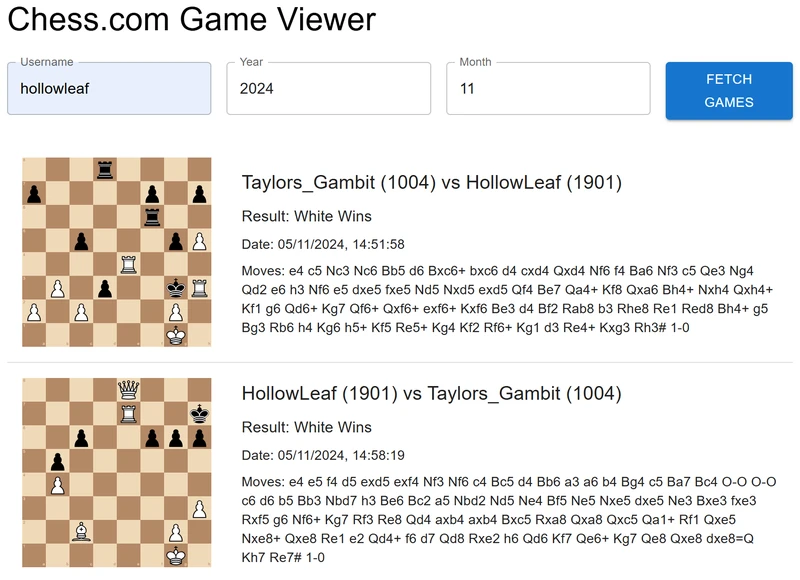
    You should now see the following:image.png

    Formatting Our Output

    In this section, we’ll enhance the game viewer by integrating key features into our app. These include rendering chessboards with the final game positions using react-chessboard, extracting moves, and adding detailed game data.

    Key Goals:

    • Use react-chessboard to display the final position of games.
    • Extract clean move sequences from PGN files.
    • Enhance the game table with FEN-calculated chessboards and game details.

    Step 1: Install Required Libraries

    To achieve our goals, we need two additional libraries:

    • react-chessboard for rendering the chessboard.
    • chess.js for calculating the FEN (Forsyth-Edwards Notation) of a game from its moves.

    Install both libraries with the following command:

    npm install react-chessboard chess.js

    After installation, import the required components into your file:

    import { Chessboard } from "react-chessboard"; // For chessboard rendering
    import { Chess } from "chess.js"; // For FEN calculation

    Step 2: Calculate FEN from PGN

    The calculateFenFromMoves function takes a PGN (Portable Game Notation) string, cleans it to extract moves, and uses chess.js to compute the FEN of the final position. This FEN is used to render the chessboard.
    Here’s the function:

    const calculateFenFromMoves = (pgn) => {
      const chess = new Chess(); // Initialize a new Chess.js instance
      const cleanMoves = extractMoves(pgn); // Extract clean moves from PGN (previously defined)
      chess.loadPgn(cleanMoves); // Load moves into Chess.js
      return chess.fen(); // Return the FEN of the final position
    };

    Step 3: Fetch Games and Limit Results

    We’ll update the fetchGames function to:

    1. Fetch games from the Chess.com API.
    2. Calculate the FEN for each game’s final position.
    3. Limit the number of games displayed to the first 50 for performance.
    4. Handle invalid games gracefully by skipping them. (This will handle the cases where you start the game from a specific position)

    Here’s the updated function:

    const fetchGames = async () => {
      if (!username || !month || !year) {
        alert("Please provide username, year, and month."); // Validate inputs
        return;
      }
    
      const url = `https://api.chess.com/pub/player/${username}/games/${year}/${month}`;
    
      try {
        const response = await fetch(url); // Fetch games from Chess.com API
        const data = await response.json(); // Parse JSON response
    
        const gamesWithFen = (data.games || [])
          .slice(0, 50) // Limit to the first 50 games
          .reduce((acc, game) => {
            try {
              const finalFen = calculateFenFromMoves(game.pgn); // Calculate FEN
              acc.push({
                ...game,
                finalFen, // Attach FEN to the game object
              });
            } catch (error) {
              console.warn(`Skipping invalid game with PGN: ${game.pgn}`, error); // Skip invalid games
            }
            return acc;
          }, []);
    
        setGames(gamesWithFen); // Update state with valid games
      } catch (error) {
        console.error("Error fetching games:", error); // Log fetch errors
        alert("Failed to fetch games. Please try again.");
      }
    };

    Step 4: Update the Game Table

    We’ll now display the fetched games in a table. Each row will show:

    • A chessboard displaying the game’s final position.
    • Game details, including players, ratings, results, date, and move list.

    Here’s the code to render the table:

    {games.length > 0 && (
      <Table sx={{ marginTop: 3 }}>
        <TableBody>
          {games.map((game, index) => (
            <TableRow key={index}>
              {/* Chessboard Column */}
              <TableCell>
                <Chessboard
                  position={game.finalFen || "start"} // Display final position or default to start
                  arePiecesDraggable={false} // Disable piece dragging
                  boardWidth={200} // Set board size
                />
              </TableCell>
    
              {/* Game Details Column */}
              <TableCell>
                <Box sx={{ display: "flex", flexDirection: "column", gap: 1 }}>
                  <Typography variant="h6">
                    {game.white.username || "Anonymous"} ({game.white.rating}) vs{" "}
                    {game.black.username || "Anonymous"} ({game.black.rating})
                  </Typography>
                  <Typography variant="body1">
                    Result:{" "}
                    {game.white.result === "win"
                      ? "White Wins"
                      : game.black.result === "win"
                      ? "Black Wins"
                      : "Draw"}
                  </Typography>
                  <Typography variant="body2">
                    Date: {new Date(game.end_time * 1000).toLocaleString()}
                  </Typography>
                  <Typography variant="body2" sx={{ whiteSpace: "pre-wrap" }}>
                    Moves: {extractMoves(game.pgn)}
                  </Typography>
                </Box>
              </TableCell>
            </TableRow>
          ))}
        </TableBody>
      </Table>
    )}

    Final Code

    Here’s the complete app code after implementing all steps:

    import React, { useState } from "react";
    import {
      TextField,
      Button,
      Container,
      Typography,
      Box,
      Table,
      TableBody,
      TableCell,
      TableRow,
    } from "[@mui](/@/mui)/material";
    import { Chess } from "chess.js";
    import { Chessboard } from "react-chessboard";
    
    // Function to clean and extract bare moves from PGN
    const extractMoves = (pgn) => {
      const noMetadata = pgn.replace(/^\[.*\]$/gm, ""); // Remove metadata
      const noComments = noMetadata.replace(/\{.*?\}/g, ""); // Remove comments
      const noMoveNumbers = noComments.replace(/\d+\.+/g, ""); // Remove move numbers
      return noMoveNumbers.trim().replace(/\s+/g, " "); // Clean up extra spaces
    };
    
    // Function to calculate FEN from moves
    const calculateFenFromMoves = (pgn) => {
      const chess = new Chess(); // Initialize Chess.js instance
      const cleanMoves = extractMoves(pgn); // Extract clean moves (defined above)
      chess.loadPgn(cleanMoves); // Load moves into Chess.js
      return chess.fen(); // Return the FEN of the final position
    };
    
    function App() {
      const [username, setUsername] = useState("");
      const [month, setMonth] = useState("");
      const [year, setYear] = useState("");
      const [games, setGames] = useState([]);
    
      const fetchGames = async () => {
        if (!username || !month || !year) {
          alert("Please provide username, year, and month."); // Validate inputs
          return;
        }
    
        const url = `https://api.chess.com/pub/player/${username}/games/${year}/${month}`;
    
        try {
          const response = await fetch(url); // Fetch games from Chess.com API
          const data = await response.json(); // Parse JSON response
    
          const gamesWithFen = (data.games || [])
            .slice(0, 50) // Limit to the first 50 games
            .reduce((acc, game) => {
              try {
                const finalFen = calculateFenFromMoves(game.pgn); // Calculate FEN
                acc.push({
                  ...game,
                  finalFen,
                });
              } catch (error) {
                console.warn(`Skipping invalid game with PGN: ${game.pgn}`, error);
              }
              return acc;
            }, []);
    
          setGames(gamesWithFen); // Update state with valid games
        } catch (error) {
          console.error("Error fetching games:", error); // Log fetch errors
          alert("Failed to fetch games. Please try again.");
        }
      };
    
      return (
        <Container>
          <Typography variant="h4" gutterBottom>
            Chess.com Game Viewer
          </Typography>
          <Box sx={{ display: "flex", gap: 2, marginTop: 3 }}>
            <TextField
              label="Username"
              value={username}
              onChange={(e) => setUsername(e.target.value)}
            />
            <TextField
              label="Year"
              value={year}
              onChange={(e) => setYear(e.target.value)}
            />
            <TextField
              label="Month"
              value={month}
              onChange={(e) => setMonth(e.target.value)}
            />
            <Button variant="contained" onClick={fetchGames}>
              Fetch Games
            </Button>
          </Box>
          {games.length > 0 && (
            <Table sx={{ marginTop: 3 }}>
              <TableBody>
                {games.map((game, index) => (
                  <TableRow key={index}>
                    <TableCell>
                      <Chessboard
                        position={game.finalFen || "start"}
                        arePiecesDraggable={false}
                        boardWidth={200}
                      />
                    </TableCell>
                    <TableCell>
                      <Box sx={{ display: "flex", flexDirection: "column", gap: 1 }}>
                        <Typography variant="h6">
                          {game.white.username || "Anonymous"} ({game.white.rating})
                          vs {game.black.username || "Anonymous"} (
                          {game.black.rating})
                        </Typography>
                        <Typography variant="body1">
                          Result:{" "}
                          {game.white.result === "win"
                            ? "White Wins"
                            : game.black.result === "win"
                            ? "Black Wins"
                            : "Draw"}
                        </Typography>
                        <Typography variant="body2">
                          Date: {new Date(game.end_time * 1000).toLocaleString()}
                        </Typography>
                        <Typography
                          variant="body2"
                          sx={{ whiteSpace: "pre-wrap" }}
                        >
                          Moves: {extractMoves(game.pgn)}
                        </Typography>
                      </Box>
                    </TableCell>
                  </TableRow>
                ))}
              </TableBody>
            </Table>
          )}
        </Container>
      );
    }
    
    export default App;

    Explanation:

    • Chessboard Rendering: Uses react-chessboard to display the final position of each game.
    • Move Extraction: Extracts and cleans up moves from the PGN format.
    • FEN Calculation: Utilizes chess.js to calculate the FEN for the final game position.
    • Error Handling: Skips invalid games and logs a warning without stopping the app.
    • Game Table: Displays a user-friendly table with chessboard visuals, player details, results, and moves.

    You should now see the following:
    image.png

    Summary

    In this blog, we dove into the fascinating intersection of chess and web development by building a React application powered by the Chess.com API. We began by understanding the API’s capabilities and how it allows us to fetch detailed data about users’ games. Leveraging this data, we developed an interactive application that displays user-specific chess games in a visually engaging and organized format.
    Using react-chessboard, we rendered the final positions of games directly on the interface, while Material UI helped us structure and style the data for clarity and responsiveness. Our application features a two-column layout: one side displays the final position of each game on a chessboard, while the other provides detailed game information, including player names and ratings, game results, dates, and a list of moves extracted from the PGN. Along the way, we emphasized best practices, such as efficient data processing, robust error handling, and clean presentation.
    This project demonstrates how to combine chess knowledge with modern web technologies to create a practical and aesthetically pleasing application. Whether you’re interested in building tools for game analysis, exploring educational chess applications, or creating personalized chess visualizations, the skills and techniques covered here serve as a strong foundation. The chessboard is just the start—your creativity can take this application in countless exciting directions. Let your passion for chess and coding inspire your next project!

    Learn More

    Here are the tools and resources we used in this article to build our Lichess game viewer application. Each of these is essential for recreating and understanding the project:

    Visual Studio Code: We used VS Code as our code editor throughout this project. It’s a powerful tool for coding, debugging, and managing projects. Download it to streamline your development workflow.

    Lichess API: The Lichess API is the backbone of this project, providing access to chess game data. Explore its extensive capabilities and learn how to fetch games, puzzles, and more.

    React: React is the framework we used to build this dynamic and interactive application. Learn how to create components, manage state, and build engaging user interfaces.

    Material UI: Material UI is the library we used to style the application and create components like tables, text fields, and buttons. Explore its components and theming options to enhance your React apps.

    react-chessboard: This library allowed us to display the final position of games as a static chessboard. Learn how to use it to create visually appealing chessboard components in your applications.

  • Chess Web Programming: Part Seven: Lichess API

    Chess Web Programming: Part Seven: Lichess API

    Working with the Lichess API

    My journey into programming chess applications started with Chessboard Magic, a personal project that turned into a platform with over 34 unique chess-based applications. This blog continues my Chess Web Programming series, diving into one of the most exciting aspects of modern development: working with APIs. In this installment, we’ll explore the Lichess API, learn how to interact with it, and create a React application to fetch and display Games from any Lichess User in a structured and beginner-friendly way.

    Recap of the Previous Parts

    Before we dive into the Lichess API, here’s a quick recap of the earlier blogs in the series:

    1. Getting Started: Using react-chessboard and chess.js to set up a functional chessboard.
    2. Integrating Stockfish: Enhancing the application by suggesting the best move using Stockfish.
    3. Deploying Your Application: A guide to hosting your chess application online.
    4. Customizing the Chessboard: Styling and implementing features like custom piece sets and square highlighting.
    5. Game Review: Adding features like move highlighting and navigation for game analysis.
    6. Essential Resources: Tools, libraries, and learning materials to support chess application development.

    Note: This blog assumes that you’ve followed the previous parts of the series, particularly Blog 1, which covers setting up the foundational tools and concepts. You should already have the necessary software installed (e.g., Node.js, Visual Studio Code) and a basic understanding of React web programming. If you haven’t reviewed Blog 1 yet, we recommend starting there to ensure you’re set up for success.

    What Are APIs?

    APIs (Application Programming Interfaces) act as intermediaries that allow software applications to communicate with one another. They provide a set of rules and protocols for accessing a service or application’s features or data. For example, when you check the weather on your phone, the app fetches the data from a server using APIs. Similarly, we’ll use the Lichess API to retrieve chess game data.

    What Is a RESTful API?

    A RESTful API (Representational State Transfer API) is a type of API that adheres to specific architectural principles. It uses standard HTTP methods such as GETPOSTPUT, and DELETE to manage resources (like game data or user profiles).
    RESTful APIs:

    • Are stateless, meaning every request from the client to the server must contain all the information needed to process the request.
    • Use endpoints (specific URLs) to access different resources.

    For instance, the Lichess API uses endpoints to provide access to specific types of data. Here’s an example:

    • Endpointhttps://lichess.org/api/games/user/{username}
    • Purpose: Fetches games played by a given Lichess user.

    In this blog, we’ll focus on the Games endpoint to fetch and display a user’s game history.

    What Is HTTP?
    HTTP (HyperText Transfer Protocol) is the foundation of communication on the web. It defines how messages are formatted and transmitted between clients (like a browser or application) and servers. For example, when your application sends a request to the Lichess API, it uses HTTP to communicate. Common HTTP methods include:

    • GET: Retrieve data from a server.
    • POST: Send data to a server.
    • PUT: Update data on a server.
    • DELETE: Remove data from a server.

    The Lichess API

    The Lichess API is a RESTful API that gives developers access to a wealth of chess-related data. Here are some of its features:

    • User Data: Retrieve information about a specific user, such as their rating and games played.
    • Game Data: Access complete game histories, including moves, openings, and final positions.
    • Tournaments and Puzzles: Fetch details about tournaments or solve chess puzzles programmatically.

    In this tutorial, we’ll use the Games endpoint to:

    1. Fetch a specified number of games for a given user.
    2. Include details like the opening name, moves, and final position (FEN).

    By understanding how endpoints work, you’ll be able to explore other parts of the Lichess API and integrate additional features into your application in the future.

    Setting Up a React Application

    In this section, we’ll create a React application from scratch using Create React App. This will serve as the foundation for our Lichess API integration.

    Step 1: Create a New React Application

    React is a popular JavaScript library for building user interfaces. To get started, we’ll use a tool called Create React App, which sets up a new project with all the necessary configurations and dependencies pre-installed.

    1. Open Your Terminal
      You’ll need a terminal or command-line tool to run commands. On Windows, you can use Command Prompt or PowerShell. On macOS or Linux, use the built-in terminal.
    2. Run the Create React App Command
      In your terminal, type npx create-react-app lichess-api-app. The npx command ensures that you’re using the latest version of Create React App, while lichess-api-app is the name of your project folder. This command downloads and installs all the dependencies required for a React project. It might take a few minutes depending on your internet connection.
    3. Navigate Into Your Project Folder
      Once the installation is complete, use the cd lichess-api-app command to navigate into the folder where your new React project is located.
    4. What’s Inside the Folder?
      Your project folder contains several files and directories:
      • node_modules folder with all the dependencies installed for your project.
      • public folder that includes static assets like the index.html file.
      • src folder, which is the main location for your React components and logic.
      • package.json file, which lists project metadata and dependencies.
      • README.md file, which contains instructions and information about your project.

    At this stage, your new React application is ready, and you’re set to begin building your project.

    Open the Project in VS Code

    Once your React application is created, the next step is to open it in a code editor. We’ll use Visual Studio Code (VS Code), a popular editor for web development.

    1. Launch VS Code
      Open Visual Studio Code from your operating system’s application menu.
    2. Add the Project Folder to Workspace
      In VS Code:
      • Click on File in the top menu bar.
      • Select Add Folder to Workspace.
      • In the file explorer that appears, navigate to the folder where you created your React project (lichess-api-app).
      • Select the folder and click Add.
      This step ensures that all files and folders in your project are accessible from within VS Code.
    3. Explore the Workspace
      Once the folder is added, you’ll see the project structure in the VS Code Explorer panel on the left. Key elements include:
      • src folder: This is where you’ll write your React code.
      • public folder: Contains the index.html file, where your React application is injected.
      • package.json: Lists project dependencies and configuration.
    4. Open the Terminal in VS Code
      To run commands directly from VS Code:
      • Go to the top menu and select View Terminal.
      • A terminal window will open at the bottom of the editor, starting in your project folder.
    5. Verify Everything is Set Up
      In the terminal, start the development server by typing npm start. This will run your React application and open it in your default web browser at http://localhost:3000.
      If you see the default React welcome page in your browser, everything is set up correctly.

    Note: If you have another server running on your machine (for example, another React project), you may encounter a message like:
    “Something is already running on port 3000.”
    In this case, you will be given two options:

    1. Use a Different Port: React will prompt you to run the application on a different port, such as http://localhost:3001. You can press Y to confirm.
    2. Shut Down the Other Server: If you prefer to run your application on port 3000, you’ll need to stop the other server. To do this, go to the terminal where the other server is running and press Ctrl + C (or Cmd + C on macOS) to terminate it.

    Introducing Material UI

    In this section, we’ll enhance the user interface of our React application using Material UI, a popular library of pre-styled and customizable components. Material UI allows us to quickly build professional, modern-looking interfaces without having to write extensive CSS. By the end of this section, we’ll have a clean and responsive form with the following features:

    • An input field for the Lichess username.
    • An input field for the number of games to fetch (default set to 50).
    • A button to trigger the API call and fetch the games.

    This form will lay the groundwork for integrating the Lichess API in the next section.

    Why Use Material UI?

    Material UI (MUI) is based on Google’s Material Design principles, focusing on clean, consistent, and user-friendly interfaces. Here are some reasons to use it:

    1. Pre-Styled Components: Includes a library of pre-designed components like buttons, tables, and input fields.
    2. Customizability: You can easily tweak the styles using inline styling, theming, or CSS overrides.
    3. Accessibility: Material UI components are built with accessibility in mind, making your application more user-friendly.
    4. Ease of Use: You can achieve professional designs with minimal effort, reducing the need to write custom CSS.

    By using Material UI, we can focus more on building the application logic rather than spending time on UI design from scratch.

    Step 1: Install Material UI

    To begin using Material UI, we need to install the required packages. These include:

    • [@mui](/@/mui)/material: The core Material UI component library.
    • [@emotion](/@/emotion)/react and [@emotion](/@/emotion)/styled: Required for styling the Material UI components.

    Install these packages by running the following command in your terminal:

    npm install [@mui](/@/mui)/material [@emotion](/@/emotion)/react [@emotion](/@/emotion)/styled

    The [@emotion](/@/emotion)/react and [@emotion](/@/emotion)/styled packages are necessary for Material UI’s styling to work. Once installed, you can start using Material UI components in your project.

    Step 2: Create the Basic Form

    Now, we’ll set up a basic form in App.js with:

    • An input field for the Lichess username.
    • An input field for the number of games to fetch (default 50).
    • A button to fetch games.

    Replace the content of src/App.js with the following:

    import React, { useState } from 'react';
    import { TextField, Button, Container, Typography } from '[@mui](/@/mui)/material';
    
    function App() {
      const [username, setUsername] = useState('');
      const [numberOfGames, setNumberOfGames] = useState(50);
    
      const fetchGames = () => {
        console.log(`Fetching ${numberOfGames} games for ${username}`);
      };
    
      return (
        <Container>
          <Typography variant="h4" gutterBottom>
            Lichess Game Fetcher
          </Typography>
          <TextField
            label="Lichess Username"
            variant="outlined"
            fullWidth
            margin="normal"
            value={username}
            onChange={(e) => setUsername(e.target.value)}
          />
          <TextField
            label="Number of Games"
            variant="outlined"
            type="number"
            fullWidth
            margin="normal"
            value={numberOfGames}
            onChange={(e) => setNumberOfGames(e.target.value)}
          />
          <Button
            variant="contained"
            color="primary"
            onClick={fetchGames}
            style={{ marginTop: '20px' }}
          >
            Fetch Games
          </Button>
        </Container>
      );
    }
    
    export default App;

    Step 3: Understanding the Code

    • Container: A layout component from Material UI that centers the content and adds padding.
    • Typography: Used to style text elements like headings and paragraphs. We used it here to create a title for the application.
    • TextField: A Material UI input component. We added two text fields:
      1. For entering the Lichess username.
      2. For specifying the number of games to fetch.
    • Button: A Material UI button component. When clicked, it triggers the fetchGames function.

    The useState hooks manage the form’s state:

    • username stores the entered Lichess username.
    • numberOfGames stores the number of games to fetch.

    The fetchGames function logs the entered values to the console. We’ll enhance this function in the next section to fetch data from the Lichess API.

    Step 4: Preview the Form

    Save your changes and check the browser. You should see:

    • A title labeled “Lichess Game Fetcher.”
    • Two input fields for the username and the number of games.
    • A button labeled “Fetch Games.”
    image.png

    At this stage, you’ve built a functional form using Material UI. In the next section, we’ll connect this form to the Lichess API to fetch and display game data.

    Fetching and Displaying Games

    In this section, we’ll integrate the Lichess API into our React application. The goal is to fetch a list of chess games based on the input values (Lichess username and number of games) and display the data in a clean and structured format using a Material UI Table. We’ll enhance the table to include player details, results, game dates, opening names, final positions, and the sequence of moves.

    Step 1: Understand the Lichess API Endpoint

    The Games API endpoint retrieves games played by a specific Lichess user. The structure of the endpoint is as follows:
    Endpoint:
    https://lichess.org/api/games/user/{username}
    Query parameters:

    • max: Specifies the maximum number of games to fetch (user input, default 50).
    • opening: Includes the opening name in the response if set to true.
    • moves: Retrieves the complete move list if set to true.
    • lastFen: Includes the final board position in FEN format if set to true.

    Step 2: Fetch Games from the Lichess API

    To retrieve games in NDJSON format:

    1. Build the API URL dynamically with user inputs.
    2. Set the Accept header to request NDJSON.
    3. Parse the NDJSON response and store it in a state variable for rendering.

    Here’s the function to fetch games:

    const fetchGames = async () => {
      if (!username) {
        alert("Please enter a Lichess username."); // Validate username input.
        return;
      }
    
      const url = `https://lichess.org/api/games/user/${username}?max=${numberOfGames}&opening=true&moves=true&lastFen=true`;
    
      try {
        const response = await fetch(url, {
          headers: { Accept: 'application/x-ndjson' }, // Request NDJSON format.
        });
    
        const text = await response.text(); // Read the NDJSON response as plain text.
        const parsedGames = text
          .trim() // Remove extra spaces or newlines.
          .split('\n') // Split the NDJSON by newline to separate game data.
          .map((line) => JSON.parse(line)); // Parse each line into a JSON object.
        setGames(parsedGames); // Update the state with the parsed game data.
      } catch (error) {
        console.error("Error fetching games:", error); // Log any errors to the console.
        alert("Failed to fetch games. Please try again."); // Show an error message to the user.
      }
    };

    Explanation of code:

    • Validates the input to ensure a username is provided.
    • Dynamically constructs the API URL using the username and number of games, with parameters to include opening names, moves, and the final board position in FEN format.
    • Sends a GET request to the Lichess API, requesting data in NDJSON format by setting the appropriate Accept header.
    • Processes the NDJSON response by:
      • Reading it as plain text.
      • Splitting it into lines (one line per game).
      • Parsing each line into a JSON object.
    • Updates the games state with the parsed data, triggering a UI update to display the results.
    • Handles errors by logging them to the console and showing an alert to the user.

    Step 3: Add a Table to Display Games

    We’ll use Material UI’s Table component to dynamically display the game data fetched from the Lichess API. Each row will represent a single game, with the following columns:

    • White: Displays the username and rating of the White player.
    • Black: Displays the username and rating of the Black player.
    • Result: Indicates the result of the game (e.g., “White Wins,” “Black Wins,” or “Draw”).
    • Date: Shows the date when the game was played, formatted for readability.
    • Opening: Displays the name of the opening used in the game, if available.
    • Last Position: Shows the final board position in FEN format.
    • Moves: Displays the sequence of moves played during the game.

    Here’s the updated implementation of the table with inline comments explaining each part:

    {games.length > 0 && ( // Check if games are available before rendering the table.
      <Table sx={{ marginTop: '20px' }}> {/* Material UI Table with spacing above */}
        <TableHead>
          <TableRow>
            <TableCell>White</TableCell> {/* Column for White player's username and rating */}
            <TableCell>Black</TableCell> {/* Column for Black player's username and rating */}
            <TableCell>Result</TableCell> {/* Column for game result */}
            <TableCell>Date</TableCell> {/* Column for game date */}
            <TableCell>Opening</TableCell> {/* Column for opening name */}
            <TableCell>Last Position</TableCell> {/* Column for final board position (FEN) */}
            <TableCell>Moves</TableCell> {/* Column for sequence of moves */}
          </TableRow>
        </TableHead>
        <TableBody>
          {/* Loop through the games array to generate a table row for each game */}
          {games.map((game, index) => (
            <TableRow key={index}> {/* Unique key for each row to optimize rendering */}
              {/* White player's details */}
              <TableCell>
                {game.players.white.user?.name || "Anonymous"} {/* Username or fallback */}
                {" "}({game.players.white.rating}) {/* Rating */}
              </TableCell>
    
              {/* Black player's details */}
              <TableCell>
                {game.players.black.user?.name || "Anonymous"} {/* Username or fallback */}
                {" "}({game.players.black.rating}) {/* Rating */}
              </TableCell>
    
              {/* Game result */}
              <TableCell>
                {game.winner
                  ? game.winner === "white"
                    ? "White Wins" /* If winner is White */
                    : "Black Wins" /* If winner is Black */
                  : "Draw" /* If no winner */}
              </TableCell>
    
              {/* Game date */}
              <TableCell>
                {new Date(game.createdAt).toLocaleDateString("en-US", {
                  year: "numeric",
                  month: "short",
                  day: "numeric",
                })} {/* Format timestamp into readable date */}
              </TableCell>
    
              {/* Opening name */}
              <TableCell>
                {game.opening?.name || "Unknown"} {/* Display opening name or fallback */}
              </TableCell>
    
              {/* Final board position in FEN format */}
              <TableCell>
                {game.lastFen} {/* Display the final board position */}
              </TableCell>
    
              {/* Moves played in the game */}
              <TableCell>
                {game.moves ? game.moves : "Moves not available"} {/* Display moves or fallback */}
              </TableCell>
            </TableRow>
          ))}
        </TableBody>
      </Table>
    )}

    Explanation of the Code

    1. games.length > 0 Check:
      • Ensures that the table is only rendered if the games array contains data.
      • Prevents rendering an empty table when no games are available.
    2. Material UI Table Structure:
      • The <Table> component serves as the container for the table.
      • <TableHead> defines the table header row, with <TableCell> elements for each column title.
      • <TableBody> contains the dynamic rows generated from the games array.
    3. Looping Through the Games Array:
      • The map method is used to iterate over the games array.
      • Each iteration creates a <TableRow> representing a single game.
      • Unique keys (key={index}) are assigned to each <TableRow> for efficient rendering.
    4. Fallback Values:
      • Fallback values like "Anonymous""Unknown", or "Moves not available" ensure the application handles missing data gracefully.
    5. Dynamic Data Rendering:
      • Player details, results, dates, openings, FEN, and moves are extracted from the game object and displayed in corresponding <TableCell> elements.
    6. Date Formatting:
      • The createdAt field is a timestamp in milliseconds. It’s converted to a human-readable format using toLocaleDateString.

    Here is the final code:

    import React, { useState } from 'react';
    import {
      TextField,
      Button,
      Container,
      Typography,
      Box,
      Table,
      TableBody,
      TableCell,
      TableHead,
      TableRow,
    } from '[@mui](/@/mui)/material';
    
    function App() {
      const [username, setUsername] = useState(''); // State for the Lichess username input.
      const [numberOfGames, setNumberOfGames] = useState(50); // State for the number of games to fetch (default is 50).
      const [games, setGames] = useState([]); // State to store the fetched games data.
    
      // Function to fetch games from the Lichess API.
      const fetchGames = async () => {
        // Validate input: Ensure a username has been provided.
        if (!username) {
          alert("Please enter a Lichess username.");
          return;
        }
    
        // Construct the API URL using the username and number of games.
        const url = `https://lichess.org/api/games/user/${username}?max=${numberOfGames}&opening=true&moves=true&lastFen=true`;
    
        try {
          // Make the API request, specifying that we want NDJSON data.
          const response = await fetch(url, {
            headers: { Accept: 'application/x-ndjson' },
          });
    
          // Read the response as text and parse the NDJSON data into an array of objects.
          const text = await response.text();
          const parsedGames = text
            .trim() // Remove any leading or trailing whitespace.
            .split('\n') // Split the NDJSON response into individual lines.
            .map((line) => JSON.parse(line)); // Parse each line as JSON.
    
          // Update the state with the parsed games data.
          setGames(parsedGames);
        } catch (error) {
          console.error("Error fetching games:", error); // Log errors to the console.
          alert("Failed to fetch games. Please try again."); // Show an alert to the user.
        }
      };
    
      return (
        <Container>
          {/* Page Title */}
          <Typography variant="h4" gutterBottom>
            Lichess API: Fetch Games
          </Typography>
    
          {/* Input Form */}
          <Box
            sx={{
              display: 'flex', // Display inputs and button in a row.
              alignItems: 'center', // Align items vertically.
              gap: '16px', // Add spacing between elements.
              marginTop: '20px', // Add spacing above the form.
            }}
          >
            {/* Input for Lichess username */}
            <TextField
              label="Lichess Username"
              variant="outlined"
              value={username} // Bind the value to the username state.
              onChange={(e) => setUsername(e.target.value)} // Update the username state on input change.
              style={{ flex: 2 }} // Set the size of this input field relative to the button.
            />
            {/* Input for number of games */}
            <TextField
              label="Number of Games"
              variant="outlined"
              type="number" // Restrict input to numbers.
              value={numberOfGames} // Bind the value to the numberOfGames state.
              onChange={(e) => setNumberOfGames(e.target.value)} // Update the numberOfGames state on input change.
              style={{ flex: 1 }} // Make this input smaller than the username input.
            />
            {/* Button to trigger the fetchGames function */}
            <Button
              variant="contained"
              color="primary"
              onClick={fetchGames} // Trigger the fetchGames function when clicked.
            >
              Fetch Games
            </Button>
          </Box>
    
          {/* Table to display fetched game data */}
          {games.length > 0 && ( // Render the table only if there are games to display.
            <Table sx={{ marginTop: '20px' }}>
              <TableHead>
                <TableRow>
                  <TableCell>White</TableCell> {/* Column header for White player details */}
                  <TableCell>Black</TableCell> {/* Column header for Black player details */}
                  <TableCell>Result</TableCell> {/* Column header for game result */}
                  <TableCell>Date</TableCell> {/* Column header for game date */}
                  <TableCell>Opening</TableCell> {/* Column header for opening name */}
                  <TableCell>Last Position</TableCell> {/* Column header for FEN */}
                  <TableCell>Moves</TableCell> {/* Column header for game moves */}
                </TableRow>
              </TableHead>
              <TableBody>
                {/* Loop through the games array to generate a table row for each game */}
                {games.map((game, index) => (
                  <TableRow key={index}> {/* Unique key for each row */}
                    {/* White player details */}
                    <TableCell>
                      {game.players.white.user?.name || "Anonymous"} {/* Username or fallback */}
                      {" "}({game.players.white.rating}) {/* Rating */}
                    </TableCell>
                    {/* Black player details */}
                    <TableCell>
                      {game.players.black.user?.name || "Anonymous"} {/* Username or fallback */}
                      {" "}({game.players.black.rating}) {/* Rating */}
                    </TableCell>
                    {/* Game result */}
                    <TableCell>
                      {game.winner
                        ? game.winner === "white"
                          ? "White Wins" /* If White is the winner */
                          : "Black Wins" /* If Black is the winner */
                        : "Draw" /* If no winner */}
                    </TableCell>
                    {/* Game date */}
                    <TableCell>
                      {new Date(game.createdAt).toLocaleDateString("en-US", {
                        year: "numeric",
                        month: "short",
                        day: "numeric",
                      })} {/* Convert timestamp to readable date */}
                    </TableCell>
                    {/* Opening name */}
                    <TableCell>
                      {game.opening?.name || "Unknown"} {/* Display opening name or fallback */}
                    </TableCell>
                    {/* Final board position (FEN) */}
                    <TableCell>
                      {game.lastFen} {/* Display the FEN or fallback */}
                    </TableCell>
                    {/* Moves played in the game */}
                    <TableCell>
                      {game.moves ? game.moves : "Moves not available"} {/* Display moves or fallback */}
                    </TableCell>
                  </TableRow>
                ))}
              </TableBody>
            </Table>
          )}
        </Container>
      );
    }
    
    export default App;

    When you enter a Lichess Username and click on Fetch, you should not see the following:
    image.png

    Formatting Our Output

    In this section, we’ll take the code from Section 4 and format the output into the final design. The goal is to enhance the user experience by structuring the game data into two columns:

    • Column A: Displays the final chessboard position using the react-chessboard library.
    • Column B: Contains detailed game information organized into multiple rows, such as player names and ratings, game results, date and time, opening name, and moves.

    We’ll explain step by step how to achieve this transformation.

    Step 1: Install react-chessboard

    To display the chessboard for the final position, we’ll use the react-chessboard library. If you haven’t already installed it, run the following command in your project directory:

    npm install react-chessboard

    After installing, you can import the Chessboard component at the top of your file:

    import { Chessboard } from "react-chessboard";

    Step 2: Modify the Table Layout

    In Section 4, the game data was displayed in a single-row table with columns for White, Black, Result, Date, Opening, Final Position, and Moves. We’ll now restructure the table:

    • Combine all game details into Column B as a vertical layout.
    • Use Column A to display the chessboard with the final position (lastFen).

    Key Changes:

    • Replace individual <TableCell> elements for game details with a <Box> containing rows for:
      1. Player names and ratings.
      2. Game result.
      3. Date and time.
      4. Opening name.
      5. Moves.

    Step 3: Configure the Chessboard in Column A

    The react-chessboard library provides an interactive chessboard that can display a game position using the FEN format. For our use case:

    • Use the lastFen field from the API response to set the final position.
    • Disable dragging of chess pieces using the arePiecesDraggable={false} property.
    • Adjust the size of the chessboard to 200px using boardWidth.

    Here’s how to integrate the chessboard into Column A:

    <Chessboard
      position={game.lastFen || "start"} // Use the final FEN position or fallback to the starting position.
      arePiecesDraggable={false} // Disable dragging on the chessboard.
      boardWidth={200} // Set the width of the chessboard.
    />

    Step 4: Organize Game Details in Column B

    To format the game details:

    1. Use a Box component with flexDirection: "column" to organize rows vertically.
    2. Format each piece of information (e.g., players, result, date) using <Typography> for consistent styling.
    3. Add spacing between rows using the gap property.
    <Box sx={{ display: "flex", flexDirection: "column", gap: "8px" }}>
      {/* Row 1: Players and ratings */}
      <Typography variant="h6">
        {game.players.white.user?.name || "Anonymous"} ({game.players.white.rating}) vs{" "}
        {game.players.black.user?.name || "Anonymous"} ({game.players.black.rating})
      </Typography>
    
      {/* Row 2: Game result */}
      <Typography variant="body1">
        Result:{" "}
        {game.winner
          ? game.winner === "white"
            ? "White Wins"
            : "Black Wins"
          : "Draw"}
      </Typography>
    
      {/* Row 3: Date and time played */}
      <Typography variant="body2">
        Date:{" "}
        {new Date(game.createdAt).toLocaleString("en-US", {
          year: "numeric",
          month: "short",
          day: "numeric",
          hour: "2-digit",
          minute: "2-digit",
        })}
      </Typography>
    
      {/* Row 4: Opening name */}
      <Typography variant="body2">
        Opening: {game.opening?.name || "Unknown"}
      </Typography>
    
      {/* Row 5: Moves played in the game */}
      <Typography variant="body2" sx={{ whiteSpace: "pre-wrap" }}>
        Moves: {game.moves || "Moves not available"}
      </Typography>
    </Box>

    Step 5: Final Code

    Here’s the final code after applying all formatting:

    import React, { useState } from "react";
    import {
      TextField,
      Button,
      Container,
      Typography,
      Box,
      Table,
      TableBody,
      TableCell,
      TableRow,
    } from "[@mui](/@/mui)/material";
    import { Chessboard } from "react-chessboard"; // Import Chessboard component.
    
    function App() {
      // State for the Lichess username input.
      const [username, setUsername] = useState("");
    
      // State for the number of games to fetch (default is 50).
      const [numberOfGames, setNumberOfGames] = useState(50);
    
      // State to store the fetched games data.
      const [games, setGames] = useState([]);
    
      // Function to fetch games from the Lichess API.
      const fetchGames = async () => {
        // Validate input: Ensure a username has been provided.
        if (!username) {
          alert("Please enter a Lichess username.");
          return;
        }
    
        // Construct the API URL using the username and number of games.
        const url = `https://lichess.org/api/games/user/${username}?max=${numberOfGames}&opening=true&moves=true&lastFen=true`;
    
        try {
          // Make the API request, specifying that we want NDJSON data.
          const response = await fetch(url, {
            headers: { Accept: "application/x-ndjson" },
          });
    
          // Read the response as text and parse the NDJSON data into an array of objects.
          const text = await response.text();
          const parsedGames = text
            .trim() // Remove any leading or trailing whitespace.
            .split("\n") // Split the NDJSON response into individual lines.
            .map((line) => JSON.parse(line)); // Parse each line as JSON.
    
          // Update the state with the parsed games data.
          setGames(parsedGames);
        } catch (error) {
          console.error("Error fetching games:", error); // Log errors to the console.
          alert("Failed to fetch games. Please try again."); // Show an alert to the user.
        }
      };
    
      return (
        <Container>
          {/* Page Title */}
          <Typography variant="h4" gutterBottom>
            Lichess API: Fetch Games
          </Typography>
    
          {/* Input Form */}
          <Box
            sx={{
              display: "flex", // Display inputs and button in a row.
              alignItems: "center", // Align items vertically.
              gap: "16px", // Add spacing between elements.
              marginTop: "20px", // Add spacing above the form.
            }}
          >
            {/* Input for Lichess username */}
            <TextField
              label="Lichess Username"
              variant="outlined"
              value={username} // Bind the value to the username state.
              onChange={(e) => setUsername(e.target.value)} // Update the username state on input change.
              style={{ flex: 2 }} // Set the size of this input field relative to the button.
            />
            {/* Input for number of games */}
            <TextField
              label="Number of Games"
              variant="outlined"
              type="number" // Restrict input to numbers.
              value={numberOfGames} // Bind the value to the numberOfGames state.
              onChange={(e) => setNumberOfGames(e.target.value)} // Update the numberOfGames state on input change.
              style={{ flex: 1 }} // Make this input smaller than the username input.
            />
            {/* Button to trigger the fetchGames function */}
            <Button
              variant="contained"
              color="primary"
              onClick={fetchGames} // Trigger the fetchGames function when clicked.
            >
              Fetch Games
            </Button>
          </Box>
    
          {/* Table to display fetched game data */}
          {games.length > 0 && (
            <Table sx={{ marginTop: "20px" }}>
              <TableBody>
                {/* Loop through the games array to generate rows for each game */}
                {games.map((game, index) => (
                  <TableRow key={index}>
                    {/* Column A: Chessboard */}
                    <TableCell>
                      <Chessboard
                        position={game.lastFen || "start"} // Use the final FEN position or fallback to the starting position.
                        arePiecesDraggable={false} // Disable dragging on the chessboard.
                        boardWidth={200} // Set the width of the chessboard.
                      />
                    </TableCell>
    
                    {/* Column B: Game details */}
                    <TableCell>
                      <Box
                        sx={{
                          display: "flex", // Use a flex container.
                          flexDirection: "column", // Stack rows vertically.
                          gap: "8px", // Add spacing between rows.
                        }}
                      >
                        {/* Row 1: Players and ratings */}
                        <Typography variant="h6">
                          {game.players.white.user?.name || "Anonymous"} ({game.players.white.rating}) vs{" "}
                          {game.players.black.user?.name || "Anonymous"} ({game.players.black.rating})
                        </Typography>
    
                        {/* Row 2: Game result */}
                        <Typography variant="body1">
                          Result:{" "}
                          {game.winner
                            ? game.winner === "white"
                              ? "White Wins"
                              : "Black Wins"
                            : "Draw"}
                        </Typography>
    
                        {/* Row 3: Date and time played */}
                        <Typography variant="body2">
                          Date:{" "}
                          {new Date(game.createdAt).toLocaleString("en-US", {
                            year: "numeric",
                            month: "short",
                            day: "numeric",
                            hour: "2-digit",
                            minute: "2-digit",
                          })}
                        </Typography>
    
                        {/* Row 4: Opening name */}
                        <Typography variant="body2">
                          Opening: {game.opening?.name || "Unknown"}
                        </Typography>
    
                        {/* Row 5: Moves played in the game */}
                        <Typography variant="body2" sx={{ whiteSpace: "pre-wrap" }}>
                          Moves: {game.moves || "Moves not available"}
                        </Typography>
                      </Box>
                    </TableCell>
                  </TableRow>
                ))}
              </TableBody>
            </Table>
          )}
        </Container>
      );
    }
    
    export default App;

    Your final application should look like the following:
    image.png

    Summary

    In this blog, we explored the exciting intersection of chess and web development by building a React application powered by the Lichess API. We started by understanding the basics of RESTful APIs and how they enable seamless interaction between applications. Using the Lichess API, we fetched user-specific chess games, parsed the data, and displayed it in a clean and interactive format. Along the way, we integrated Material UI for styling and react-chessboard to visually represent the final positions of games, creating an application that is both functional and visually appealing.
    Our final application features a two-column layout: one column displays the final position of each game on a chessboard, while the other provides detailed information about the game, such as player names and ratings, results, openings, dates, and moves. By organizing the data in this way, we ensured a clear and user-friendly interface. We also focused on best practices, such as robust error handling and responsive design, to make the application reliable and adaptable.
    This project is just the beginning of what you can create with the Lichess API. Whether you’re looking to build analysis tools, create educational apps, or experiment with interactive chessboard visualizations, the possibilities are endless. By combining your passion for chess with the skills you’ve learned here, you’re equipped to innovate and bring your ideas to life. The chessboard is your canvas—let your creativity take the lead!

    Learn More

    Here are the tools and resources we used in this article to build our Lichess game viewer application. Each of these is essential for recreating and understanding the project:

    • Lichess API: The Lichess API is the backbone of this project, providing access to chess game data. Explore its extensive capabilities and learn how to fetch games, puzzles, and more.
    • React: React is the framework we used to build this dynamic and interactive application. Learn how to create components, manage state, and build engaging user interfaces.
    • Material UI: Material UI is the library we used to style the application and create components like tables, text fields, and buttons. Explore its components and theming options to enhance your React apps.
    • react-chessboard: This library allowed us to display the final position of games as a static chessboard. Learn how to use it to create visually appealing chessboard components in your applications.
    • Visual Studio Code: We used VS Code as our code editor throughout this project. It’s a powerful tool for coding, debugging, and managing projects. Download it to streamline your development workflow.
  • Chessboard Magic: January 2025 Update

    Chessboard Magic: January 2025 Update

    Hello Chess Lovers, As we inch closer to 2025, I’m more excited than ever about the future of Chessboard Magic. I’ve been working hard to bring you fresh content, and I’m thrilled to share some new ideas that will be coming your way soon.

    I have committed to spending around 40 hours each month on programming, which will allow me to add even more exciting features to the site. But as always, your feedback will guide me on this journey. You’ve all been amazing with your suggestions, and I hope to keep delivering updates that enhance your chess experience.
    I’m also excited to announce that I’ve created a Discord server for all of you to join! Whether you want to share game ideas, report bugs, or get early access to new features, or just chat, I would love to connect with you directly.
    Join us here: Chessboard Magic Discord
    Visit chessboardmagic.com

    Updates

    This past year has been full of exciting changes and improvements on Chessboard Magic. I’ve been hard at work creating new games, updating existing ones, and adding useful tools that make the platform more robust and fun for all chess lovers. In this update, you’ll find a mix of new features, game improvements, and behind-the-scenes optimizations that will make the site even more enjoyable.

    • (New Game) Where Are My Pieces? This new game takes a position from a world championship match, but with a twist: the pieces are hidden! Your challenge is to guess where the pieces should be, testing your understanding of positions and piece placement. It’s a fun way to sharpen your skills and train your brain to visualize complex positions.
    • (New Game) Chess Cryptogram Test your problem-solving skills and chess knowledge by cracking the code in this cryptographic chess puzzle game. Decrypt a variety of chess terms, famous engines, and legendary players. Perfect for those who enjoy both chess and cryptography.
    • (New Game) Decrypt Chess Challenge yourself by solving the substitution cipher to reveal a hidden chess term and its description. This puzzle is perfect for chess lovers and puzzle enthusiasts who enjoy a good brain teaser!
    • (New Game) Rotating Image Puzzle A variation of the Image Puzzle game, where an image is split into pieces, and instead of moving the pieces, you rotate them. Once solved, you’ll reveal a bio of a famous chess player. It’s a different type of challenge that offers something fun for those who enjoy puzzles.
    • (New Tool) Hidden Chess Engage in a challenging match against a powerful chess engine, where you have the unique option to conceal some or all of the pieces on the board. This game mode is specifically designed to enhance your mental chessboard visualization skills and sharpen your ability to remember positions, improving both strategic thinking and cognitive abilities.
    • (New Tool) Tablebase I’ve released a draft version of a Tablebase tool. For those unfamiliar, a Tablebase allows you to analyze endgames by placing up to 7 pieces on the board and see what the optimal outcome is based on perfect play. It’s a useful resource for anyone looking to improve their understanding of endgame strategies. This is still a work in progress, and I’d love your feedback on how it can be improved over time. This is powered by Lichess APIs. Thank you Lichess!!!
    • (Update) Hand and Brain You can now start the Hand and Brain game from any specific board position. This gives you more flexibility and allows for more creative gameplay. This was a highly requested feature, and I’m happy to bring it to you! I have also fixed some bugs in the game play, so hopefully it will be more useful for your learning.
    • (Update) Guess Who When you make a wrong guess, the buttons are disabled to improve usability and streamline gameplay. I have also added a difficulty level to make things more challenging.
    • Additional Languages – I have incorporated three more languages into the platform: Hebrew, Japanese, and Korean.
    • Performance Optimization – With the growing number of players (averaging around 200 users per day), I’ve worked on optimizing performance and upgrading the backend infrastructure to handle the increased traffic. This means a smoother, faster experience for everyone!
    • Bug Fixes & Usability Improvements – Of course, no update would be complete without several bug fixes and improvements to make the site more enjoyable and user-friendly. Thank you to everyone who reported issues—I couldn’t have done it without your help!
    • Dark Mode Default – I have set the default theme to Dark Mode. You can always flip back, but do let me know what you think?
    • Auto Start – All games now begin automatically as soon as the page loads. You can jump right in without needing to click “Play”.

    Programming Statistics

    I have to admit, I hadn’t really thought about the sheer size of the Chessboard Magic codebase until I recently took a look—it was a bit of a shock! Currently, the project consists of a whopping 139,662 lines of code! Here’s how it breaks down:

    • Prepared Data (games, positions, evaluations, glossary, quotes): 85,474 lines
    • Language Data: 17,983 lines
    • Application Code: 36,205 lines

    On top of that, we are leveraging 81 different open-source packages—and I couldn’t have built this without them. I’m also storing 470 images, which amount to about 25MB of total space.
    For fun, here are the Top 5 applications in terms of lines of code:

    1. User Scout – 3,123 lines
    2. Opponent Prep – 2,974 lines
    3. Gif Generator – 1,021 lines
    4. Where Are My Pieces? – 904 lines
    5. Chess Slide – 811 lines

    I know, right? I didn’t expect it to add up like this, but here we are!

    Coming Soon

    I’m working on more arcade-like games, including a Chess variant of Candy Crush, Flappy Birds, and a Endless Racer Game. These are by far the most ambitious projects yet—much harder to program, but what is life without a little challenge? (Also, I’m still learning the trade as I go—I’m not a full-time web developer!)
    I’m excited to share that I’m currently working on enhancements to both User Scout and Opponent Prep. Soon, these tools will seamlessly connect to Chess.com, allowing you to easily access and analyze your opponents’ profiles for even deeper insights before your next match.
    Lastly, I’m also exploring ways to enhance user profiles, potentially introducing experience points, achievements, and even leaderboards. These ideas are still in the early stages, and I’m experimenting to find the best approaches that make the platform more engaging, rewarding, and fun for everyone.
    Feel free to discuss ideas with me on the Discord Server

    Full Catalogue of Chessboard Magic

    Here’s the latest lineup of everything available on Chessboard Magic—now boasting 34 unique items! That’s right, 34! My ultimate goal is to reach 64 (seems like the perfect number), so I’ll keep pushing forward to make it happen.
    Games (16):

    • (New) Chess Cryptogram Match symbols to letters and uncover hidden chess-related words—ranging from chess terms to engine names and famous players. Test your code-breaking skills in a puzzle that merges cryptography with chess culture.
    • (New) Decrypt Chess Solve a substitution cipher to restore a hidden chess-related phrase and description—be it a key term, a legendary player’s name, or a famous engine’s identity.
    • (New) Where Are My Pieces? Identify and recreate the exact placement of pieces from a classic chess game, honing your positional awareness and memory.
    • (New) Rotating Image Puzzle Rotate scattered fragments until they form the likeness of a renowned chess player, honing your pattern recognition and focus.
    • Chess Anagrams Rearrange scrambled letters to form chess-related words—players, openings, concepts—expanding your chess vocabulary with every solved puzzle.
    • Chess Slide Slide tiles around to recreate a chess-themed image. This classic puzzle format merges visual recognition with logical thinking.
    • Chess Crossword Fill in crossword clues all centered around chess terminology, events, and personalities, improving your grasp of the game’s language.
    • Chess Hangman Guess letters to reveal the secret chess term before time runs out. It’s a light-hearted way to strengthen your chess lexicon.
    • Chess Wordsearch Find hidden chess words scattered across a letter grid. Build your familiarity with the sport’s glossary as you hunt for terms.
    • Guess the Elo Study a brief game snippet and try to estimate the players’ rating levels. Enhance your ability to recognize playing strength and style.
    • Guess the Eval Predict the computer’s evaluation of a given position. Develop an intuition for material balance, positional elements, and tactical potential.
    • Guess the Move Given a historical position, choose the best next move. Learn from the masters and improve your decision-making at the board.
    • Guess the Opening Identify the name of an opening from its initial moves. Refine your opening repertoire and knowledge of classic setups.
    • Guess Who Test your chess knowledge and trivia skills by identifying the player featured in a single image.
    • Image Puzzle Rearrange scrambled fragments of a chess-themed image, piece by piece, until you form a complete picture—just like assembling a jigsaw puzzle.
    • Play The Opening Given the name of a known chess opening, try to accurately play through its main line from memory, strengthening your opening knowledge and retention.

    Analytics (2):

    • User Scout Review any Lichess profile to analyze their game history, style, and key statistics, gaining valuable insights into their performance.
    • Opponent Prep Compare two Lichess profiles side-by-side, pinpointing strengths, weaknesses, and patterns to inform your match preparation.

    Learn (4):

    • (New) Hidden Chess Face an engine opponent with your pieces concealed from view. Rely on memory, logic, and intuition to navigate the board.
    • Hand and Brain Face an engine while being guided on which piece to move, but the ultimate decision is yours—improve strategic thinking as you blend machine hints with human intuition.
    • Notation Trainer Play through a legendary game move by move, naming each move in standard chess notation to enhance your reading and recording skills.
    • Resources Access a curated hub of educational materials—articles, lessons, and guides—to systematically improve all aspects of your game.

    Library (7):

    • Classic Games Explore legendary encounters that shaped chess history. Draw inspiration and lessons from the brilliance of the past.
    • Miniature Games Examine brief, explosive games rich in tactics, perfect for understanding quick wins and common pitfalls.
    • World Championships Relive epic matches that crowned champions, studying their strategies, critical moments, and evolving styles.
    • Chess Glossary Look up definitions and explanations of key chess terms to solidify your understanding of the game’s language.
    • Chess Quotes Enjoy insightful, motivational, and humorous quotes from great players and personalities, adding color to your chess experience.
    • Basic Rules of Play A fast-track guide to the fundamental rules and piece movements—perfect for beginners wanting to learn quickly.
    • Competitive Rules of Play Learn the formal regulations governing tournaments, time controls, and fair play standards, preparing for professional-level events.

    Tools (5):

    Thank You

    I just want to take a moment to say thank you from the bottom of my heart. Since our launch on May 27, 2024, we’ve come so far together, and this is only our sixth release. I’m incredibly grateful for all of your support, suggestions, and feedback—it has truly helped shape Chessboard Magic into what it is today.
    I also want to give a special thank you to my very first Patreon supporter, Alexander Riddick, every little helps, and to Sayed Hajaj for being a great sounding board for my random ideas, and NM Itay Sitbon for giving me a lot of feedback.
    Every time you share the site with a friend or leave a comment, it means the world to me. I’m committed to making Chessboard Magic even better, and I’m excited about what’s to come. Stay tuned for more updates, and as always, happy chess playing!

    Warm regards,
    Toan Hoang (@HollowLeaf)
    Creator of Chessboard Magic

  • Chess Web Programming: Part Six: Essential Resources

    Chess Web Programming: Part Six: Essential Resources

    Essential Resources for your next Chess Web Application

    Since October 2023, I’ve been intensively working on Chessboard Magic, and along the way, I’ve discovered many valuable tools and resources. If you’ve been following my journey, you know I’ve written five articles to help you build your own chess web application:

    • Part One: Getting Started – We created a basic chessboard, allowing users to move pieces and setting up the foundation for managing game states and interactions.
    • Part Two: Adding Stockfish – We integrated the Stockfish chess engine to analyze moves and provide insights, making the app engaging and interactive for users looking to deepen their understanding of chess.
    • Part Three: Deploying Your Application – We covered how to deploy the app using GitHub Pages, allowing anyone to share their chessboard online. This part included setup instructions for Git, GitHub, and deployment configurations to make the app live.
    • Part Four: Customization – We added customizations for the chessboard, allowing users to switch between different piece sets and board themes. These changes made the chessboard visually unique and gave users more control over their experience.
    • Part Five: Creating a simple game review: Creating a a simple game review application.

    In Part 6, I will share a curated list of resources, tools, and libraries that can elevate your next chess web application project. Whether you’re a beginner or an experienced developer, these resources will save you time and make your development journey smoother.

    AI Support for Development

    AI tools are invaluable for troubleshooting, learning, and innovating while building applications. They help streamline development, allowing you to focus on creative features and solve coding challenges effectively.

    • ChatGPT is a conversational AI that assists with coding, debugging, and idea generation. It’s ideal for answering programming questions, learning new concepts, and troubleshooting errors in your projects. This tool can help you quickly resolve coding roadblocks and generate ideas for features like interactive chess training or game analysis.
    • Gemini is designed to support detailed, context-aware problem-solving. It helps developers explore programming packages, optimize workflows, and implement features. Gemini can guide you when deciding which frameworks or libraries are best suited for your chess app’s unique requirements.

    Chess Data Resources

    Rich data sources are key to building insightful and interactive chess applications. These resources provide everything from game histories to opening analysis and tactical puzzles.

    • The Lichess Openings Database contains a wealth of data on chess openings, complete with evaluations and statistics. This is a fantastic resource if you want to include opening theory features in your app, such as suggesting moves based on opening lines.
    • The Lichess Games Database includes millions of games played on Lichess, offering diverse data across all skill levels. Use this to create game analysis tools, replay classic games, or generate training material for your users.
    • The Lichess Puzzles Database offers a large collection of puzzles designed to improve tactical skills. These can be integrated to provide an engaging training experience or daily challenges within your app.
    • The Lichess Evaluations Database provides precomputed Stockfish evaluations for millions of positions. This is ideal for adding position analysis features without the performance overhead of running a live engine.
    • The Lichess API enables developers to fetch live data, including games, player stats, and puzzles. This API is perfect for building real-time features such as live game broadcasts or personalized player statistics.
    • The Chess.com API allows developers to access data from Chess.com, one of the largest chess platforms. Use this to expand your app’s functionality with data from a different audience and platform.

    Media Resources

    A visually appealing chess app enhances the user experience. These tools help you create custom graphics, compress files for performance, and find high-quality assets to enrich your app.

    • DALL-E is an AI-based image generation tool that creates custom visuals based on text descriptions. This is perfect for designing unique, chess-themed graphics, such as custom pieces, backgrounds, or promotional material.
    • TinyPNG compresses image files to reduce their size while preserving quality. This optimization is essential for improving app performance, particularly for web-based chess apps with visual elements like boards, pieces, and icons.
    • Pixabay is a free repository of high-quality images, videos, and audio files. This is a great resource for finding background images or sound effects to make your chess app more engaging and visually appealing.
    • Noun Project offers an extensive library of icons covering a wide range of themes. Use these to enhance your app’s interface, such as adding icons for menus, settings, or game modes.
    • Icons8 provides free and customizable icons that fit seamlessly into your design. This is particularly useful for creating a polished user interface with icons for chess pieces, move indicators, or feature toggles.
    • Coolors is a color palette generator that helps developers create cohesive and visually appealing themes. Use it to design a unique color scheme for your app’s chessboard, pieces, and UI elements.

    Essential Tools

    The foundational tools ensure a smooth development process, from coding to designing and debugging. They’re indispensable for creating and refining your chess application.

    • VS Code is a widely used code editor known for its versatility and ease of use. It’s great for coding your chess app with support for extensions tailored to JavaScript and React development.
    • GIMP is a free, open-source graphic design tool that enables you to create and edit images. Use it to design custom chess pieces, board themes, or promotional materials for your app.
    • Audacity is a free audio editing tool. It’s perfect for creating sound effects for moves, captures, or game notifications in your chess app, adding an immersive audio experience.
    • Node.js and npm form the backbone of many modern web applications. Node.js allows you to run JavaScript on the server, while npm helps you manage libraries and dependencies. Use these tools to handle backend tasks like data processing or managing your chess engine.

    Frontend Libraries and Frameworks

    These libraries simplify the process of building dynamic and user-friendly interfaces while adding functionality like game logic, analysis, and visualizations.

    • React is a powerful JavaScript library for building responsive, component-based user interfaces. It’s ideal for creating the interactive and visually dynamic elements of your chess app.
    • React Chessboard is a specialized library that makes it easy to integrate interactive chessboards into React apps. This is essential for any chess app requiring a playable board.
    • Material UI is a popular library of prebuilt React components that help developers create clean, modern interfaces. Use it to design user-friendly menus, forms, and navigation systems.
    • Google Fonts offers a vast collection of free, web-safe fonts. Use these to enhance your chess app’s readability and aesthetic appeal with unique typography.
    • Chess.js is a lightweight JavaScript library for handling chess rules and game logic. Use it to implement move validation, game history, and analysis features in your app.
    • Stockfish.js brings the power of the Stockfish chess engine to JavaScript, enabling developers to integrate chess evaluation capabilities. Use this for features like suggesting the best move or analyzing game positions.
    • Nivo Charts provides beautiful and customizable data visualization tools. Use it to display player statistics, win-rate charts, or opening performance graphs.
    • GSAP is a professional-grade animation library. Use it to add smooth animations for transitions, move highlights, or dynamic piece movements.
    • i18next is a localization framework that makes it easy to add multilingual support. Use it to create an app that’s accessible to players worldwide.

    Infrastructure

    Reliable infrastructure ensures your app runs smoothly, remains secure, and scales with user demand. These tools handle hosting, analytics, and optimization to keep your app performant.

    • CloudFlare offers CDN services, security features, and performance optimizations. Use it to ensure your app is fast and secure, with features like DDoS protection.
    • Google Analytics helps you track and analyze user behavior on your website. Use it to gather insights about how players interact with your app.
    • Google Search Console is a tool for monitoring and optimizing how your website appears in Google search results. Use it to improve your app’s visibility and traffic.
    • Firebase is a versatile platform for hosting and managing web applications. Use it to deploy your chess app and manage real-time databases or analytics.
    • Vercel specializes in hosting React-based applications. Use it to deploy your chess app quickly and reliably, with minimal setup.
    • Capacitor allows you to transform your web application into native Android and iOS apps. Use it to expand your app’s reach to mobile users.
    • GitHub is the gold standard for version control. Use it to track changes, collaborate with others, and host your code repositories.

    Summary

    Over the course of these six articles, I’ve aimed to provide you with the knowledge and resources to create your own chess web application, from setting up your first chessboard to deploying a fully-featured app. I hope the tools and resources I’ve shared here inspire you to bring your unique ideas to life. Whether it’s a game, a training tool, an analysis feature, or something entirely unexpected, the possibilities in the chess programming space are truly endless.
    If you build something, I’d love to see it! Feel free to drop me a message, share your project, or even tell me about your experience creating it—I’m always excited to see how others bring their visions to life.
    If you’ve discovered tools or resources that you’ve found invaluable in your journey, please share them in the comments below. By sharing what works for you, we can build a stronger, more collaborative chess programming community together. Let’s inspire each other to keep innovating and creating amazing applications for chess enthusiasts around the world!

  • Chess Web Programming: Part Five: Game Review

    Chess Web Programming: Part Five: Game Review

    Creating a Game Review Application

    Building chess web applications has been a fun and challenging journey, combining the strategies of chess with the world of web programming. Since starting this project, I’ve watched Chessboard Magic grow from a simple app into a platform with 34 unique features that make learning and playing chess more interactive and enjoyable.
    In my previous blogs, I’ve broken down the steps for anyone interested in building their own chess web app:

    • Part One: Getting Started – We created a basic chessboard, allowing users to move pieces and setting up the foundation for managing game states and interactions.
    • Part Two: Adding Stockfish – We integrated the Stockfish chess engine to analyze moves and provide insights, making the app engaging and interactive for users looking to deepen their understanding of chess.
    • Part Three: Deploying Your Application – We covered how to deploy the app using GitHub Pages, allowing anyone to share their chessboard online. This part included setup instructions for Git, GitHub, and deployment configurations to make the app live.
    • Part Four: Customization – We added customizations for the chessboard, allowing users to switch between different piece sets and board themes. These changes made the chessboard visually unique and gave users more control over their experience.

    Each part offers straightforward steps and practical tips to help readers build and enhance their chess applications.
    In this fifth part, Game Review, we’ll dive into building a game review feature by adding engine lines and a move categorization tool. This feature will assess the quality of each move, highlighting whether it was strong or weak, and providing players with insights to help them learn from each game.

    Setting Up the React Application

    Note: This guide assumes you’ve installed the necessary software and tools covered in the previous blogs, including Node.js, npm, and any preferred code editor like VSCode. If not, please refer to earlier parts of this series for guidance on installing these tools.

    In this section, we’ll start by setting up our React application, which we’ll name gamereview. This will serve as the foundation for building our game review application, where we’ll add a move review feature to analyze chess games. Let’s get started!

    1. Create the React Application

    First, we need to create our React project. Open your terminal and run the following command:

    npx create-react-app gamereview

    This will set up a basic React app with everything we need to get started.

    2. Navigate to the Project Folder

    Once the setup is complete, navigate to the new project folder:

    cd gamereview

    3. Install Required Dependencies

    We’ll be using two main libraries to help us build the game review feature:

    • react-chessboard: A React component for displaying an interactive chessboard.
    • chess.js: A library that allows us to manage chess game logic, including move validation, piece movement, and move history.

    To install these libraries, run the following command in the terminal:

    npm install react-chessboard chess.js

    4. Add the Folder to Your Workspace in VS Code

    • Open Visual Studio Code.
    • Go to File > Add Folder to Workspace….
    • Select the gamereview folder you just created.
    • This will add the project to your workspace, allowing you to view and edit all files within VS Code easily.

    5. Verify the Installation

    After installing the dependencies, verify that they’re listed in your package.json file under dependencies. Your package.json should include the following:

    {
      "dependencies": {
        "react": "^18.0.0",
        "react-dom": "^18.0.0",
        "react-scripts": "5.0.1",
        "react-chessboard": "^1.2.0",
        "chess.js": "^1.0.0"
      }
    }

    6. Create a Basic Chessboard Component in App.js

    Now, let’s set up a basic chessboard using react-chessboard and add an onDrop function to validate moves.

    • Open App.js: In your project folder, open the App.js file. By default, it will contain some boilerplate code from the React setup. We’ll replace this with a simple chessboard setup.
    • Import Dependencies: First, import the necessary components from react-chessboard and chess.js at the top of the file.
    import React, { useState } from "react";
    import { Chessboard } from "react-chessboard";
    import Chess from "chess.js";
    • Set Up the Chessboard Component with onDrop: Next, we’ll initialize a new Chess instance and set up an onDrop function to validate moves using a try-catch block. This function will try to make a move and catch any errors if the move is invalid.
    // Main App component
    const App = () => {
      // Initialize the game state using useState with a new Chess instance
      const [game, setGame] = useState(new Chess());
    
      // Function to handle piece movement on the chessboard
      const onDrop = (sourceSquare, targetSquare) => {
        // Create a copy of the current game state using FEN notation
        const gameCopy = new Chess(game.fen());
    
        try {
          // Attempt to make the move on the game copy
          const move = gameCopy.move({
            from: sourceSquare, // Starting square of the move
            to: targetSquare, // Target square of the move
            promotion: "q", // Always promote to a queen for simplicity
          });
    
          // If the move is invalid, move will be null, so we return false to ignore the move
          if (move === null) {
            return false;
          }
    
          // If the move is valid, update the game state with the new position
          setGame(gameCopy);
          return true; // Return true to indicate a valid move
        } catch (error) {
          // Catch and log any errors that occur during the move attempt
          console.error(error.message);
          return false; // Return false to ignore the invalid move
        }
      };
    
      return (
        <div>
          <h1>Game Review</h1>
          <Chessboard
            position={game.fen()} // Set the chessboard position to the current game state
            onPieceDrop={onDrop} // Trigger the onDrop function when a piece is moved
            boardWidth={500} // Set the width of the chessboard to 500px
          />
        </div>
      );
    };
    
    export default App; // Export the App component as the default export

    7. Run the Application
    Now, go back to your terminal and start the React development server:

    npm start

    This command will open your application in the browser at http://localhost:3000. You should see a chessboard centered on the screen with a width of 500px. You can now drag and drop pieces, and the onDrop function will validate moves using chess.js. If a move is invalid, it will be prevented, and an error will be logged in the console.

    Note: The basics of setting up a React application with a chessboard component and validating moves were covered in depth in Part One of this series.

    Integrating Stockfish

    In this section, we’ll integrate Stockfish, a powerful chess engine, into our React chessboard. Stockfish can evaluate each move and provide feedback on the top 3 recommended moves. This feature will allow users to see the best moves in each position, helping them improve their gameplay.
    Let’s walk through each step to set up Stockfish.

    1. Download Stockfish Lite

    First, download stockfish-16.1-lite-single.js and stockfish-16.1-lite-single.wasm from the Stockfish.js GitHub repository. These files contain a lightweight version of the Stockfish engine designed to work in web applications.

    2. Add Stockfish Files to public/js

    Once downloaded, create a js folder within the public directory of your React project. Copy stockfish-16.1-lite-single.js and stockfish-16.1-lite-single.wasm into public/js. Your project structure should now look like this:

    gamereview
     public
        js
           stockfish-16.1-lite-single.js
           stockfish-16.1-lite-single.wasm
        index.html
     src

    This setup will allow us to reference Stockfish directly from the /js folder within our React app.

    3. Load Stockfish in App.js

    To load Stockfish in our application, we’ll create a Web Worker for stockfish-16.1-lite-single.js. This allows Stockfish to run in a separate thread so it doesn’t slow down our main application.
    Here’s the code to set up Stockfish in App.js:

    const App = () => {
      const [stockfish, setStockfish] = useState(null);
    
      // Load Stockfish using useEffect when the component mounts
      useEffect(() => {
        // Create a new Web Worker for Stockfish
        const stockfishInstance = new Worker(`${process.env.PUBLIC_URL}/js/stockfish-16.1-lite-single.js`);
    
        setStockfish(stockfishInstance); // Store the Stockfish instance in state
    
        // Clean up by terminating the Stockfish instance when the component unmounts
        return () => {
          stockfishInstance.terminate();
        };
      }, []);
    };

    Explanation:

    • Creating the Workerconst stockfishInstance = new Worker("/js/stockfish-16.1-lite-single.js"); loads Stockfish as a Web Worker from the /js directory.
    • Setting State: We store this Stockfish instance in a useState variable, making it accessible across the component.
    • Cleanup: The return function in useEffect ensures that Stockfish is terminated when the component unmounts, freeing up resources.

    4. Write the Evaluation Function

    The getEvaluation function will set up Stockfish to evaluate each board position:

    const getEvaluation = (fen) => {
      return new Promise((resolve) => {
        const lines = []; // Array to store the top 3 lines of evaluations
        stockfish.postMessage("setoption name MultiPV value 3"); // Set Stockfish to calculate top 3 PVs
        stockfish.postMessage(`position fen ${fen}`); // Set the position to the current FEN
        stockfish.postMessage("go depth 12"); // Instruct Stockfish to calculate up to a depth of 12
    
        const isBlackTurn = fen.split(" ")[1] === "b"; // Check if it's Black's turn from the FEN string
    
        // Save the current lines as previous lines before starting a new evaluation
        setPreviousLines(currentLines);
    
        // Handle messages from Stockfish
        stockfish.onmessage = (event) => {
          const message = event.data;
    
          // Only process messages that contain evaluations at depth 12
          if (message.startsWith("info depth 12")) {
            // Extract the evaluation score and principal variation (move sequence)
            const match = message.match(/score cp (-?\d+).* pv (.+)/);
            if (match) {
              let evalScore = parseInt(match[1], 10) / 100; // Convert centipawn score to pawn units
              const moves = match[2].split(" "); // Split moves into an array
    
              // Flip the evaluation score if it's Black's turn
              if (isBlackTurn) {
                evalScore = -evalScore;
              }
    
              // Add the evaluation and moves to the lines array
              lines.push({ eval: evalScore, moves });
    
              // Stop and resolve once we have the top 3 lines at depth 12
              if (lines.length === 3) {
                stockfish.postMessage("stop"); // Stop Stockfish once we have 3 evaluations
    
                // Sort lines based on whose turn it is
                lines.sort((a, b) => (isBlackTurn ? a.eval - b.eval : b.eval - a.eval));
    
                // Update currentLines with the new sorted evaluations
                setCurrentLines(lines);
                resolve(lines); // Resolve the promise with the top 3 lines
              }
            }
          }
        };
      });
    };

    Explanation:

    • Setting MultiPVMultiPV is set to 3 to request the top 3 moves from Stockfish.
    • Setting Position and Depth: We set the FEN and depth of 12, instructing Stockfish to analyze the position deeply.
    • Handling Stockfish Output:
      • We listen for info depth 12 messages from Stockfish and parse these for evaluation scores and moves.
      • If it’s Black’s turn, we adjust the evaluation score by multiplying it by -1.
    • Updating State: Once 3 evaluations are collected, we stop Stockfish and update currentLines with the sorted lines.

    Full Code

    Here’s the complete App.js file with full comments, which concludes the Integrating Stockfish section:

    import React, { useState, useEffect } from "react";
    import { Chessboard } from "react-chessboard";
    import { Chess } from "chess.js";
    
    const App = () => {
      // Initialize chess game state and Stockfish instance
      const [game, setGame] = useState(new Chess());
      const [stockfish, setStockfish] = useState(null);
      const [currentLines, setCurrentLines] = useState([]); // Holds evaluations for the current move
      const [previousLines, setPreviousLines] = useState([]); // Holds evaluations for the previous move
    
      // Load Stockfish Web Worker using useEffect when the component mounts
      useEffect(() => {
        // Create a new Web Worker for Stockfish
        const stockfishInstance = new Worker(`${process.env.PUBLIC_URL}/js/stockfish-16.1-lite-single.js`);
    
        setStockfish(stockfishInstance); // Store the Stockfish instance in state
    
        // Clean up by terminating the Stockfish instance when the component unmounts
        return () => {
          stockfishInstance.terminate();
        };
      }, []);
    
      // Function to get top 3 evaluations and moves from Stockfish at a depth of 12
      const getEvaluation = (fen) => {
        return new Promise((resolve) => {
          const lines = []; // Array to store the top 3 lines of evaluations
          stockfish.postMessage("setoption name MultiPV value 3"); // Set Stockfish to calculate top 3 PVs
          stockfish.postMessage(`position fen ${fen}`); // Set the position to the current FEN
          stockfish.postMessage("go depth 12"); // Instruct Stockfish to calculate up to a depth of 12
    
          const isBlackTurn = fen.split(" ")[1] === "b"; // Check if it's Black's turn from the FEN string
    
          // Save the current lines as previous lines before starting a new evaluation
          setPreviousLines(currentLines);
    
          // Handle messages from Stockfish
          stockfish.onmessage = (event) => {
            const message = event.data;
    
            // Only process messages that contain evaluations at depth 12
            if (message.startsWith("info depth 12")) {
              // Extract the evaluation score and principal variation (move sequence)
              const match = message.match(/score cp (-?\d+).* pv (.+)/);
              if (match) {
                let evalScore = parseInt(match[1], 10) / 100; // Convert centipawn score to pawn units
                const moves = match[2].split(" "); // Split moves into an array
    
                // Flip the evaluation score if it's Black's turn
                if (isBlackTurn) {
                  evalScore = -evalScore;
                }
    
                // Add the evaluation and moves to the lines array
                lines.push({ eval: evalScore, moves });
    
                // Stop and resolve once we have the top 3 lines at depth 12
                if (lines.length === 3) {
                  stockfish.postMessage("stop"); // Stop Stockfish once we have 3 evaluations
    
                  // Sort lines based on whose turn it is
                  lines.sort((a, b) => (isBlackTurn ? a.eval - b.eval : b.eval - a.eval));
    
                  // Update currentLines with the new sorted evaluations
                  setCurrentLines(lines);
                  resolve(lines); // Resolve the promise with the top 3 lines
                }
              }
            }
          };
        });
      };
    
      // onDrop function to handle piece movement and trigger Stockfish evaluation
      const onDrop = async (sourceSquare, targetSquare) => {
        const gameCopy = new Chess(game.fen()); // Create a copy of the current game
    
        try {
          // Attempt to make the move on the game copy
          const move = gameCopy.move({
            from: sourceSquare,
            to: targetSquare,
            promotion: "q", // Automatically promote to a queen for simplicity
          });
    
          if (move === null) return false; // If move is invalid, return false
    
          setGame(gameCopy); // Update the game state with the new move
    
          // Get top 3 moves and evaluations from Stockfish at depth 12
          await getEvaluation(gameCopy.fen());
          return true;
        } catch (error) {
          console.error(error.message); // Log any errors during move attempt
          return false;
        }
      };
    
      return (
        <div>
          <h1>Game Review with Stockfish</h1>
          {/* Chessboard component to display the game board */}
          <Chessboard
            position={game.fen()} // Set the chessboard position to the current game state
            onPieceDrop={onDrop} // Trigger onDrop function when a piece is moved
            boardWidth={500} // Set the width of the chessboard to 500px
          />
    
          {/* Display the top 3 evaluation lines */}
          <div>
            <h2>Top 3 Lines at Depth 12</h2>
            <ul style={{ listStyleType: "none", paddingLeft: 0 }}>
              {currentLines.map((line, index) => (
                <li key={index} style={{ marginBottom: "10px" }}>
                  <strong>Line {index + 1}:</strong> {line.eval} <br />
                  <strong>Moves:</strong> {line.moves.join(" ")}
                </li>
              ))}
            </ul>
          </div>
        </div>
      );
    };
    
    export default App;

    With this setup, Stockfish will evaluate each move, displaying the top 3 recommendations with evaluations below the chessboard. This enables users to explore the best moves and improve their understanding of the game.
    You should now see the following:
    image.png

    Showing Move Category

    In this section, we’ll extend our Chessboard application to categorize each move based on how well it aligns with the best moves according to Stockfish. We’ll break down each step, making it easy to understand how we’re adding the “move category” feature to show insights into each move.

    Step 1: Set Up State for Move Analysis

    To support move categorization, we’ll introduce three new useState hooks:

    1. bestEvaluation – Stores the evaluation of the top move from Stockfish.
    2. lastMove – Saves the most recent move played by the user.
    3. moveCategory – Holds the category label for the player’s move.

    Add the following code at the beginning of your component:

    const [bestEvaluation, setBestEvaluation] = useState(null); // Holds the eval of Stockfish's best move
    const [lastMove, setLastMove] = useState(null); // Stores the player's last move
    const [moveCategory, setMoveCategory] = useState(""); // Stores the category label of the move

    These new states will help us keep track of essential information for categorizing the player’s move.

    Step 2: Modify getEvaluation to Save the Best Move Evaluation

    The getEvaluation function gathers evaluations and moves from Stockfish. We’ll modify it to store only the evaluation score of the top recommended move in bestEvaluation. This way, we can later use bestEvaluation to determine if the player’s move was optimal or not.
    Add the following inside getEvaluation after updating currentLines:

    setBestEvaluation(lines[0].eval); // Set bestEvaluation to the eval value of the top move

    This stores only the numerical evaluation of Stockfish’s best move for easy comparison in the next steps.

    Step 3: Save lastMove in onDrop

    To keep track of the player’s most recent move, update the onDrop function to save lastMove every time a new move is made.
    Update onDrop with the following line:

    setLastMove(`${sourceSquare}${targetSquare}`); // Save the last move

    This code converts the move coordinates (like e2 to e4) into a single string and stores it in lastMove.

    Step 4: Update PreviousLines

    To keep track of the previousLines, we will update this useState before updating the currentLines in the getEvaluation function. By doing this way we have a way to look back one move.

    setPreviousLines(currentLines); // Added
    setCurrentLines(lines);

    Step 5: Create getMoveCategory to Classify the Player’s Move

    We’ll add a new function called getMoveCategory to categorize the player’s move. The function will classify the move based on whether it matches Stockfish’s top recommendations or how it deviates from the best move’s evaluation score.
    Why Use useCallback?
    By using useCallback, we can ensure that getMoveCategory is only recreated when its dependencies (bestEvaluationlastMove, and previousLines) change. This helps improve performance by avoiding unnecessary recalculations and re-renders whenever the component updates.
    Importing useCallback
    To get started, make sure useCallback is imported from React at the top of your file. You can import it along with other hooks like this:

    import React, { useState, useEffect, useCallback } from "react";

    Writing the getMoveCategory Function
    Now, define getMoveCategory using useCallback to optimize its performance. Here’s how the function will look:

    const getMoveCategory = useCallback(() => {
      const previousTopLine = previousLines[0];
      const previousSecondLine = previousLines[1];
      const previousThirdLine = previousLines[2];
    
      // If any required data is missing, reset move category
      if (!bestEvaluation || !lastMove || !previousTopLine) {
        setMoveCategory("");
        return;
      }
    
      // Get the best moves from Stockfish's previous evaluations
      const previousTopMove = previousTopLine?.moves[0];
      const previousSecondMove = previousSecondLine?.moves[0];
      const previousThirdMove = previousThirdLine?.moves[0];
    
      // Categorize move based on whether it matches the best moves or evaluation difference
      if (lastMove === previousTopMove) {
        setMoveCategory("Top");
      } else if (lastMove === previousSecondMove || lastMove === previousThirdMove) {
        setMoveCategory("Good Move");
      } else {
        const evaluationDifference = Math.abs(bestEvaluation - previousTopLine.eval);
    
        // Set move category based on evaluation difference thresholds
        if (evaluationDifference <= 1) {
          setMoveCategory("Ok");
        } else if (evaluationDifference <= 2) {
          setMoveCategory("Inaccuracy");
        } else if (evaluationDifference >= 3) {
          setMoveCategory("Blunder");
        }
      }
    }, [bestEvaluation, lastMove, previousLines]);

    The getMoveCategory function is designed to analyze the player’s last move and categorize it based on how well it aligns with Stockfish’s top recommended moves. Here’s a step-by-step breakdown of the logic:

    1. Extract Top Recommended Moves:
      • The function begins by retrieving the top three moves (or “lines”) from Stockfish’s previous evaluations, stored in previousLines.
      • previousTopLine represents Stockfish’s best recommendation, while previousSecondLine and previousThirdLine represent the second and third best moves, respectively.
    2. Check for Required Data:
      • If any of the key data (best evaluation score, the last move made, or the top recommendation) is missing, the function exits and resets the moveCategory to an empty string.
      • This ensures the function only runs if all necessary information is available.
    3. Direct Match Categorization:
      • The function checks if the player’s last move (lastMove) matches one of Stockfish’s top three recommendations.
      • If lastMove exactly matches previousTopMove, it is categorized as “Top,” indicating the player made the optimal move.
      • If lastMove matches either previousSecondMove or previousThirdMove, it is categorized as a “Good Move,” meaning the player’s move was strong but not the absolute best.
    4. Evaluation Difference for Non-Matching Moves:
      • If lastMove doesn’t match any of Stockfish’s top three moves, the function calculates an evaluation difference. This difference is the absolute value between bestEvaluation (the score of Stockfish’s best move) and previousTopLine.eval (the evaluation of the player’s move).
      • By measuring this difference, the function can quantify how much the player’s move deviates from the optimal choice.
    5. Threshold-Based Categorization:
      • Based on the evaluation difference, the function assigns a category to the move:
        • Ok: If the difference is within 1 point, the move is close enough to the optimal line to be considered “Ok.”
        • Inaccuracy: If the difference is within 2 points, the move is still reasonable but somewhat off from the best choice.
        • Blunder: If the difference exceeds 3 points, the move is significantly worse than the best option.

    In summary, getMoveCategory uses both direct comparisons and evaluation-based thresholds to classify moves, providing a clear assessment of the move quality based on Stockfish’s analysis. This gives users immediate feedback on how their move stacks up against the optimal choices.

    Note: This is an example of how this function can be written, it does not currently take into account mating evaluations, but that is something you can look into.

    Step 6: Trigger getMoveCategory in useEffect

    We need getMoveCategory to run whenever previousLinesbestEvaluation, or lastMove changes. We’ll use a useEffect hook to automatically call getMoveCategory when any of these dependencies update.
    Add the following code:

    useEffect(() => {
      if (previousLines.length > 0 && bestEvaluation !== null && lastMove) {
        getMoveCategory();
      }
    }, [previousLines, bestEvaluation, lastMove, getMoveCategory]);

    This ensures that each time a new move is made, getMoveCategory will determine its category based on Stockfish’s evaluations.

    Step 7: Display the Move Category

    Finally, let’s display the move category label on the page below the board.
    Add the following JSX code within the return block:

    <div>
      <h3>Move Category: {moveCategory}</h3>
    </div>

    This displays the category (e.g., “Top,” “Good Move,” or “Blunder”) each time a move is made and evaluated.

    Full Code

    After completing these steps, here’s the full code:

    import React, { useState, useEffect, useCallback } from "react";
    import { Chessboard } from "react-chessboard";
    import { Chess } from "chess.js";
    
    const App = () => {
      // State to manage the chess game and Stockfish instance
      const [game, setGame] = useState(new Chess());
      const [stockfish, setStockfish] = useState(null);
      const [currentLines, setCurrentLines] = useState([]); // Holds evaluations for the current move
      const [previousLines, setPreviousLines] = useState([]); // Holds evaluations for the previous move
      const [bestEvaluation, setBestEvaluation] = useState(null); // Stores the eval value of the best move
      const [lastMove, setLastMove] = useState(null); // Stores the last move played by the user
      const [moveCategory, setMoveCategory] = useState(""); // Stores the category of the user's move
    
      // Load Stockfish Web Worker when the component mounts
      useEffect(() => {
        const stockfishInstance = new Worker(`${process.env.PUBLIC_URL}/js/stockfish-16.1-lite-single.js`);
    
        setStockfish(stockfishInstance);
    
        // Clean up by terminating the Stockfish instance when the component unmounts
        return () => {
          stockfishInstance.terminate();
        };
      }, []);
    
      // Function to get top 3 evaluations and moves from Stockfish at a depth of 12
      const getEvaluation = (fen) => {
        if (!stockfish) return;
    
        return new Promise((resolve) => {
          const lines = []; // Array to store the top 3 lines of evaluations
          stockfish.postMessage("setoption name MultiPV value 3"); // Set Stockfish to calculate top 3 PVs
          stockfish.postMessage(`position fen ${fen}`); // Set the position to the current FEN
          stockfish.postMessage("go depth 12"); // Instruct Stockfish to calculate up to a depth of 12
    
          const isBlackTurn = fen.split(" ")[1] === "b"; // Check if it's Black's turn
    
          // Handle messages from Stockfish
          stockfish.onmessage = (event) => {
            const message = event.data;
    
            // Only process messages that contain evaluations at depth 12
            if (message.startsWith("info depth 12")) {
              // Extract the evaluation score and principal variation (move sequence)
              const match = message.match(/score cp (-?\d+).* pv (.+)/);
              if (match) {
                let evalScore = parseInt(match[1], 10) / 100; // Convert centipawn score to pawn units
                const moves = match[2].split(" "); // Split moves into an array
    
                // Flip the evaluation score if it's Black's turn
                if (isBlackTurn) {
                  evalScore = -evalScore;
                }
    
                // Add the evaluation and moves to the lines array
                lines.push({ eval: evalScore, moves });
    
                // Stop and resolve once we have the top 3 lines at depth 12
                if (lines.length === 3) {
                  stockfish.postMessage("stop"); // Stop Stockfish once we have 3 evaluations
    
                  // Sort lines based on whose turn it is
                  lines.sort((a, b) => (isBlackTurn ? a.eval - b.eval : b.eval - a.eval));
    
                  // Update previousLines with the current currentLines before refreshing currentLines
                  setPreviousLines(currentLines);
                  setCurrentLines(lines);
    
                  // Set bestEvaluation to the eval value of the top line for comparison
                  setBestEvaluation(lines[0].eval);
    
                  resolve(lines); // Resolve the promise with the top 3 lines
                }
              }
            }
          };
        });
      };
    
      // Function to determine and set the category of the last move based on evaluation
      const getMoveCategory = useCallback(() => {
        const previousTopLine = previousLines[0];
        const previousSecondLine = previousLines[1];
        const previousThirdLine = previousLines[2];
    
        // If any required data is missing, reset move category
        if (!bestEvaluation || !lastMove || !previousTopLine) {
          setMoveCategory("");
          return;
        }
    
        // Get the best moves from Stockfish's previous evaluations
        const previousTopMove = previousTopLine?.moves[0];
        const previousSecondMove = previousSecondLine?.moves[0];
        const previousThirdMove = previousThirdLine?.moves[0];
    
        // Categorize move based on whether it matches the best moves or evaluation difference
        if (lastMove === previousTopMove) {
          setMoveCategory("Top");
        } else if (lastMove === previousSecondMove || lastMove === previousThirdMove) {
          setMoveCategory("Good Move");
        } else {
          const evaluationDifference = Math.abs(bestEvaluation - previousTopLine.eval);
    
          // Set move category based on evaluation difference thresholds
          if (evaluationDifference <= 1) {
            setMoveCategory("Ok");
          } else if (evaluationDifference <= 2) {
            setMoveCategory("Inaccuracy");
          } else if (evaluationDifference >= 3) {
            setMoveCategory("Blunder");
          }
        }
      }, [bestEvaluation, lastMove, previousLines]);
    
      // Trigger getMoveCategory whenever evaluations or the last move change
      useEffect(() => {
        if (previousLines.length > 0 && bestEvaluation !== null && lastMove) {
          getMoveCategory();
        }
      }, [previousLines, bestEvaluation, lastMove, getMoveCategory]);
    
      // Handle piece movement on the chessboard and trigger Stockfish evaluation
      const onDrop = async (sourceSquare, targetSquare) => {
        const gameCopy = new Chess(game.fen()); // Create a copy of the current game
    
        try {
          // Attempt to make the move on the game copy
          const move = gameCopy.move({
            from: sourceSquare,
            to: targetSquare,
            promotion: "q", // Automatically promote to a queen for simplicity
          });
    
          // If the move is invalid, exit the function
          if (move === null) return false;
    
          setGame(gameCopy); // Update the game state with the new move
          setLastMove(`${sourceSquare}${targetSquare}`); // Save the last move played
    
          // Get top 3 moves and evaluations from Stockfish at depth 12
          await getEvaluation(gameCopy.fen());
          return true;
        } catch (error) {
          console.error(error.message); // Log any errors during move attempt
          return false;
        }
      };
    
      return (
        <div>
          <h1>Game Review with Stockfish</h1>
          {/* Chessboard component to display the game board */}
          <Chessboard position={game.fen()} onPieceDrop={onDrop} boardWidth={500} />
    
          {/* Display the top 3 evaluation lines */}
          <div>
            <h2>Top 3 Lines at Depth 12</h2>
            <ul style={{ listStyleType: "none", paddingLeft: 0 }}>
              {currentLines.map((line, index) => (
                <li key={index} style={{ marginBottom: "10px" }}>
                  <strong>Line {index + 1}:</strong> {line.eval} <br />
                  <strong>Moves:</strong> {line.moves.join(" ")}
                </li>
              ))}
            </ul>
          </div>
    
          {/* Display the move category */}
          <div>
            <h3>Move Category: {moveCategory}</h3>
          </div>
        </div>
      );
    };
    
    export default App;

    You should now see the following:
    image.png

    Summary

    In this project, we’ve developed an interactive chessboard application that not only allows users to play moves but also evaluates each move in real-time using Stockfish, a powerful chess engine. Our application provides insights into each move by categorizing it based on how closely it aligns with the engine’s top recommendations, labeling moves as “Top,” “Good Move,” “Ok,” “Inaccuracy,” or “Blunder.” This categorization allows users to understand the quality of each move, helping them improve their play and learn from Stockfish’s analysis.
    This project is a basic example of a game review tool, designed to showcase what can be achieved with a chess engine like Stockfish integrated into a web application. There’s plenty of potential for further development: we could fine-tune the move categorization, implement logic to identify theoretical or “book” moves, display visual representations of suggested moves on the board, or add customization options. With these enhancements, the application could offer a more comprehensive and engaging experience for users looking to analyze and learn from their games.
    I hope you have enjoyed this five-part series on building a Chess Web Application. Feel free to reach out with any questions or leave a comment—I’d love to hear your thoughts!

    Learn more

    • React – A JavaScript library for building user interfaces.
    • react-chessboard – A React component for rendering a chessboard.
    • chess.js – A library for handling chess game rules and move validation.
    • Stockfish – A powerful open-source chess engine.
    • stockfish.js – A JavaScript and WebAssembly version of Stockfish for web applications.
    • CSS – A styling language used to design and customize HTML elements.
  • Chess Web Programming: Part Four: Chessboard Customisation

    Chess Web Programming: Part Four: Chessboard Customisation

    Customising the Chessboard

    I began my journey into modern web programming in October 2023, with Chessboard Magic as my first major project. Initially, it was just a simple exercise, but it quickly expanded, and now Chessboard Magic includes 34 unique chess-based applications! I’ve learned a lot along the way and want to share my experiences with you, hoping it encourages you to try building your own applications.
    In case you missed them, here are the previous articles in this series:

    • Part One: Getting Started – We set up our development environment and built a basic chessboard using React, react-chessboard, and chess.js. This setup allowed us to create a fully functional chessboard with move validation according to chess rules, providing a strong foundation for building interactive chess features.
    • Part Two: Stockfish Integration – We integrated Stockfish, a powerful open-source chess engine, enabling our app to go beyond basic move validation. With Stockfish, we added functionality to calculate the best moves and provide position evaluations, making the chessboard a tool that could play against the user and analyze moves for tactical insights.
    • Part Three: Deploying Your Application – We explored how to deploy our application using GitHub Pages, providing a free and accessible way to make our chess app available online. This section included setting up Git, creating a GitHub repository, and configuring deployment scripts, ensuring that all resource paths and assets load correctly in production.

    In this fourth part, we’ll explore how to customize our chessboard—adding custom pieces, custom square colour, square highlighting, and coloured arrows—all building on the foundations from our first two posts.

    Note: This blog is a continuation of part 1 and 2, so if you have not completed them, please do so and come back.

    Adding Custom Pieces

    Customizing chess pieces is a great way to add a unique look to your application. In this section, we’ll walk through setting up custom piece images, allowing you to personalize the visual style of your chessboard.

    Step 1: Set Up the Pieces Folder

    To get started, create a new folder in your project’s public directory to store your custom piece images. This folder will be where we add our custom pieces so they can be easily accessed by the chessboard component.

    public/img/pieces

    Step 2: Download the Minerva Piece Set

    For this guide, we’ll use the Minerva Piece set—a custom-designed set that I created for another project. You can download the Minerva pieces from the following URL: Minerva Piece Set on GitHub.
    Once downloaded, copy the images into the public/img/pieces folder you just created. Each file should be named according to the standard piece notation (e.g., wK.png for the white king, bQ.png for the black queen) to ensure the chessboard component can correctly recognize and render each piece.

    Note: If you’re interested in exploring more chess piece styles, Lichess.org offers a repository of various piece designs. Feel free to explore and try different pieces to find a style that suits your application.

    Step 3: Define Custom Pieces Logic

    Now that the images are in place, we’ll define a customPieces variable that maps each piece to its respective image. Each piece key should correspond to a unique component displaying the correct image with the appropriate size. Using the squareWidth property ensures each piece will fit perfectly within its square.
    Here’s how to set up the customPieces variable:

    // Define the custom pieces logic
    const customPieces = {
      wP: ({ squareWidth }) => (
        <img
          src="/img/pieces/wP.png"
          style={{ width: squareWidth, height: squareWidth }}
          alt="White Pawn"
        />
      ),
      wN: ({ squareWidth }) => (
        <img
          src="/img/pieces/wN.png"
          style={{ width: squareWidth, height: squareWidth }}
          alt="White Knight"
        />
      ),
      wB: ({ squareWidth }) => (
        <img
          src="/img/pieces/wB.png"
          style={{ width: squareWidth, height: squareWidth }}
          alt="White Bishop"
        />
      ),
      wR: ({ squareWidth }) => (
        <img
          src="/img/pieces/wR.png"
          style={{ width: squareWidth, height: squareWidth }}
          alt="White Rook"
        />
      ),
      wQ: ({ squareWidth }) => (
        <img
          src="/img/pieces/wQ.png"
          style={{ width: squareWidth, height: squareWidth }}
          alt="White Queen"
        />
      ),
      wK: ({ squareWidth }) => (
        <img
          src="/img/pieces/wK.png"
          style={{ width: squareWidth, height: squareWidth }}
          alt="White King"
        />
      ),
      bP: ({ squareWidth }) => (
        <img
          src="/img/pieces/bP.png"
          style={{ width: squareWidth, height: squareWidth }}
          alt="Black Pawn"
        />
      ),
      bN: ({ squareWidth }) => (
        <img
          src="/img/pieces/bN.png"
          style={{ width: squareWidth, height: squareWidth }}
          alt="Black Knight"
        />
      ),
      bB: ({ squareWidth }) => (
        <img
          src="/img/pieces/bB.png"
          style={{ width: squareWidth, height: squareWidth }}
          alt="Black Bishop"
        />
      ),
      bR: ({ squareWidth }) => (
        <img
          src="/img/pieces/bR.png"
          style={{ width: squareWidth, height: squareWidth }}
          alt="Black Rook"
        />
      ),
      bQ: ({ squareWidth }) => (
        <img
          src="/img/pieces/bQ.png"
          style={{ width: squareWidth, height: squareWidth }}
          alt="Black Queen"
        />
      ),
      bK: ({ squareWidth }) => (
        <img
          src="/img/pieces/bK.png"
          style={{ width: squareWidth, height: squareWidth }}
          alt="Black King"
        />
      ),
    };

    Pro Tip: You can take customization further by implementing multiple piece sets and allowing users to switch between them dynamically. For example, create additional folders within the pieces directory for each piece set, then add a dropdown to select between these sets. I implemented this approach in Chessboard Magic, making it easy for users to change piece styles on the fly.

    Step 4: Integrate Custom Pieces into the Chessboard

    Finally, use the customPieces variable within the Chessboard component to apply these custom pieces:

    <Chessboard
      position={game.fen()}
      onPieceDrop={onDrop}
      boardWidth={500}
      customPieces={customPieces}
    />

    With this setup, your chessboard will display the custom Minerva pieces, adding a unique, personal touch to your application. This approach also makes it easy to adjust the pieces in the future—simply update the customPieces variable or replace the images in your folder.

    Full Code

    Here is the full code for integrating custom pieces, maintaining the Stockfish functionality and board interactions:

    import React, { useState, useEffect } from "react"; // Import necessary React functions
    import { Chessboard } from "react-chessboard"; // Import the chessboard component from react-chessboard
    import { Chess } from "chess.js"; // Import the chess.js library for game logic
    
    // Function to extract the best move and evaluation from Stockfish's output message
    const getEvaluation = (message, turn) => {
      let result = { bestMove: "", evaluation: "" }; // Initialize result with empty values
    
      // If the message contains "bestmove", extract the best move
      if (message.startsWith("bestmove")) {
        result.bestMove = message.split(" ")[1]; // The best move is the second word in the message
      }
    
      // Check for "info score" in the message to extract the evaluation score
      if (message.includes("info") && message.includes("score")) {
        const scoreParts = message.split(" "); // Split message into words
        const scoreIndex = scoreParts.indexOf("score") + 2; // "cp" or "mate" is two words after "score"
    
        // If the score type is "cp" (centipawn), convert it to a pawn value
        if (scoreParts[scoreIndex - 1] === "cp") {
          let score = parseInt(scoreParts[scoreIndex], 10); // Parse the score value
          if (turn !== "b") {
            score = -score; // Invert the score if it's White's turn to match convention
          }
          result.evaluation = score / 100; // Convert centipawns to pawns (100 centipawns = 1 pawn)
        } else if (scoreParts[scoreIndex - 1] === "mate") {
          // If the score type is "mate", indicate how many moves until mate
          const mateIn = parseInt(scoreParts[scoreIndex], 10);
          result.evaluation = `Mate in ${Math.abs(mateIn)}`; // Absolute value for positive mate distance
        }
      }
    
      return result; // Return the result containing bestMove and evaluation
    };
    
    // Define custom pieces with each piece pointing to its image
    const customPieces = {
      wP: ({ squareWidth }) => (
        <img
          src="/img/pieces/wP.png"
          style={{ width: squareWidth, height: squareWidth }}
          alt="White Pawn"
        />
      ),
      wN: ({ squareWidth }) => (
        <img
          src="/img/pieces/wN.png"
          style={{ width: squareWidth, height: squareWidth }}
          alt="White Knight"
        />
      ),
      wB: ({ squareWidth }) => (
        <img
          src="/img/pieces/wB.png"
          style={{ width: squareWidth, height: squareWidth }}
          alt="White Bishop"
        />
      ),
      wR: ({ squareWidth }) => (
        <img
          src="/img/pieces/wR.png"
          style={{ width: squareWidth, height: squareWidth }}
          alt="White Rook"
        />
      ),
      wQ: ({ squareWidth }) => (
        <img
          src="/img/pieces/wQ.png"
          style={{ width: squareWidth, height: squareWidth }}
          alt="White Queen"
        />
      ),
      wK: ({ squareWidth }) => (
        <img
          src="/img/pieces/wK.png"
          style={{ width: squareWidth, height: squareWidth }}
          alt="White King"
        />
      ),
      bP: ({ squareWidth }) => (
        <img
          src="/img/pieces/bP.png"
          style={{ width: squareWidth, height: squareWidth }}
          alt="Black Pawn"
        />
      ),
      bN: ({ squareWidth }) => (
        <img
          src="/img/pieces/bN.png"
          style={{ width: squareWidth, height: squareWidth }}
          alt="Black Knight"
        />
      ),
      bB: ({ squareWidth }) => (
        <img
          src="/img/pieces/bB.png"
          style={{ width: squareWidth, height: squareWidth }}
          alt="Black Bishop"
        />
      ),
      bR: ({ squareWidth }) => (
        <img
          src="/img/pieces/bR.png"
          style={{ width: squareWidth, height: squareWidth }}
          alt="Black Rook"
        />
      ),
      bQ: ({ squareWidth }) => (
        <img
          src="/img/pieces/bQ.png"
          style={{ width: squareWidth, height: squareWidth }}
          alt="Black Queen"
        />
      ),
      bK: ({ squareWidth }) => (
        <img
          src="/img/pieces/bK.png"
          style={{ width: squareWidth, height: squareWidth }}
          alt="Black King"
        />
      ),
    };
    
    const App = () => {
      // State for tracking game state, Stockfish worker, best move, and evaluation score
      const [game, setGame] = useState(new Chess());
      const [stockfish, setStockfish] = useState(null);
      const [bestMove, setBestMove] = useState("");
      const [evaluation, setEvaluation] = useState("");
    
      useEffect(() => {
        // Initialize Stockfish as a Web Worker when the component mounts
        const stockfishWorker = new Worker(`${process.env.PUBLIC_URL}/js/stockfish-16.1-lite-single.js`);
    
        setStockfish(stockfishWorker);
    
        // Clean up the worker when the component unmounts
        return () => {
          stockfishWorker.terminate();
        };
      }, []);
    
      // Handle piece drop (move) on the chessboard
      const onDrop = (sourceSquare, targetSquare) => {
        const gameCopy = new Chess(game.fen()); // Clone the current game state
    
        try {
          const move = gameCopy.move({
            from: sourceSquare,
            to: targetSquare,
            promotion: "q", // Auto-promote to a queen
          });
    
          // If the move is invalid, return false to prevent it
          if (move === null) {
            return false;
          }
    
          setGame(gameCopy); // Update the game state with the new move
    
          // Send the updated position to Stockfish to get the best move and evaluation
          if (stockfish) {
            stockfish.postMessage(`position fen ${gameCopy.fen()}`); // Set the position in Stockfish
            stockfish.postMessage("go depth 15"); // Ask Stockfish to analyze to depth 15
    
            // Listen for messages from Stockfish and update best move and evaluation
            stockfish.onmessage = (event) => {
              const { bestMove, evaluation } = getEvaluation(event.data, game.turn());
              if (bestMove) setBestMove(bestMove); // Update the best move
              if (evaluation) setEvaluation(evaluation); // Update the evaluation score
            };
          }
    
          return true; // Return true if the move was successful
        } catch (error) {
          console.error(error.message); // Log error if an invalid move
          return false;
        }
      };
    
      return (
        <div>
          <h1>Chess Game with Stockfish</h1>
          {/* Chessboard component with custom pieces and onDrop handler */}
          <Chessboard
            position={game.fen()} // Current position from the game state
            onPieceDrop={onDrop} // Function to handle piece drops
            boardWidth={500} // Width of the chessboard in pixels
            customPieces={customPieces} // Pass custom pieces variable
          />
          {/* Display the best move and evaluation score */}
          <div>
            <h3>Best Move: {bestMove || "Calculating..."}</h3>
            <h3>Evaluation: {evaluation || "Evaluating..."}</h3>
          </div>
        </div>
      );
    };
    
    export default App; // Export the App component as the default export

    Explanation

    This full code example combines:

    • Custom Pieces: Using the customPieces variable, we display each custom image, sized to fit within each square.
    • Stockfish Integration: Moves are sent to Stockfish, which responds with the best move and evaluation, updating dynamically after each valid move.
    • Chessboard Interaction: Users can drag and drop pieces on the chessboard, with the app validating moves and applying custom piece styles.

    You should now see the following:image.png

    Yes, my graphic design skills are not the best.

    Adding Custom Square Colour

    Customizing the square colors on a chessboard can create a unique look and make your application stand out. In this section, we’ll explore how to create a “White Stripe Theme” using CSS background colors and patterns. This guide will walk you through the steps, explaining each detail along the way.

    Step 1: Define Our Theme Styles

    To achieve a striped effect on each square, we’ll use a combination of background colors and patterns. We define these styles as JavaScript objects, which are later passed to our chessboard component. These styles control both the base color of each square (light or dark) and the overlay pattern.
    Here’s how to define the styles for our theme:

    // Define the White Stripe Theme with light and dark square patterns
    const lightSquareStyle = {
      backgroundColor: "#FFFFFF", // Base color for light squares
      backgroundImage:
        "repeating-linear-gradient(-45deg, rgba(0, 0, 0, 0.1) 0, rgba(0, 0, 0, 0.1) 2px, transparent 2px, transparent 4px)", // Diagonal stripe pattern for light squares
    };
    
    const darkSquareStyle = {
      backgroundColor: "#CCCCCC", // Base color for dark squares
      backgroundImage:
        "repeating-linear-gradient(-45deg, rgba(0, 0, 0, 0.1) 0, rgba(0, 0, 0, 0.1) 2px, transparent 2px, transparent 4px)", // Diagonal stripe pattern for dark squares
    };

    Explanation of CSS Properties:

    • backgroundColor: This sets the base color for each square type (light or dark). Here, we’re using a light grey for dark squares (#CCCCCC) and white (#FFFFFF) for light squares.
    • backgroundImage: This uses repeating-linear-gradient to create a diagonal striped effect on each square.
      • repeating-linear-gradient allows us to create repeating patterns with linear gradients.
      • Parameters of the Gradient:
        • -45deg: This sets the angle of the stripes to 45 degrees for a diagonal effect.
        • rgba(0, 0, 0, 0.1): This sets a very light, semi-transparent black color to use for the stripes.
        • The subsequent numbers define the start and end of each line and gap, making a pattern where every 4px segment has a 2px line followed by a 2px transparent gap.

    Experimenting with these parameters can yield different patterns, so feel free to adjust the colors and spacing for other effects!

    Step 2: Apply the Theme to the Chessboard

    Once we have our styles defined, we’ll pass them to the Chessboard component. The Chessboard component supports customLightSquareStyle and customDarkSquareStyle props, which we use to set the custom styles for light and dark squares, respectively.
    Here’s how to apply our theme to the Chessboard component:

    <Chessboard
      position={game.fen()}
      onPieceDrop={onDrop}
      boardWidth={500}
      customPieces={customPieces}
      customLightSquareStyle={lightSquareStyle} // Apply custom light square style
      customDarkSquareStyle={darkSquareStyle}   // Apply custom dark square style
    />

    This code will render the chessboard with our Theme, giving each square a subtle striped pattern that enhances its appearance.

    Full Code

    Below is the complete code for integrating our theme with the chessboard:

    import React, { useState, useEffect } from "react"; // Import React, useState, and useEffect hooks
    import { Chessboard } from "react-chessboard"; // Import the Chessboard component
    import { Chess } from "chess.js"; // Import the Chess library for game logic
    
    // Function to parse Stockfish's output and extract the best move and evaluation
    const getEvaluation = (message, turn) => {
      let result = { bestMove: "", evaluation: "" }; // Initialize result with default values
    
      // If the message starts with "bestmove", extract the best move from the message
      if (message.startsWith("bestmove")) {
        result.bestMove = message.split(" ")[1]; // The best move is the second word in the message
      }
    
      // Check for "info score" in the message to extract evaluation score
      if (message.includes("info") && message.includes("score")) {
        const scoreParts = message.split(" "); // Split message into words
        const scoreIndex = scoreParts.indexOf("score") + 2; // "cp" or "mate" is two words after "score"
    
        // If the score type is "cp" (centipawn), interpret it as a material advantage in pawns
        if (scoreParts[scoreIndex - 1] === "cp") {
          let score = parseInt(scoreParts[scoreIndex], 10); // Parse the score value
          if (turn !== "b") {
            score = -score; // Invert the score if it's White's turn
          }
          result.evaluation = score / 100; // Convert centipawns to pawns
        } else if (scoreParts[scoreIndex - 1] === "mate") {
          // If the score type is "mate", indicate moves until checkmate
          const mateIn = parseInt(scoreParts[scoreIndex], 10);
          result.evaluation = `Mate in ${Math.abs(mateIn)}`;
        }
      }
    
      return result; // Return the best move and evaluation
    };
    
    // Define custom pieces mapping for each piece to its corresponding image
    const customPieces = {
      wP: ({ squareWidth }) => (
        <img
          src="/img/pieces/wP.png"
          style={{ width: squareWidth, height: squareWidth }}
          alt="White Pawn"
        />
      ),
      wN: ({ squareWidth }) => (
        <img
          src="/img/pieces/wN.png"
          style={{ width: squareWidth, height: squareWidth }}
          alt="White Knight"
        />
      ),
      wB: ({ squareWidth }) => (
        <img
          src="/img/pieces/wB.png"
          style={{ width: squareWidth, height: squareWidth }}
          alt="White Bishop"
        />
      ),
      wR: ({ squareWidth }) => (
        <img
          src="/img/pieces/wR.png"
          style={{ width: squareWidth, height: squareWidth }}
          alt="White Rook"
        />
      ),
      wQ: ({ squareWidth }) => (
        <img
          src="/img/pieces/wQ.png"
          style={{ width: squareWidth, height: squareWidth }}
          alt="White Queen"
        />
      ),
      wK: ({ squareWidth }) => (
        <img
          src="/img/pieces/wK.png"
          style={{ width: squareWidth, height: squareWidth }}
          alt="White King"
        />
      ),
      bP: ({ squareWidth }) => (
        <img
          src="/img/pieces/bP.png"
          style={{ width: squareWidth, height: squareWidth }}
          alt="Black Pawn"
        />
      ),
      bN: ({ squareWidth }) => (
        <img
          src="/img/pieces/bN.png"
          style={{ width: squareWidth, height: squareWidth }}
          alt="Black Knight"
        />
      ),
      bB: ({ squareWidth }) => (
        <img
          src="/img/pieces/bB.png"
          style={{ width: squareWidth, height: squareWidth }}
          alt="Black Bishop"
        />
      ),
      bR: ({ squareWidth }) => (
        <img
          src="/img/pieces/bR.png"
          style={{ width: squareWidth, height: squareWidth }}
          alt="Black Rook"
        />
      ),
      bQ: ({ squareWidth }) => (
        <img
          src="/img/pieces/bQ.png"
          style={{ width: squareWidth, height: squareWidth }}
          alt="Black Queen"
        />
      ),
      bK: ({ squareWidth }) => (
        <img
          src="/img/pieces/bK.png"
          style={{ width: squareWidth, height: squareWidth }}
          alt="Black King"
        />
      ),
    };
    
    // Define custom square styles for the "White Stripe Theme"
    const lightSquareStyle = {
      backgroundColor: "#FFFFFF", // Light square base color
      backgroundImage:
        "repeating-linear-gradient(-45deg, rgba(0, 0, 0, 0.1) 0, rgba(0, 0, 0, 0.1) 2px, transparent 2px, transparent 4px)", // Light square stripe pattern
    };
    
    const darkSquareStyle = {
      backgroundColor: "#CCCCCC", // Dark square base color
      backgroundImage:
        "repeating-linear-gradient(-45deg, rgba(0, 0, 0, 0.1) 0, rgba(0, 0, 0, 0.1) 2px, transparent 2px, transparent 4px)", // Dark square stripe pattern
    };
    
    const App = () => {
      // State variables for chess game logic, Stockfish worker, best move, and evaluation
      const [game, setGame] = useState(new Chess()); // Chess game instance
      const [stockfish, setStockfish] = useState(null); // Stockfish Web Worker instance
      const [bestMove, setBestMove] = useState(""); // Best move suggested by Stockfish
      const [evaluation, setEvaluation] = useState(""); // Evaluation of the position by Stockfish
    
      // useEffect hook to initialize the Stockfish Web Worker
      useEffect(() => {
        const stockfishWorker = new Worker(`${process.env.PUBLIC_URL}/js/stockfish-16.1-lite-single.js`);
    
        setStockfish(stockfishWorker);
    
        // Terminate the worker when the component unmounts
        return () => {
          stockfishWorker.terminate();
        };
      }, []);
    
      // Function to handle piece drop events on the chessboard
      const onDrop = (sourceSquare, targetSquare) => {
        const gameCopy = new Chess(game.fen()); // Clone the current game state
    
        try {
          const move = gameCopy.move({
            from: sourceSquare,
            to: targetSquare,
            promotion: "q", // Always promote to a queen for simplicity
          });
    
          // If the move is invalid, return false to prevent it
          if (move === null) {
            return false;
          }
    
          setGame(gameCopy); // Update the game state with the new move
    
          // Send the updated position to Stockfish for analysis
          if (stockfish) {
            stockfish.postMessage(`position fen ${gameCopy.fen()}`); // Set the position in Stockfish
            stockfish.postMessage("go depth 15"); // Ask Stockfish to analyze to depth 15
    
            // Listen for messages from Stockfish and update best move and evaluation
            stockfish.onmessage = (event) => {
              const { bestMove, evaluation } = getEvaluation(event.data, game.turn());
              if (bestMove) setBestMove(bestMove); // Update the best move
              if (evaluation) setEvaluation(evaluation); // Update the evaluation score
            };
          }
    
          return true; // Return true if the move was valid
        } catch (error) {
          console.error("Invalid move:", error.message); // Log error if an invalid move
          return false;
        }
      };
    
      return (
        <div>
          <h1>Chess Game with Stockfish</h1>
          {/* Chessboard component with custom pieces and square styles */}
          <Chessboard
            position={game.fen()} // Current position from the game state
            onPieceDrop={onDrop} // Function to handle piece drops
            boardWidth={500} // Width of the chessboard in pixels
            customPieces={customPieces} // Custom pieces mapping
            customLightSquareStyle={lightSquareStyle} // Apply custom light square style
            customDarkSquareStyle={darkSquareStyle}   // Apply custom dark square style
          />
          {/* Display the best move and evaluation score */}
          <div>
            <h3>Best Move: {bestMove || "Calculating..."}</h3>
            <h3>Evaluation: {evaluation || "Evaluating..."}</h3>
          </div>
        </div>
      );
    };
    
    export default App; // Export the App component as the default export

    You should now see the following:
    image.png

    Adding Custom Square Highlighting

    Adding square highlighting for the last move provides visual feedback and helps users track recent moves on the board. In this section, we’ll implement a feature to highlight the from and to squares of the last moved piece using different colors. This feature will be stored in useState so we can dynamically update the highlights after each move.

    Step 1: Add State for Tracking the Last Move

    In React, useState is a hook that allows us to create and manage state within functional components. Here, we’ll use useState to store the coordinates of the from and to squares of the last move. When a move is made, these states will be updated with the new from and to squares.
    Add two new useState variables to manage the last move’s from and to squares.

    // State variables for tracking the last move's from and to squares
    const [fromSquare, setFromSquare] = useState(null); // Holds the starting square of the last move
    const [toSquare, setToSquare] = useState(null);     // Holds the destination square of the last move
    • fromSquare: Tracks the starting square of the last moved piece.
    • toSquare: Tracks the destination square of the last moved piece.

    Each time a move is made, we’ll update these states to reflect the squares involved.

    Step 2: Update fromSquare and toSquare in the onDrop Function

    The onDrop function is triggered every time a piece is moved on the board. It takes two parameters: sourceSquare (the square the piece is moved from) and targetSquare (the square the piece is moved to).
    After validating the move, we’ll use setFromSquare and setToSquare to update these values.
    Add this code to the onDrop function, after a move is confirmed:

    const onDrop = (sourceSquare, targetSquare) => {
      const gameCopy = new Chess(game.fen()); // Clone the current game state
    
      try {
        const move = gameCopy.move({
          from: sourceSquare,
          to: targetSquare,
          promotion: "q", // Always promote to a queen for simplicity
        });
    
        if (move === null) {
          return false; // If the move is invalid, return false to prevent it
        }
    
        setGame(gameCopy); // Update the game state with the new move
    
        // Update last move states for highlighting
        setFromSquare(sourceSquare); // Update the starting square of the last move
        setToSquare(targetSquare);   // Update the destination square of the last move
    
        // Send the updated position to Stockfish for analysis
        if (stockfish) {
          stockfish.postMessage(`position fen ${gameCopy.fen()}`);
          stockfish.postMessage("go depth 15");
    
          stockfish.onmessage = (event) => {
            const { bestMove, evaluation } = getEvaluation(event.data, game.turn());
            if (bestMove) setBestMove(bestMove);
            if (evaluation) setEvaluation(evaluation);
          };
        }
    
        return true;
      } catch (error) {
        console.error(error.message); // Log error if an invalid move
        return false;
      }
    };

    Here’s what each part does:

    1. Move Validation: If the move is invalid, we return false and exit the function.
    2. Updating the Game State: After confirming a valid move, we update the game state.
    3. Updating Highlight States: We update fromSquare and toSquare using setFromSquare and setToSquare to store the coordinates of the last move.
    4. Stockfish Analysis: If Stockfish is running, we send the new position to Stockfish for analysis.

    Step 3: Define Custom Styles for the Highlighted Squares

    Now, let’s define the colors for the from and to squares. For example, we can set a light blue for the from square and a light green for the to square.
    We’ll create a helper function getSquareStyles to dynamically return these styles based on fromSquare and toSquare.

    const getSquareStyles = () => {
      const styles = {}; // Initialize an empty object for square styles
      if (fromSquare) {
        styles[fromSquare] = { backgroundColor: "rgba(173, 216, 230, 0.8)" }; // Light blue for the from-square
      }
      if (toSquare) {
        styles[toSquare] = { backgroundColor: "rgba(144, 238, 144, 0.8)" }; // Light green for the to-square
      }
      return styles; // Return the styles object
    };

    Explanation:

    • fromSquare and toSquare: If these states contain values, we apply a color style to the respective squares.
    • Returning the styles: This function generates an object where each key is a square (e.g., "e2") and the value is the CSS style to apply to that square.

    Customizing the Styles:

    • You can modify the colors or other CSS properties to create unique square highlights. Here are some ideas:
      • Different Colors: Use any color by changing the backgroundColor property.
      • Border Effects: Add a border to the squares, such as { border: "2px solid yellow" }.
      • Opacity Adjustments: Control transparency with rgba values to blend or darken colors as desired.
      • Additional Effects: CSS properties like boxShadow can add depth (e.g., { boxShadow: "0px 0px 10px rgba(0,0,0,0.5)" }).

    By customizing getSquareStyles, you can fully control the appearance of the highlighted squares, making it easier to track moves in a style that suits your application’s aesthetic.

    Step 4: Pass the Square Styles to the Chessboard Component

    Now, we’ll use the customSquareStyles prop on the Chessboard component to apply our highlights. This prop takes an object of styles, so we’ll pass the result of getSquareStyles().

    <Chessboard
      position={game.fen()}
      onPieceDrop={onDrop}
      boardWidth={500}
      customPieces={customPieces}
      customLightSquareStyle={lightSquareStyle}
      customDarkSquareStyle={darkSquareStyle}
      customSquareStyles={getSquareStyles()} // Apply last move highlight styles
    />

    This setup will dynamically highlight the from and to squares of the last move with custom colors, making it easier for users to track recent moves.

    Full Code

    Below is the complete code with the new custom square highlighting feature added.

    import React, { useState, useEffect } from "react"; // Import React and React hooks
    import { Chessboard } from "react-chessboard"; // Import the Chessboard component
    import { Chess } from "chess.js"; // Import the Chess library for game logic
    
    // Function to parse Stockfish's output and extract the best move and evaluation
    const getEvaluation = (message, turn) => {
      let result = { bestMove: "", evaluation: "" }; // Initialize result with default values
    
      // If the message starts with "bestmove", extract the best move from the message
      if (message.startsWith("bestmove")) {
        result.bestMove = message.split(" ")[1]; // The best move is the second word in the message
      }
    
      // Check for "info score" in the message to extract evaluation score
      if (message.includes("info") && message.includes("score")) {
        const scoreParts = message.split(" "); // Split message into words
        const scoreIndex = scoreParts.indexOf("score") + 2; // "cp" or "mate" is two words after "score"
    
        // If the score type is "cp" (centipawn), interpret it as a material advantage in pawns
        if (scoreParts[scoreIndex - 1] === "cp") {
          let score = parseInt(scoreParts[scoreIndex], 10); // Parse the score value
          if (turn !== "b") {
            score = -score; // Invert the score if it's White's turn
          }
          result.evaluation = score / 100; // Convert centipawns to pawns
        } else if (scoreParts[scoreIndex - 1] === "mate") {
          // If the score type is "mate", indicate moves until checkmate
          const mateIn = parseInt(scoreParts[scoreIndex], 10);
          result.evaluation = `Mate in ${Math.abs(mateIn)}`;
        }
      }
    
      return result; // Return the best move and evaluation
    };
    
    // Define custom pieces mapping for each piece to its corresponding image
    const customPieces = {
      wP: ({ squareWidth }) => (
        <img
          src="/img/pieces/wP.png"
          style={{ width: squareWidth, height: squareWidth }}
          alt="White Pawn"
        />
      ),
      wN: ({ squareWidth }) => (
        <img
          src="/img/pieces/wN.png"
          style={{ width: squareWidth, height: squareWidth }}
          alt="White Knight"
        />
      ),
      wB: ({ squareWidth }) => (
        <img
          src="/img/pieces/wB.png"
          style={{ width: squareWidth, height: squareWidth }}
          alt="White Bishop"
        />
      ),
      wR: ({ squareWidth }) => (
        <img
          src="/img/pieces/wR.png"
          style={{ width: squareWidth, height: squareWidth }}
          alt="White Rook"
        />
      ),
      wQ: ({ squareWidth }) => (
        <img
          src="/img/pieces/wQ.png"
          style={{ width: squareWidth, height: squareWidth }}
          alt="White Queen"
        />
      ),
      wK: ({ squareWidth }) => (
        <img
          src="/img/pieces/wK.png"
          style={{ width: squareWidth, height: squareWidth }}
          alt="White King"
        />
      ),
      bP: ({ squareWidth }) => (
        <img
          src="/img/pieces/bP.png"
          style={{ width: squareWidth, height: squareWidth }}
          alt="Black Pawn"
        />
      ),
      bN: ({ squareWidth }) => (
        <img
          src="/img/pieces/bN.png"
          style={{ width: squareWidth, height: squareWidth }}
          alt="Black Knight"
        />
      ),
      bB: ({ squareWidth }) => (
        <img
          src="/img/pieces/bB.png"
          style={{ width: squareWidth, height: squareWidth }}
          alt="Black Bishop"
        />
      ),
      bR: ({ squareWidth }) => (
        <img
          src="/img/pieces/bR.png"
          style={{ width: squareWidth, height: squareWidth }}
          alt="Black Rook"
        />
      ),
      bQ: ({ squareWidth }) => (
        <img
          src="/img/pieces/bQ.png"
          style={{ width: squareWidth, height: squareWidth }}
          alt="Black Queen"
        />
      ),
      bK: ({ squareWidth }) => (
        <img
          src="/img/pieces/bK.png"
          style={{ width: squareWidth, height: squareWidth }}
          alt="Black King"
        />
      ),
    };
    
    // Define custom square styles for the "White Stripe Theme"
    const lightSquareStyle = {
      backgroundColor: "#FFFFFF", // Light square base color
      backgroundImage:
        "repeating-linear-gradient(-45deg, rgba(0, 0, 0, 0.1) 0, rgba(0, 0, 0, 0.1) 2px, transparent 2px, transparent 4px)", // Light square stripe pattern
    };
    
    const darkSquareStyle = {
      backgroundColor: "#CCCCCC", // Dark square base color
      backgroundImage:
        "repeating-linear-gradient(-45deg, rgba(0, 0, 0, 0.1) 0, rgba(0, 0, 0, 0.1) 2px, transparent 2px, transparent 4px)", // Dark square stripe pattern
    };
    
    const App = () => {
      // State variables for chess game logic, Stockfish worker, best move, and evaluation
      const [game, setGame] = useState(new Chess()); // Chess game instance
      const [stockfish, setStockfish] = useState(null); // Stockfish Web Worker instance
      const [bestMove, setBestMove] = useState(""); // Best move suggested by Stockfish
      const [evaluation, setEvaluation] = useState(""); // Evaluation of the position by Stockfish
    
      // State variables for tracking the last move's from and to squares
      const [fromSquare, setFromSquare] = useState(null); // Holds the starting square of the last move
      const [toSquare, setToSquare] = useState(null);     // Holds the destination square of the last move
    
      // useEffect hook to initialize the Stockfish Web Worker
      useEffect(() => {
        const stockfishWorker = new Worker(`${process.env.PUBLIC_URL}/js/stockfish-16.1-lite-single.js`);
    
        setStockfish(stockfishWorker);
    
        // Terminate the worker when the component unmounts
        return () => {
          stockfishWorker.terminate();
        };
      }, []);
    
      // Function to handle piece drop events on the chessboard
      const onDrop = (sourceSquare, targetSquare) => {
        const gameCopy = new Chess(game.fen()); // Clone the current game state
    
        try {
          const move = gameCopy.move({
            from: sourceSquare,
            to: targetSquare,
            promotion: "q", // Always promote to a queen for simplicity
          });
    
          // If the move is invalid, return false to prevent it
          if (move === null) {
            return false;
          }
    
          setGame(gameCopy); // Update the game state with the new move
    
          // Update last move states for highlighting
          setFromSquare(sourceSquare); // Update the starting square of the last move
          setToSquare(targetSquare);   // Update the destination square of the last move
    
          // Send the updated position to Stockfish for analysis
          if (stockfish) {
            stockfish.postMessage(`position fen ${gameCopy.fen()}`); // Set the position in Stockfish
            stockfish.postMessage("go depth 15"); // Ask Stockfish to analyze to depth 15
    
            // Listen for messages from Stockfish and update best move and evaluation
            stockfish.onmessage = (event) => {
              const { bestMove, evaluation } = getEvaluation(event.data, game.turn());
              if (bestMove) setBestMove(bestMove); // Update the best move
              if (evaluation) setEvaluation(evaluation); // Update the evaluation score
            };
          }
    
          return true; // Return true if the move was valid
        } catch (error) {
          console.error(error.message); // Log error if an invalid move
          return false;
        }
      };
    
      // Function to define custom styles for the last move's from and to squares
      const getSquareStyles = () => {
        const styles = {}; // Initialize an empty object for square styles
        if (fromSquare) {
          styles[fromSquare] = { backgroundColor: "rgba(173, 216, 230, 0.8)" }; // Light blue for the from-square
        }
        if (toSquare) {
          styles[toSquare] = { backgroundColor: "rgba(144, 238, 144, 0.8)" }; // Light green for the to-square
        }
        return styles; // Return the styles object
      };
    
      return (
        <div>
          <h1>Chess Game with Stockfish</h1>
          {/* Chessboard component with custom pieces and square styles */}
          <Chessboard
            position={game.fen()} // Current position from the game state
            onPieceDrop={onDrop} // Function to handle piece drops
            boardWidth={500} // Width of the chessboard in pixels
            customPieces={customPieces} // Custom pieces mapping
            customLightSquareStyle={lightSquareStyle} // Apply custom light square style
            customDarkSquareStyle={darkSquareStyle} // Apply custom dark square style
            customSquareStyles={getSquareStyles()} // Apply last move highlight styles
          />
          {/* Display the best move and evaluation score */}
          <div>
            <h3>Best Move: {bestMove || "Calculating..."}</h3>
            <h3>Evaluation: {evaluation || "Evaluating..."}</h3>
          </div>
        </div>
      );
    };
    
    export default App; // Export the App component as the default export

    You should now see the following:
    image.png

    Adding Coloured Arrows

    Adding an arrow to the chessboard based on the best move suggested by the chess engine can enhance the user experience by visually guiding them through the optimal move. In this section, we’ll walk through how to display an arrow between squares on the board using react-chessboard’s customArrows and customArrowColor properties.
    The best move returned by Stockfish comes as a string of four characters, where the first two characters represent the starting square (e.g., "e2") and the last two characters represent the ending square (e.g., "e4"). We’ll extract these values and use them to create an arrow on the board.

    Step 1: Set Up State for the Arrow

    To store the coordinates of the arrow, we’ll create a useState variable. This variable will be an array containing the starting and ending squares of the best move.
    Add this to your component:

    // State to hold the best move's starting and ending squares for the arrow
    const [bestMoveArrow, setBestMoveArrow] = useState([]);

    Here, bestMoveArrow will store the arrow information as an array where each entry represents an arrow with from and to squares.

    Step 2: Update Arrow State Based on Best Move

    Whenever the best move from Stockfish updates, we’ll extract the from and to squares from the best move string and use these values to update bestMoveArrow.
    In the function where you handle the best move, update bestMoveArrow as follows:

    if (bestMove) {
      // Extract starting and ending squares from the best move
      const fromSquare = bestMove.slice(0, 2); // First two characters
      const toSquare = bestMove.slice(2, 4);   // Last two characters
    
      // Update the arrow state to draw an arrow for the best move
      setBestMoveArrow([[fromSquare, toSquare]]);
    }

    In this code:

    • fromSquare and toSquare are derived from the best move string.
    • setBestMoveArrow sets these values as an arrow on the board, which react-chessboard will render as soon as bestMoveArrow updates.

    Step 3: Set the Arrow Color with customArrowColor

    To make the arrow more visually distinct, we can add the customArrowColor property in the Chessboard component. This property accepts a CSS color value like #FF0000 or rgba(0, 0, 255, 0.6), which will be applied to all arrows on the board.
    For example, we’ll define a semi-transparent blue color for our arrow:

    const arrowColor = "rgba(0, 0, 255, 0.6)"; // Define custom arrow color

    Step 4: Use customArrows and customArrowColor in the Chessboard Component

    Finally, add customArrows={bestMoveArrow} and customArrowColor={arrowColor} to the Chessboard component to render the arrow with the specified color.
    Your Chessboard component setup should look like this:

    <Chessboard
      position={game.fen()} // Current board position from the game state
      onPieceDrop={onDrop} // Function to handle piece drops
      boardWidth={500} // Set the board width
      customPieces={customPieces} // Custom pieces if you have them
      customLightSquareStyle={lightSquareStyle} // Style for light squares
      customDarkSquareStyle={darkSquareStyle} // Style for dark squares
      customArrows={bestMoveArrow} // Pass the best move arrow to render on the board
      customArrowColor={arrowColor} // Set the custom arrow color
    />

    Full Code

    Here’s the complete implementation of this feature in the context of the full component:

    import React, { useState, useEffect } from "react"; // Import React and React hooks
    import { Chessboard } from "react-chessboard"; // Import the Chessboard component
    import { Chess } from "chess.js"; // Import the Chess library for game logic
    
    // Function to parse Stockfish's output and extract the best move and evaluation
    const getEvaluation = (message, turn) => {
      let result = { bestMove: "", evaluation: "" }; // Initialize result with default values
    
      // If the message starts with "bestmove", extract the best move from the message
      if (message.startsWith("bestmove")) {
        result.bestMove = message.split(" ")[1]; // The best move is the second word in the message
      }
    
      // Check for "info score" in the message to extract evaluation score
      if (message.includes("info") && message.includes("score")) {
        const scoreParts = message.split(" "); // Split message into words
        const scoreIndex = scoreParts.indexOf("score") + 2; // "cp" or "mate" is two words after "score"
    
        // If the score type is "cp" (centipawn), interpret it as a material advantage in pawns
        if (scoreParts[scoreIndex - 1] === "cp") {
          let score = parseInt(scoreParts[scoreIndex], 10); // Parse the score value
          if (turn !== "b") {
            score = -score; // Invert the score if it's White's turn
          }
          result.evaluation = score / 100; // Convert centipawns to pawns
        } else if (scoreParts[scoreIndex - 1] === "mate") {
          // If the score type is "mate", indicate moves until checkmate
          const mateIn = parseInt(scoreParts[scoreIndex], 10);
          result.evaluation = `Mate in ${Math.abs(mateIn)}`;
        }
      }
    
      return result; // Return the best move and evaluation
    };
    
    // Define custom pieces mapping for each piece to its corresponding image
    const customPieces = {
      // White pieces with images and styles
      wP: ({ squareWidth }) => (
        <img
          src="/img/pieces/wP.png"
          style={{ width: squareWidth, height: squareWidth }}
          alt="White Pawn"
        />
      ),
      wN: ({ squareWidth }) => (
        <img
          src="/img/pieces/wN.png"
          style={{ width: squareWidth, height: squareWidth }}
          alt="White Knight"
        />
      ),
      wB: ({ squareWidth }) => (
        <img
          src="/img/pieces/wB.png"
          style={{ width: squareWidth, height: squareWidth }}
          alt="White Bishop"
        />
      ),
      wR: ({ squareWidth }) => (
        <img
          src="/img/pieces/wR.png"
          style={{ width: squareWidth, height: squareWidth }}
          alt="White Rook"
        />
      ),
      wQ: ({ squareWidth }) => (
        <img
          src="/img/pieces/wQ.png"
          style={{ width: squareWidth, height: squareWidth }}
          alt="White Queen"
        />
      ),
      wK: ({ squareWidth }) => (
        <img
          src="/img/pieces/wK.png"
          style={{ width: squareWidth, height: squareWidth }}
          alt="White King"
        />
      ),
      // Black pieces with images and styles
      bP: ({ squareWidth }) => (
        <img
          src="/img/pieces/bP.png"
          style={{ width: squareWidth, height: squareWidth }}
          alt="Black Pawn"
        />
      ),
      bN: ({ squareWidth }) => (
        <img
          src="/img/pieces/bN.png"
          style={{ width: squareWidth, height: squareWidth }}
          alt="Black Knight"
        />
      ),
      bB: ({ squareWidth }) => (
        <img
          src="/img/pieces/bB.png"
          style={{ width: squareWidth, height: squareWidth }}
          alt="Black Bishop"
        />
      ),
      bR: ({ squareWidth }) => (
        <img
          src="/img/pieces/bR.png"
          style={{ width: squareWidth, height: squareWidth }}
          alt="Black Rook"
        />
      ),
      bQ: ({ squareWidth }) => (
        <img
          src="/img/pieces/bQ.png"
          style={{ width: squareWidth, height: squareWidth }}
          alt="Black Queen"
        />
      ),
      bK: ({ squareWidth }) => (
        <img
          src="/img/pieces/bK.png"
          style={{ width: squareWidth, height: squareWidth }}
          alt="Black King"
        />
      ),
    };
    
    // Define custom square styles for the "White Stripe Theme"
    const lightSquareStyle = {
      backgroundColor: "#FFFFFF", // Light square base color
      backgroundImage:
        "repeating-linear-gradient(-45deg, rgba(0, 0, 0, 0.1) 0, rgba(0, 0, 0, 0.1) 2px, transparent 2px, transparent 4px)", // Light square stripe pattern
    };
    
    const darkSquareStyle = {
      backgroundColor: "#CCCCCC", // Dark square base color
      backgroundImage:
        "repeating-linear-gradient(-45deg, rgba(0, 0, 0, 0.1) 0, rgba(0, 0, 0, 0.1) 2px, transparent 2px, transparent 4px)", // Dark square stripe pattern
    };
    
    const App = () => {
      // State variables for chess game logic, Stockfish worker, best move, and evaluation
      const [game, setGame] = useState(new Chess()); // Chess game instance
      const [stockfish, setStockfish] = useState(null); // Stockfish Web Worker instance
      const [bestMove, setBestMove] = useState(""); // Best move suggested by Stockfish
      const [evaluation, setEvaluation] = useState(""); // Evaluation of the position by Stockfish
      const [bestMoveArrow, setBestMoveArrow] = useState([]); // Stores arrow based on best move
      const arrowColor = "rgba(0, 0, 255, 0.6)"; // Custom arrow color
    
      // State variables for tracking the last move's from and to squares
      const [fromSquare, setFromSquare] = useState(null); // Holds the starting square of the last move
      const [toSquare, setToSquare] = useState(null); // Holds the destination square of the last move
    
      // useEffect hook to initialize the Stockfish Web Worker
      useEffect(() => {
        const stockfishWorker = new Worker(`${process.env.PUBLIC_URL}/js/stockfish-16.1-lite-single.js`);
    
        setStockfish(stockfishWorker);
    
        // Terminate the worker when the component unmounts
        return () => {
          stockfishWorker.terminate();
        };
      }, []);
    
      // Function to handle piece drop events on the chessboard
      const onDrop = (sourceSquare, targetSquare) => {
        const gameCopy = new Chess(game.fen()); // Clone the current game state
    
        try {
          const move = gameCopy.move({
            from: sourceSquare,
            to: targetSquare,
            promotion: "q", // Always promote to a queen for simplicity
          });
    
          // If the move is invalid, return false to prevent it
          if (move === null) {
            return false;
          }
    
          setGame(gameCopy); // Update the game state with the new move
    
          // Update last move states for highlighting
          setFromSquare(sourceSquare); // Update the starting square of the last move
          setToSquare(targetSquare); // Update the destination square of the last move
    
          // Send the updated position to Stockfish for analysis
          if (stockfish) {
            stockfish.postMessage(`position fen ${gameCopy.fen()}`); // Set the position in Stockfish
            stockfish.postMessage("go depth 15"); // Ask Stockfish to analyze to depth 15
    
            // Listen for messages from Stockfish and update best move and evaluation
            stockfish.onmessage = (event) => {
              const { bestMove, evaluation } = getEvaluation(
                event.data,
                game.turn()
              );
              if (bestMove) {
                setBestMove(bestMove); // Update the best move
                setBestMoveArrow([[bestMove.slice(0, 2), bestMove.slice(2, 4)]]); // Set arrow for best move
              }
              if (evaluation) setEvaluation(evaluation); // Update the evaluation score
            };
          }
    
          return true; // Return true if the move was valid
        } catch (error) {
          console.error(error.message); // Log error if an invalid move
          return false;
        }
      };
    
      // Function to define custom styles for the last move's from and to squares
      const getSquareStyles = () => {
        const styles = {}; // Initialize an empty object for square styles
        if (fromSquare) {
          styles[fromSquare] = { backgroundColor: "rgba(173, 216, 230, 0.8)" }; // Light blue for the from-square
        }
        if (toSquare) {
          styles[toSquare] = { backgroundColor: "rgba(144, 238, 144, 0.8)" }; // Light green for the to-square
        }
        return styles; // Return the styles object
      };
    
      return (
        <div>
          <h1>Chess Game with Stockfish</h1>
          {/* Chessboard component with custom pieces, square styles, and custom arrow */}
          <Chessboard
            position={game.fen()} // Current position from the game state
            onPieceDrop={onDrop} // Function to handle piece drops
            boardWidth={500} // Width of the chessboard in pixels
            customPieces={customPieces} // Custom pieces mapping
            customLightSquareStyle={lightSquareStyle} // Apply custom light square style
            customDarkSquareStyle={darkSquareStyle} // Apply custom dark square style
            customSquareStyles={getSquareStyles()} // Apply last move highlight styles
            customArrows={bestMoveArrow} // Draws the best move arrow on the board
            customArrowColor={arrowColor} // Set the custom arrow color
          />
          {/* Display the best move and evaluation score */}
          <div>
            <h3>Best Move: {bestMove || "Calculating..."}</h3>
            <h3>Evaluation: {evaluation || "Evaluating..."}</h3>
          </div>
        </div>
      );
    };
    
    export default App; // Export the App component as the default export

    You should now see the following:
    image.png

    Summary

    In this blog, we explored how to customize a chessboard application with interactive features using React and the react-chessboard library. Starting from setting up a functional chessboard, we added powerful enhancements to bring the game to life.

    1. Custom Chess Pieces and Board Styling: We demonstrated how to create a unique look for the chessboard by applying custom images for each piece and adding a striped theme to the board squares.
    2. Move Tracking with Square Highlights: To enhance gameplay visibility, we implemented square highlighting for the last move, using distinct colors to show the starting and ending squares. This feature makes it easy to follow the most recent moves in a visually engaging way.
    3. Best Move Arrows Using Stockfish: By integrating Stockfish, a powerful chess engine, we enabled the chessboard to analyze positions and return the best move. We took this output and dynamically rendered an arrow pointing from the starting square to the destination square, making the engine’s recommendations easy to visualize.

    Each of these features enhances the chess experience, making it more interactive and visually appealing. With custom styling, real-time engine suggestions, and intuitive move tracking, this guide provides a strong foundation for creating a sophisticated and engaging chess application.

    Learn more

    • React – A JavaScript library for building user interfaces.
    • react-chessboard – A React component for rendering a chessboard.
    • chess.js – A library for handling chess game rules and move validation.
    • Stockfish – A powerful open-source chess engine.
    • stockfish.js – A JavaScript and WebAssembly version of Stockfish for web applications.
    • CSS – A styling language used to design and customize HTML elements.
  • Chess Web Programming: Part Three: Deploying your Application

    Chess Web Programming: Part Three: Deploying your Application

    Deploying you Application

    In October 2023, I began learning modern web programming and used Chessboard Magic as my first major project. What started as a way to practice my skills has grown into something much larger—Chessboard Magic now includes 34 different chess-based applications! Building it was both a rewarding challenge and a fantastic way to dive deeper into web development, and now I’m excited to share this journey with you.
    Throughout this series, I’ve shared insights and practical steps for building chess applications. In Part One, we covered the fundamentals: setting up a functional chessboard with react-chessboard and using chess.js for move validation. This laid the foundation for the interactive experience that makes Chessboard Magic engaging. Then in Part Two, we took things further by integrating Stockfish, a powerful open-source chess engine, to provide the best move in any position. This feature adds a robust layer of analysis and brings the game to life with real-time insights.
    Now, in Part Three, it’s time to share our work with the world. In this article, I’ll guide you through the deployment process, focusing on free options for getting your application live, like GitHub Pages. By the end of this guide, you’ll be ready to publish your application, making it accessible to others who want to explore, analyze, and enjoy chess through your project.
    Let’s dive into making your application live!

    Note: If you are new to programming, I would highly recommend taking a little time to look into Git. It’s a fundamental tool for version control, collaboration, and managing code, and is essential for deploying projects like this one.

    Sign Up for GitHub

    What is GitHub?
    GitHub is a platform designed for storing and managing code, built on top of Git—a popular version control system. It allows you to track every change you make to your code, so you can go back to previous versions if something breaks or if you want to revisit an earlier version of your project. Think of GitHub as both a safe place to store your code online and a powerful tool for collaborating with others on projects.
    Here’s why GitHub is widely used and especially helpful for web developers:

    • Version Control: GitHub records every change you make to your code, making it easy to track, manage, and even revert changes. This feature is invaluable when working on complex projects, as it allows you to try new things without the fear of losing past work.
    • Collaboration: GitHub makes it easy to work with others by allowing multiple people to contribute to a single project. Each person’s contributions are saved separately, and GitHub offers tools to combine and manage everyone’s changes.
    • Free Hosting with GitHub Pages: GitHub offers a service called GitHub Pages, which lets you publish your code as a live website. This means that, with a few steps, you can deploy and share your web application with anyone online—for free.

    In this guide, we’ll use GitHub as a central place to store your project and then deploy it live using GitHub Pages. Here’s how to get started:

    1. Go to GitHub: Open GitHub in your browser.
    2. Click “Sign up”: Follow the prompts to create an account. You’ll need to enter a username, email, and password.
    3. Verify Your Email: GitHub will send a verification email. Click the link in the email to activate your account.

    Once your account is set up, you’ll have access to all of GitHub’s free tools, including GitHub Pages! In the next steps, we’ll guide you through creating a GitHub repository (project folder) and uploading your project to GitHub.

    Install Git

    What is Git?
    Git is a tool that helps you keep track of changes to your project. Imagine you’re working on a project and want to save each step as you go so you can go back if needed. Git lets you do this by creating “snapshots” (called commits) of your project. Each commit saves the current state of your project, so you can rewind to any previous point if you need to.
    Here’s why Git is helpful:

    • Save Points: Git lets you save different versions of your project. If something goes wrong, you can easily go back to an earlier version.
    • Experimenting Safely: You can try new ideas without risking your main project. Git lets you create “branches,” or test versions of your project, that you can later combine back into your main work if you like the changes.
    • Collaborating with Others: If you’re working with a team, Git helps everyone stay organized by tracking who made which changes. This way, everyone’s work can be combined smoothly.

    Why Do You Need Git with Visual Studio Code?
    Visual Studio Code (VS Code) is designed to work well with Git, so you can save, track, and manage changes without ever leaving the editor. However, VS Code doesn’t come with Git installed. To use Git’s features in VS Code, you’ll need to download and install Git first.

    How to Install Git

    1. Download Git: Go to Git Downloads and choose the right version for your computer.
    2. Install Git: Open the downloaded file and follow the steps to install Git.
    3. Check That Git Installed Correctly: Once Git is installed, open a terminal or Command Prompt on your computer. Type:
    git --version
    1. If you see a version number, Git is ready to use!

    After you install Git, you’ll be able to use VS Code’s built-in Source Control panel to save, track, and upload your project changes with ease.

    Create a New GitHub Repository

    Now that you have Git installed, it’s time to create a repository (often shortened to “repo”) on GitHub. Think of a repository as a special folder on GitHub that will hold your project files, allowing you to save, share, and manage your project online.

    What is a GitHub Repository?

    A GitHub repository is like a project folder that you store on GitHub. It contains your project files and tracks changes over time, so you can revisit past versions if needed. Repositories make it easy to share your work, collaborate with others, and keep everything organized in one place.

    How to Create Your Repository

    1. Go to GitHub:
      • Open GitHub in your web browser and log in if you haven’t already.
    2. Create a New Repository:
      • At the top-right corner of the GitHub homepage, click on the + icon and select New repository.
    3. Set Up Your Repository:
      • Repository Name: Enter a name for your repository, such as myfirstchessapp. This name will also be part of your project’s URL on GitHub.
      • Description (Optional): You can add a short description to explain what your project is about (e.g., “My first chess app with web programming”).
      • Public vs. Private: Select Public if you want anyone to see your project. GitHub Pages requires a public repository to publish your site for free.
      • README (Optional): You can check the box to add a README file. A README file is like an introduction to your project and can include instructions or notes for users. We’ll add one later, so it’s okay to skip this for now.
    4. Create the Repository:
      • Once you’ve filled out these details, click Create repository. GitHub will create a new, empty repository with the name you specified.
    5. Get Your Repository’s URL:
      • After creating your repository, GitHub will display a URL that looks like https://github.com/your-username/myfirstchessapp.git. Copy this URL—you’ll use it in the next step to link your project folder on your computer with this new GitHub repository.

    With your repository created, you’re ready to move to the next step, where we’ll link your local project to GitHub and upload your files.

    Initialize Git, Commit Your Code, and Publish the Branch

    This step will help you set up Git in your project folder, make an initial commit, and push your code to GitHub. After this, you’ll be able to manage everything directly from Visual Studio Code.

    1. Open Your Project in VS Code and Open the Terminal

    1. Open Visual Studio Code: Open VS Code and go to File > Open Folder. Select the folder where your project is stored (e.g., myfirstchessapp).
    2. Open the Terminal: In VS Code, open the Terminal by going to View > Terminal or pressing Ctrl +(backtick). This will open a terminal at the root of your project, where you can enter Git commands.

    2. Initialize Git in Your Project

    Initializing Git in your project folder is the first step to making Git aware of your files so it can track them. This process sets up Git to work in your project folder, creating a hidden .git folder where Git will store all the information it needs to track your changes.
    Let’s go through this step-by-step:

    1. Open Your Project in Visual Studio Code:
      • Go to File > Open Folder and select your project folder (e.g., myfirstchessapp).
    2. Open the Terminal:
      • In VS Code, go to View > Terminal to open a terminal at the bottom of the screen.
    3. Initialize Git:
      • In the terminal, type: git init

    After this, Git is ready to track your files, and you can move on to the next step.

    3. Stage and Commit Your Files

    Now that Git is set up in your project, we need to stage your files (prepare them to be saved) and then commit them (create a save point).

    1. Stage All Files:
      • In the terminal, type: git add .
      • Press Enter. This command stages all files in your project, preparing them for the commit.
    2. Create Your First Commit:
      • Now type: git commit -m "Initial commit"
      • Press Enter. This command saves the staged files with the message "Initial commit".

    Your files are now committed, meaning Git has created a save point for this version of your project. You’re ready to link your project to GitHub in the next step.

    4. Link Your Project to GitHub

    To upload your project to GitHub, you need to connect your local project to the GitHub repository you created.

    1. Copy the Repository URL:
      • Go to your GitHub repository page (e.g., https://github.com/your-username/myfirstchessapp).
      • Click the green Code button, then copy the URL (it should look like https://github.com/your-username/myfirstchessapp.git).
    2. Add the Remote Repository:
      • In the VS Code terminal, type: git remote add origin https://github.com/your-username/myfirstchessapp.git
      • Replace your-username with your GitHub username.
      • Press Enter. This command links your local project to the GitHub repository.

    Now your local project is connected to GitHub, and you’re ready to publish it. In the next step, we’ll push your code to GitHub to make it accessible online.

    5. Publish Your Code to GitHub

    Now that your project is connected to GitHub, let’s push your code online so it’s saved in your GitHub repository.

    1. Go to the Source Control Panel:
      • In Visual Studio Code, click on the Source Control icon in the sidebar (it looks like a branch).
    2. Click on Publish Branch:
      • In the Source Control panel, you should see a Publish Branch button at the top. Click it.
    3. Confirm the Branch Name:
      • Visual Studio Code will publish your current branch, usually named main. If it asks for confirmation, make sure main is selected and confirm.
    4. Sign In to GitHub (if prompted):
      • If you haven’t connected VS Code to GitHub before, it may ask you to sign in. Follow the prompts to log in.

    Once the publish process is complete, Visual Studio Code will upload your project files to GitHub, and you’ll see a confirmation message.

    Deploy Your Project Using npm and GitHub Pages

    To automate the deployment of your project, we’ll use the gh-pages package. This package allows you to publish your project to GitHub Pages directly from the command line, making it quick and easy.

    1. Install the gh-pages Package

    In the terminal, run this command to install gh-pages as a development dependency:

    npm install gh-pages --save-dev

    Explanation: This command installs gh-pages, which will handle the process of uploading your project to a special branch on GitHub called gh-pages. GitHub Pages uses this branch to host your site.

    2. Add a homepage Field in package.json

    The homepage field in package.json tells GitHub Pages where your site will be hosted. Adding this field helps ensure that links and assets work correctly on your live site.

    1. Open package.json:
      • In Visual Studio Code, go to the file explorer on the left side and find the file called package.json in the root of your project. Click to open it.
    2. Add the homepage Field:
      • At the top of the file, add a new line directly after the opening { bracket. Type the following, replacing your-username with your GitHub username and myfirstchessapp with the name of your repository:"homepage": "https://your-username.github.io/myfirstchessapp",
      • Ensure you include the comma , at the end, as shown above, so that the rest of the file continues to work correctly.
      Here’s an example of what the beginning of package.json should look like with the new homepage field added:{ "homepage": "https://your-username.github.io/myfirstchessapp", "name": "myfirstchessapp", "version": "0.1.0", "private": true, ... }
      • You’ll see other fields like name and version—just add homepage as the first entry.
    3. Save the File:
      • Press Ctrl + S (or Cmd + S on Mac) to save your changes.

    3. Add Deployment Scripts in package.json

    Now we’ll add two scripts in package.json to handle the build and deployment steps.

    1. In package.json, find the "scripts" section, which should look something like this:"scripts": { "start": "react-scripts start", "build": "react-scripts build", "test": "react-scripts test", "eject": "react-scripts eject" } Add the predeploy and deploy scripts inside the "scripts" section, so it looks like this:"scripts": { "start": "react-scripts start", "build": "react-scripts build", "predeploy": "npm run build", "deploy": "gh-pages -d build" } Explanation:
      • "predeploy": "npm run build" tells npm to run the build script first, creating an optimized production version of your app in the build folder.
      • "deploy": "gh-pages -d build" uses gh-pages to publish the contents of the build folder to GitHub Pages.

    4. Build Your Project

    Before deploying, it’s a good idea to manually build your project to make sure everything compiles correctly.
    In the terminal, run:

    npm run build

    This command creates a build folder with all the production-ready files for your project. These files will be published to GitHub Pages.

    5. Deploy Your Project

    Now that your project is built, it’s time to deploy it to GitHub Pages! Run the following command:

    npm run deploy

    This command first runs the predeploy script to build your project, then runs deploy to publish the build folder to a branch called gh-pages on GitHub. GitHub Pages will use this branch to host your live site.

    6. Access Your Live Site

    After deployment, your site should be live at:

    https://your-username.github.io/myfirstchessapp

    Replace your-username and myfirstchessapp with your actual GitHub username and repository name.

    Note: It may take a few minutes for GitHub to process the deployment. If your site doesn’t appear immediately, wait a moment and refresh the page.

    Updating the Reference to Stockfish in App.js

    When deploying to GitHub Pages, it’s important to adjust the file paths in your code to account for the way GitHub Pages serves your project. By default, GitHub Pages hosts your project under a subdirectory based on your repository name (e.g., https://your-username.github.io/repo-name). This affects any file paths that start with a /, as these will try to load from the root directory instead of your project’s subdirectory.

    Why Update the Stockfish Path?

    In App.js, if you load Stockfish with a path like /js/stockfish-16.1-lite-single.js, it works locally because it points to the root folder of your development environment. However, on GitHub Pages, this same path would point to https://your-username.github.io/js/stockfish-16.1-lite-single.js instead of the correct subdirectory, causing the file not to load.
    To make sure Stockfish loads correctly on GitHub Pages, we’ll use process.env.PUBLIC_URL to dynamically generate the correct path, so it works both locally and in production.

    Update the Stockfish Path in App.js

    1. Locate the Stockfish Initialization in App.js:
      • Find the line in App.js where you load the Stockfish file, which should look something like this:const stockfishWorker = new Worker("/js/stockfish-16.1-lite-single.js");
    2. Update the Path Using process.env.PUBLIC_URL:
      • Replace this line with the following:const stockfishWorker = new Worker(`${process.env.PUBLIC_URL}/js/stockfish-16.1-lite-single.js`); Explanation: process.env.PUBLIC_URL dynamically adjusts to the correct base URL. Locally, it defaults to /, but on GitHub Pages, it adjusts to your repository’s subdirectory (e.g., https://your-username.github.io/repo-name). This ensures that the Stockfish file loads correctly in both environments.

    Redeploy Your Project

    After updating the Stockfish path, redeploy your project to GitHub Pages to apply the changes:

    1. Build the Projectnpm run build
    2. Deploy to GitHub Pagesnpm run deploy
    3. Verify the Deployment:
      • Once the deployment is complete, visit your GitHub Pages URL to confirm that the Stockfish file loads correctly.

    By updating the Stockfish path to use process.env.PUBLIC_URL, you ensure that GitHub Pages serves the file from the correct location, avoiding broken paths and loading issues. This simple adjustment will make sure your app works seamlessly in both local development and production on GitHub Pages.

    Note: Use process.env.PUBLIC_URL for all resource files (e.g., images, JavaScript files like Stockfish, CSS files) to ensure they load correctly on GitHub Pages. This approach adjusts paths automatically based on whether your app is running locally or on GitHub Pages, avoiding broken paths and missing resources.

    Summary

    In this blog, we explored the process of deploying a chess web application to GitHub Pages, with a focus on optimizing paths and resources for smooth loading in a production environment. Starting with the basics of initializing Git, creating a repository, and setting up deployment scripts, we then dived into the specific challenges of working with GitHub Pages, particularly how to correctly reference resource files like images and external libraries such as Stockfish. By using process.env.PUBLIC_URL for all resource paths, we ensured compatibility across both local and GitHub Pages environments, preventing common loading issues. Now, your chess app is live and fully functional on GitHub Pages, ready for users to enjoy!
    If you have any questions or comments, post below and I will try to get back to you.

    Learn More

    • React – A JavaScript library for building user interfaces.
    • react-chessboard – A React component for rendering a chessboard.
    • chess.js – A library for handling chess game rules and move validation.
    • Stockfish – A powerful open-source chess engine.
    • stockfish.js – A JavaScript and WebAssembly version of Stockfish for web applications.
    • GitHub – A platform for version control and collaboration.
  • Chess Web Programming: Part Two: Stockfish

    Chess Web Programming: Part Two: Stockfish

    Integrating Stockfish into our Chess Web Application.

    In October 2023, I started learning modern web programming, and Chessboard Magic became my first major project. What began as a simple practice exercise has grown into something much larger—Chessboard Magic now includes 34 different chess-based applications! Building it has been both a rewarding challenge and a fantastic way to dive into web development, and I’m excited to share this journey with you.
    In the first part of this series, we set up our development environment and created a basic chess application. We installed React, react-chessboard, and chess.js, and ended up with a working chessboard that validates moves according to chess rules. This setup provided a solid foundation, and hopefully, you’re feeling more confident about creating interactive chess features in your application. If you missed it, you can read the first part here.
    In this second part, we’re going to take things up a notch by integrating Stockfish, a powerful open-source chess engine. With Stockfish, our app won’t just display moves and validate them; it’ll calculate the best moves and even play against you. This integration is a significant step in transforming our chessboard from a simple display to a fully interactive chess tool.

    Stockfish

    For those who may not be familiar with it, Stockfish is one of the most powerful chess engines available today. It’s a highly advanced program designed to analyze chess positions and calculate the best possible moves. Stockfish can evaluate millions of moves per second, making it a favorite among players, developers, and researchers. It’s typically used as a standalone application on desktop computers, where it can be paired with a graphical interface for interactive play or analysis.
    However, Stockfish is also available in a form that can be used on the web: WebAssembly (Wasm).

    What is WebAssembly (Wasm)?

    WebAssembly is a technology that allows code written in languages like C or C++ to run in the browser. Think of it as a bridge between desktop applications and web applications. In the case of Stockfish, WebAssembly enables us to use this powerful chess engine directly in a web application, without needing a server or external desktop program. The code runs right inside the browser, which makes it faster and more efficient.
    With Stockfish available as a WebAssembly module, we can use it in our chess application to provide real-time analysis, suggest the best moves, or even play a game against the engine—all from within the browser. This approach transforms our chessboard from a simple display into an interactive tool that can provide deep insights and feedback for users, whether they’re analyzing positions or testing their skills against the engine.

    Getting Stockfish

    To integrate Stockfish into our web application, we’ll first need to download the necessary files. We’ll be using a version of Stockfish that’s optimized for web use, thanks to WebAssembly. The specific files we need can be found on GitHub.

    1. Download Stockfish Files:
      • Head over to the GitHub repository at: https://github.com/nmrugg/stockfish.js/tree/master/src.
      • Locate the files named stockfish-16.1-lite-single.wasm and stockfish-16.1-lite-single.js.
      • Download both files to your computer. These are a lightweight WebAssembly version of Stockfish and a corresponding JavaScript file to interact with it.
    2. Set Up the Files in Your Project:
      • In your project directory, create a folder named public/js. The public folder is typically used to serve static files in web applications, and we’ll keep our Stockfish files here to make them accessible to the app.
      • Move both stockfish-16.1-lite-single.wasm and stockfish-16.1-lite-single.js into the newly created public/js folder.

    With these files now in place, we’ll be able to load Stockfish from the browser, allowing us to run it directly in our application. In the next steps, we’ll set up the code to initialize and interact with Stockfish, enabling our app to analyze positions and suggest moves.

    Integrating Stockfish

    Now that we have Stockfish loaded into our project, let’s update the App.js file to initialize Stockfish as a Web Worker, calculate the best move after each piece drop, and display this move on the screen.
    We’ll go through this process step by step, starting with our original code and adding functionality bit by bit.

    Step 1: Set Up State for Stockfish and Best Move

    First, let’s add two new pieces of state to our app. In React, state is a way to store information that can change over time. When state changes, React automatically updates the part of the screen that depends on it, so our app always shows the latest information.
    In this case, one state variable will keep track of the Stockfish worker (the tool that helps us run Stockfish in the background), and the other will store the best move that Stockfish suggests.
    Add these lines right next to the existing useState line in App.js:

    const [stockfish, setStockfish] = useState(null);
    const [bestMove, setBestMove] = useState("");
    • stockfish will store the Stockfish worker instance, allowing us to communicate with it throughout the component.
    • bestMove will hold the best move calculated by Stockfish, which we’ll display on the screen.

    Step 2: Initialize Stockfish in useEffect

    Next, we’ll add a useEffect function to our code to set up Stockfish as a Web Worker.
    What is useEffect?
    useEffect is a React function that allows you to run specific code at certain times in your component’s life. Think of it as a way to tell React, “Hey, I want to do something special when this part of my app first loads.” Here, we’re using useEffect to load Stockfish just once, right when our app starts.
    What Does “Mounting” Mean?
    “Mounting” is a term that means adding something to the screen. In React, when a component first appears on the screen, we say it’s “mounting.” With useEffect, we can control code that only runs when the component first mounts—meaning it only happens when the app loads for the first time. This way, we set up Stockfish once and avoid reloading it every time something else in the app changes.
    In this useEffect, we’ll load Stockfish and connect it as a Web Worker, which allows it to run in the background without slowing down the main app.
    Add the following useEffect code right below the state declarations in your component:

    useEffect(() => {
      // Load Stockfish as a Web Worker once when the component mounts
      const stockfishWorker = new Worker("/js/stockfish-16.1-lite-single.js");
      setStockfish(stockfishWorker);
    
      // Listen for messages from Stockfish
      stockfishWorker.onmessage = (event) => {
        const message = event.data;
        if (message.startsWith("bestmove")) {
          const move = message.split(" ")[1];
          setBestMove(move); // Save the best move to display on the screen
        }
      };
    
      return () => {
        stockfishWorker.terminate(); // Clean up the worker when the component unmounts
      };
    }, []);
    • We load Stockfish as a Web Worker and set it to stockfishWorker. A Web Worker is a JavaScript script that runs in the background, separately from the main web page. This allows the browser to handle complex tasks, like running Stockfish, without slowing down or freezing the main user interface. By using a Web Worker, we can keep Stockfish’s calculations running smoothly without impacting the app’s performance.
    • The onmessage event listener processes messages received from Stockfish. When Stockfish sends a bestmove message, we capture the best move and update bestMove.
    • The return statement with stockfishWorker.terminate() ensures the worker is properly cleaned up when the component unmounts.

    Step 3: Modify onDrop to Send Positions to Stockfish

    Now, we’ll modify onDrop to send the current game position to Stockfish after each valid move. This will prompt Stockfish to analyze the board and calculate the best move, and we’ll see the results come back in the onmessage function we set up earlier.
    Update onDrop to include the following lines:

    if (stockfish) {
      stockfish.postMessage(`position fen ${gameCopy.fen()}`);
      stockfish.postMessage("go depth 15"); // Set depth for Stockfish analysis
    }
    • After making a valid move, we use postMessage to send the FEN notation of the current board position to Stockfish.
    • We then send the go depth 15 command to start Stockfish’s analysis, specifying a search depth of 15 moves.

    This modified onDrop function will trigger Stockfish’s analysis each time a piece is moved.

    Step 4: Display the Best Move

    Finally, let’s add a new <div> element to display the best move calculated by Stockfish. Update the return statement to include:

    <div>
      <h3>Best Move: {bestMove || "Calculating..."}</h3>
    </div>

    This will show the best move on the screen. If Stockfish hasn’t yet calculated a move, it will display “Calculating…” to indicate that the analysis is still in progress.

    Final App.js Code

    Here’s the complete code for App.js with all changes included:

    import React, { useState, useEffect } from "react";  // Import React and hooks for state and effect management
    import { Chessboard } from "react-chessboard";       // Import the Chessboard component for displaying the board
    import { Chess } from "chess.js";                    // Import Chess logic from chess.js to handle moves and rules
    
    const App = () => {
      // Initialize game state with a new Chess instance from chess.js
      const [game, setGame] = useState(new Chess());
      // Initialize state for the Stockfish Web Worker instance
      const [stockfish, setStockfish] = useState(null);
      // Initialize state for storing Stockfish's suggested best move
      const [bestMove, setBestMove] = useState("");
    
      // useEffect to set up Stockfish as a Web Worker when the component first loads (mounts)
      useEffect(() => {
        // Create a new Web Worker for Stockfish from the JavaScript file we downloaded
        const stockfishWorker = new Worker("/js/stockfish-16.1-lite-single.js");
        setStockfish(stockfishWorker); // Save this worker instance in state for access elsewhere in the component
    
        // Listen for messages sent back from Stockfish
        stockfishWorker.onmessage = (event) => {
          const message = event.data; // Capture the message data from Stockfish
          // Check if Stockfish has sent a "bestmove" response
          if (message.startsWith("bestmove")) {
            const move = message.split(" ")[1]; // Extract the best move from the message
            setBestMove(move); // Save the best move in state to display on the screen
          }
        };
    
        // Clean up the worker when the component is removed from the screen (unmounted)
        return () => {
          stockfishWorker.terminate(); // Terminates the worker to free up resources
        };
      }, []); // Empty dependency array means this runs only once when the component mounts
    
      // onDrop function is triggered when a piece is moved on the Chessboard
      const onDrop = (sourceSquare, targetSquare) => {
        // Create a copy of the current game state using FEN (Forsyth-Edwards Notation)
        const gameCopy = new Chess(game.fen());
    
        try {
          // Attempt to make the move on the game copy
          const move = gameCopy.move({
            from: sourceSquare,   // Source square of the piece being moved
            to: targetSquare,     // Target square of the move
            promotion: "q",       // Always promote to a queen for simplicity
          });
    
          // If the move is invalid, return false to prevent it from being applied
          if (move === null) {
            return false; // Invalid move, ignore it
          }
    
          // If the move is valid, update the main game state with the new position
          setGame(gameCopy);
    
          // Send the new position to Stockfish for analysis
          if (stockfish) {
            stockfish.postMessage(`position fen ${gameCopy.fen()}`); // Send the board position in FEN format
            stockfish.postMessage("go depth 15"); // Instruct Stockfish to analyze the position up to a depth of 15 moves
          }
    
          return true; // Move was valid and applied, so return true
        } catch (error) {
          console.error(error.message); // Log any errors
          return false; // Return false to ignore the move if there was an error
        }
      };
    
      // Render the component
      return (
        <div>
          <h1>Chess Game with Stockfish</h1>
          <Chessboard
            position={game.fen()}         // Set the board position based on the current game state
            onPieceDrop={onDrop}          // Attach the onDrop function to handle piece moves
            boardWidth={500}              // Set the width of the chessboard to 500 pixels
          />
          <div>
            {/* Display Stockfish's suggested best move or show "Calculating..." if no move is available yet */}
            <h3>Best Move: {bestMove || "Calculating..."}</h3>
          </div>
        </div>
      );
    };
    
    export default App; // Export the App component for use in other parts of the application

    After applying these changes, we should not see the following:
    image.png

    Stockfish Evaluations

    In addition to finding the best move, Stockfish can provide an evaluation of the current board position. This evaluation helps us understand which player has the advantage and by how much. Stockfish’s evaluations are typically shown as a numerical score: positive values favor White, and negative values favor Black. In this section, we’ll add code to capture both the best move and evaluation from Stockfish, interpret it based on whose turn it is, and display this information below the chessboard.

    Step 1: Add State for Evaluation

    First, let’s add a new state variable called evaluation to store Stockfish’s assessment of the board position. We’ll display this evaluation beneath the best move on the screen.
    Add this line to the existing useState declarations in App.js:

    const [evaluation, setEvaluation] = useState("");

    This initializes evaluation with an empty string, ready to be updated with evaluation data from Stockfish.

    Step 2: Create getEvaluation Function to Parse Best Move and Evaluation

    We’ll create a helper function called getEvaluation that handles parsing both the best move and the evaluation from Stockfish’s messages. This function will look for messages with “bestmove” to extract the best move and messages containing “info score” to calculate the evaluation. By passing the game’s current turn to getEvaluation, we’ll ensure that the evaluation score is interpreted correctly (positive for White, negative for Black).

    const getEvaluation = (message, turn) => {
      let result = { bestMove: "", evaluation: "" }; // Initialize with default values
    
      // Check for "bestmove" in the message to get the best move
      if (message.startsWith("bestmove")) {
        result.bestMove = message.split(" ")[1];
      }
    
      // Check for "info score" message to get the evaluation
      if (message.includes("info") && message.includes("score")) {
        const scoreParts = message.split(" ");
        const scoreIndex = scoreParts.indexOf("score") + 2; // "cp" or "mate" is two words after "score"
    
        if (scoreParts[scoreIndex - 1] === "cp") {
          // Extract centipawn evaluation and adjust based on turn
          let score = parseInt(scoreParts[scoreIndex], 10);
          if (turn !== "b") {
            score = -score; // Invert score if it was Black's turn
          }
          result.evaluation = `${score / 100}`; // Convert centipawns to pawns
    
        } else if (scoreParts[scoreIndex - 1] === "mate") {
          // Extract mate score if available
          const mateIn = parseInt(scoreParts[scoreIndex], 10);
          result.evaluation = `Mate in ${Math.abs(mateIn)}`;
        }
      }
    
      return result;
    };

    This function:

    • Initializes result with default empty values for bestMove and evaluation.
    • Extracts the best move from any message that starts with “bestmove.”
    • Interprets evaluation scores, converting centipawns to pawns and accounting for whose turn it was.
    • Returns an object containing both bestMove and evaluation.

    Note: If you’re curious to see what messages Stockfish returns, you can add a console.log(message) inside the getEvaluation function or in the onmessage listener. This will print Stockfish’s messages to the console for debugging.
    To view the debug messages in Chrome:

    1. Open Chrome’s Developer Tools (press F12 or right-click on the page and select Inspect).
    2. Go to the Console tab.
    3. Reload the page or make moves on the chessboard, and you’ll see Stockfish’s output messages displayed here.

    Other browsers, like Firefox and Edge, also have similar developer tools that allow you to view debug messages in the Console tab.
    This can be a helpful way to understand the data Stockfish sends back and explore additional information you may want to display in your app.

    Step 3: Update onDrop to Use getEvaluation

    Next, we’ll modify onDrop to request Stockfish’s evaluation each time a move is made. After sending the board position to Stockfish, we’ll set up a listener for Stockfish’s messages and use getEvaluation to parse both the best move and evaluation.
    Here’s how to update onDrop:

    const onDrop = (sourceSquare, targetSquare) => {
      const gameCopy = new Chess(game.fen());
    
      try {
        const move = gameCopy.move({
          from: sourceSquare,
          to: targetSquare,
          promotion: "q", // Always promote to a queen for simplicity
        });
    
        if (move === null) {
          return false; // Invalid move
        }
    
        setGame(gameCopy);
    
        // Send the updated position to Stockfish to calculate the best move and evaluation
        if (stockfish) {
          stockfish.postMessage(`position fen ${gameCopy.fen()}`);
          stockfish.postMessage("go depth 15"); // Set depth for Stockfish analysis
    
          // Listen for Stockfish messages and update best move and evaluation
          stockfish.onmessage = (event) => {
            const { bestMove, evaluation } = getEvaluation(event.data, game.turn());
            if (bestMove) setBestMove(bestMove);
            if (evaluation) setEvaluation(evaluation);
          };
        }
    
        return true; // Valid move
      } catch (error) {
        console.error(error.message);
        return false; // Catch any error and return false
      }
    };
    • After sending the board position to Stockfish, we set up a listener on stockfish.onmessage to handle the response.
    • getEvaluation parses both the best move and evaluation, and if either is available, we update the bestMove and evaluation state.

    Step 4: Simplify useEffect

    Since we’ve moved the message handling to onDrop, we can simplify useEffect to just initialize the Stockfish Web Worker.

    useEffect(() => {
      // Load Stockfish as a Web Worker once when the component mounts
      const stockfishWorker = new Worker("/js/stockfish-16.1-lite-single.js");
      setStockfish(stockfishWorker);
    
      return () => {
        stockfishWorker.terminate(); // Clean up the worker when the component unmounts
      };
    }, []);
    

    Step 5: Update the return Statement to Display Evaluation

    Finally, update the return statement to display both the best move and evaluation below the chessboard:

    return (
      <div>
        <h1>Chess Game with Stockfish</h1>
        <Chessboard
          position={game.fen()}
          onPieceDrop={onDrop}
          boardWidth={500} // Set the board width to 500px
        />
        <div>
          <h3>Best Move: {bestMove || "Calculating..."}</h3>
          <h3>Evaluation: {evaluation || "Evaluating..."}</h3> {/* Display the evaluation */}
        </div>
      </div>
    );
    • The best move is displayed with the line <h3>Best Move: {bestMove || "Calculating..."}</h3>, showing “Calculating…” until Stockfish provides a suggestion.
    • The evaluation is displayed with <h3>Evaluation: {evaluation || "Evaluating..."}</h3>, which will similarly display “Evaluating…” if Stockfish hasn’t yet calculated the position.

    Final App.js Code

    Here’s the complete updated code with both best move and evaluation handled by getEvaluation in onDrop:

    import React, { useState, useEffect } from "react";
    import { Chessboard } from "react-chessboard";
    import { Chess } from "chess.js";
    
    // Function to extract best move and evaluation from Stockfish's message
    const getEvaluation = (message, turn) => {
      let result = { bestMove: "", evaluation: "" }; // Initialize with default values
    
      // Check for "bestmove" in the message to get the best move
      if (message.startsWith("bestmove")) {
        result.bestMove = message.split(" ")[1];
      }
    
      // Check for "info score" message to get the evaluation
      if (message.includes("info") && message.includes("score")) {
        const scoreParts = message.split(" ");
        const scoreIndex = scoreParts.indexOf("score") + 2; // "cp" or "mate" is two words after "score"
    
        if (scoreParts[scoreIndex - 1] === "cp") {
          // Extract centipawn evaluation and adjust based on turn
          let score = parseInt(scoreParts[scoreIndex], 10);
          if (turn !== "b") {
            score = -score; // Invert score if it was Black's turn
          }
          result.evaluation = `${score / 100}`; // Convert centipawns to pawns
    
        } else if (scoreParts[scoreIndex - 1] === "mate") {
          // Extract mate score if available
          const mateIn = parseInt(scoreParts[scoreIndex], 10);
          result.evaluation = `Mate in ${Math.abs(mateIn)}`;
        }
      }
    
      return result;
    };
    
    const App = () => {
      const [game, setGame] = useState(new Chess());
      const [stockfish, setStockfish] = useState(null);
      const [bestMove, setBestMove] = useState("");
      const [evaluation, setEvaluation] = useState(""); // State to store Stockfish's evaluation
    
      useEffect(() => {
        // Load Stockfish as a Web Worker once when the component mounts
        const stockfishWorker = new Worker("/js/stockfish-16.1-lite-single.js");
        setStockfish(stockfishWorker);
    
        return () => {
          stockfishWorker.terminate(); // Clean up the worker when the component unmounts
        };
      }, []);
    
      const onDrop = (sourceSquare, targetSquare) => {
        const gameCopy = new Chess(game.fen());
    
        try {
          const move = gameCopy.move({
            from: sourceSquare,
            to: targetSquare,
            promotion: "q", // Always promote to a queen for simplicity
          });
    
          if (move === null) {
            return false; // Invalid move
          }
    
          setGame(gameCopy);
    
          // Send the updated position to Stockfish to calculate the best move and evaluation
          if (stockfish) {
            stockfish.postMessage(`position fen ${gameCopy.fen()}`);
            stockfish.postMessage("go depth 15"); // Set depth for Stockfish analysis
    
            // Listen for Stockfish messages and update best move and evaluation
            stockfish.onmessage = (event) => {
              const { bestMove, evaluation } = getEvaluation(event.data, game.turn());
              if (bestMove) setBestMove(bestMove);
              if (evaluation) setEvaluation(evaluation);
            };
          }
    
          return true; // Valid move
        } catch (error) {
          console.error(error.message);
          return false; // Catch any error and return false
        }
      };
    
      return (
        <div>
          <h1>Chess Game with Stockfish</h1>
          <Chessboard
            position={game.fen()}
            onPieceDrop={onDrop}
            boardWidth={500} // Set the board width to 500px
          />
          <div>
            <h3>Best Move: {bestMove || "Calculating..."}</h3>
            <h3>Evaluation: {evaluation || "Evaluating..."}</h3>
          </div>
        </div>
      );
    };
    
    export default App;

    Now, if we run our web page, we’ll see the following:
    image.png

    • Best Move: After each move, Stockfish will suggest the best move directly below the chessboard.
    • Evaluation: Stockfish’s evaluation of the current board position will display underneath the best move. A positive evaluation indicates White’s advantage, while a negative evaluation favors Black. If a checkmate is detected, it will display “Mate in X” moves.

    This enhanced functionality transforms our chess application into a dynamic analysis tool, providing real-time feedback on each move and helping players understand the position better.

    Summary

    In this blog, we started with a basic chessboard application built with React, react-chessboard, and chess.js. Our goal was to enhance the app by integrating Stockfish, a powerful chess engine, to provide real-time analysis.
    We began by setting up Stockfish as a Web Worker, allowing it to run in the background without affecting the main interface. From there, we implemented functionality to display Stockfish’s best move suggestion after each player’s move. This alone turned our chessboard into a helpful tool, but we wanted to take it a step further.
    To add depth to our analysis, we introduced evaluation scores from Stockfish. These scores reveal the engine’s assessment of the position, giving insight into which side has the advantage and by how much. We parsed both the best move and evaluation using a custom helper function, then displayed these insights beneath the chessboard. Now, each move provides real-time feedback, helping players understand the position and see how each move shifts the game’s balance.
    In the end, we transformed our simple chess app into an interactive analysis tool, displaying Stockfish’s best moves and evaluations for each position on the board. This feature-rich setup not only assists players in finding optimal moves but also serves as a learning tool for understanding chess positions more deeply.

    Learn more

    • React – A JavaScript library for building user interfaces.
    • react-chessboard – A React component for rendering a chessboard.
    • chess.js – A library for handling chess game rules and move validation.
    • Stockfish – A powerful open-source chess engine.
    • stockfish.js – A JavaScript and WebAssembly version of Stockfish for web applications.