
Integrating Stockfish into our Chess Web Application.
In October 2023, I started learning modern web programming, and Chessboard Magic became my first major project. What began as a simple practice exercise has grown into something much larger—Chessboard Magic now includes 34 different chess-based applications! Building it has been both a rewarding challenge and a fantastic way to dive into web development, and I’m excited to share this journey with you.
In the first part of this series, we set up our development environment and created a basic chess application. We installed React, react-chessboard, and chess.js, and ended up with a working chessboard that validates moves according to chess rules. This setup provided a solid foundation, and hopefully, you’re feeling more confident about creating interactive chess features in your application. If you missed it, you can read the first part here.
In this second part, we’re going to take things up a notch by integrating Stockfish, a powerful open-source chess engine. With Stockfish, our app won’t just display moves and validate them; it’ll calculate the best moves and even play against you. This integration is a significant step in transforming our chessboard from a simple display to a fully interactive chess tool.
Stockfish
For those who may not be familiar with it, Stockfish is one of the most powerful chess engines available today. It’s a highly advanced program designed to analyze chess positions and calculate the best possible moves. Stockfish can evaluate millions of moves per second, making it a favorite among players, developers, and researchers. It’s typically used as a standalone application on desktop computers, where it can be paired with a graphical interface for interactive play or analysis.
However, Stockfish is also available in a form that can be used on the web: WebAssembly (Wasm).
What is WebAssembly (Wasm)?
WebAssembly is a technology that allows code written in languages like C or C++ to run in the browser. Think of it as a bridge between desktop applications and web applications. In the case of Stockfish, WebAssembly enables us to use this powerful chess engine directly in a web application, without needing a server or external desktop program. The code runs right inside the browser, which makes it faster and more efficient.
With Stockfish available as a WebAssembly module, we can use it in our chess application to provide real-time analysis, suggest the best moves, or even play a game against the engine—all from within the browser. This approach transforms our chessboard from a simple display into an interactive tool that can provide deep insights and feedback for users, whether they’re analyzing positions or testing their skills against the engine.
Getting Stockfish
To integrate Stockfish into our web application, we’ll first need to download the necessary files. We’ll be using a version of Stockfish that’s optimized for web use, thanks to WebAssembly. The specific files we need can be found on GitHub.
- Download Stockfish Files:
- Head over to the GitHub repository at: https://github.com/nmrugg/stockfish.js/tree/master/src.
- Locate the files named
stockfish-16.1-lite-single.wasmandstockfish-16.1-lite-single.js. - Download both files to your computer. These are a lightweight WebAssembly version of Stockfish and a corresponding JavaScript file to interact with it.
- Set Up the Files in Your Project:
- In your project directory, create a folder named
public/js. Thepublicfolder is typically used to serve static files in web applications, and we’ll keep our Stockfish files here to make them accessible to the app. - Move both
stockfish-16.1-lite-single.wasmandstockfish-16.1-lite-single.jsinto the newly createdpublic/jsfolder.
- In your project directory, create a folder named
With these files now in place, we’ll be able to load Stockfish from the browser, allowing us to run it directly in our application. In the next steps, we’ll set up the code to initialize and interact with Stockfish, enabling our app to analyze positions and suggest moves.
Integrating Stockfish
Now that we have Stockfish loaded into our project, let’s update the App.js file to initialize Stockfish as a Web Worker, calculate the best move after each piece drop, and display this move on the screen.
We’ll go through this process step by step, starting with our original code and adding functionality bit by bit.
Step 1: Set Up State for Stockfish and Best Move
First, let’s add two new pieces of state to our app. In React, state is a way to store information that can change over time. When state changes, React automatically updates the part of the screen that depends on it, so our app always shows the latest information.
In this case, one state variable will keep track of the Stockfish worker (the tool that helps us run Stockfish in the background), and the other will store the best move that Stockfish suggests.
Add these lines right next to the existing useState line in App.js:
const [stockfish, setStockfish] = useState(null);
const [bestMove, setBestMove] = useState("");stockfishwill store the Stockfish worker instance, allowing us to communicate with it throughout the component.bestMovewill hold the best move calculated by Stockfish, which we’ll display on the screen.
Step 2: Initialize Stockfish in useEffect
Next, we’ll add a useEffect function to our code to set up Stockfish as a Web Worker.
What is useEffect?useEffect is a React function that allows you to run specific code at certain times in your component’s life. Think of it as a way to tell React, “Hey, I want to do something special when this part of my app first loads.” Here, we’re using useEffect to load Stockfish just once, right when our app starts.
What Does “Mounting” Mean?
“Mounting” is a term that means adding something to the screen. In React, when a component first appears on the screen, we say it’s “mounting.” With useEffect, we can control code that only runs when the component first mounts—meaning it only happens when the app loads for the first time. This way, we set up Stockfish once and avoid reloading it every time something else in the app changes.
In this useEffect, we’ll load Stockfish and connect it as a Web Worker, which allows it to run in the background without slowing down the main app.
Add the following useEffect code right below the state declarations in your component:
useEffect(() => {
  // Load Stockfish as a Web Worker once when the component mounts
  const stockfishWorker = new Worker("/js/stockfish-16.1-lite-single.js");
  setStockfish(stockfishWorker);

  // Listen for messages from Stockfish
  stockfishWorker.onmessage = (event) => {
    const message = event.data;
    if (message.startsWith("bestmove")) {
      const move = message.split(" ")[1];
      setBestMove(move); // Save the best move to display on the screen
    }
  };

  return () => {
    stockfishWorker.terminate(); // Clean up the worker when the component unmounts
  };
}, []);- We load Stockfish as a Web Worker and set it to
stockfishWorker. A Web Worker is a JavaScript script that runs in the background, separately from the main web page. This allows the browser to handle complex tasks, like running Stockfish, without slowing down or freezing the main user interface. By using a Web Worker, we can keep Stockfish’s calculations running smoothly without impacting the app’s performance. - The
onmessageevent listener processes messages received from Stockfish. When Stockfish sends abestmovemessage, we capture the best move and updatebestMove. - The
returnstatement withstockfishWorker.terminate()ensures the worker is properly cleaned up when the component unmounts.
Step 3: Modify onDrop to Send Positions to Stockfish
Now, we’ll modify onDrop to send the current game position to Stockfish after each valid move. This will prompt Stockfish to analyze the board and calculate the best move, and we’ll see the results come back in the onmessage function we set up earlier.
Update onDrop to include the following lines:
if (stockfish) {
  stockfish.postMessage(`position fen ${gameCopy.fen()}`);
  stockfish.postMessage("go depth 15"); // Set depth for Stockfish analysis
}- After making a valid move, we use
postMessageto send the FEN notation of the current board position to Stockfish. - We then send the
go depth 15command to start Stockfish’s analysis, specifying a search depth of 15 moves.
This modified onDrop function will trigger Stockfish’s analysis each time a piece is moved.
Step 4: Display the Best Move
Finally, let’s add a new <div> element to display the best move calculated by Stockfish. Update the return statement to include:
<div>
  <h3>Best Move: {bestMove || "Calculating..."}</h3>
</div>
This will show the best move on the screen. If Stockfish hasn’t yet calculated a move, it will display “Calculating…” to indicate that the analysis is still in progress.
Final App.js Code
Here’s the complete code for App.js with all changes included:
import React, { useState, useEffect } from "react";  // Import React and hooks for state and effect management
import { Chessboard } from "react-chessboard";       // Import the Chessboard component for displaying the board
import { Chess } from "chess.js";                    // Import Chess logic from chess.js to handle moves and rules

const App = () => {
  // Initialize game state with a new Chess instance from chess.js
  const [game, setGame] = useState(new Chess());
  // Initialize state for the Stockfish Web Worker instance
  const [stockfish, setStockfish] = useState(null);
  // Initialize state for storing Stockfish's suggested best move
  const [bestMove, setBestMove] = useState("");

  // useEffect to set up Stockfish as a Web Worker when the component first loads (mounts)
  useEffect(() => {
    // Create a new Web Worker for Stockfish from the JavaScript file we downloaded
    const stockfishWorker = new Worker("/js/stockfish-16.1-lite-single.js");
    setStockfish(stockfishWorker); // Save this worker instance in state for access elsewhere in the component

    // Listen for messages sent back from Stockfish
    stockfishWorker.onmessage = (event) => {
      const message = event.data; // Capture the message data from Stockfish
      // Check if Stockfish has sent a "bestmove" response
      if (message.startsWith("bestmove")) {
        const move = message.split(" ")[1]; // Extract the best move from the message
        setBestMove(move); // Save the best move in state to display on the screen
      }
    };

    // Clean up the worker when the component is removed from the screen (unmounted)
    return () => {
      stockfishWorker.terminate(); // Terminates the worker to free up resources
    };
  }, []); // Empty dependency array means this runs only once when the component mounts

  // onDrop function is triggered when a piece is moved on the Chessboard
  const onDrop = (sourceSquare, targetSquare) => {
    // Create a copy of the current game state using FEN (Forsyth-Edwards Notation)
    const gameCopy = new Chess(game.fen());

    try {
      // Attempt to make the move on the game copy
      const move = gameCopy.move({
        from: sourceSquare,   // Source square of the piece being moved
        to: targetSquare,     // Target square of the move
        promotion: "q",       // Always promote to a queen for simplicity
      });

      // If the move is invalid, return false to prevent it from being applied
      if (move === null) {
        return false; // Invalid move, ignore it
      }

      // If the move is valid, update the main game state with the new position
      setGame(gameCopy);

      // Send the new position to Stockfish for analysis
      if (stockfish) {
        stockfish.postMessage(`position fen ${gameCopy.fen()}`); // Send the board position in FEN format
        stockfish.postMessage("go depth 15"); // Instruct Stockfish to analyze the position up to a depth of 15 moves
      }

      return true; // Move was valid and applied, so return true
    } catch (error) {
      console.error(error.message); // Log any errors
      return false; // Return false to ignore the move if there was an error
    }
  };

  // Render the component
  return (
    <div>
      <h1>Chess Game with Stockfish</h1>
      <Chessboard
        position={game.fen()}         // Set the board position based on the current game state
        onPieceDrop={onDrop}          // Attach the onDrop function to handle piece moves
        boardWidth={500}              // Set the width of the chessboard to 500 pixels
      />
      <div>
        {/* Display Stockfish's suggested best move or show "Calculating..." if no move is available yet */}
        <h3>Best Move: {bestMove || "Calculating..."}</h3>
      </div>
    </div>
  );
};

export default App; // Export the App component for use in other parts of the application
After applying these changes, we should not see the following: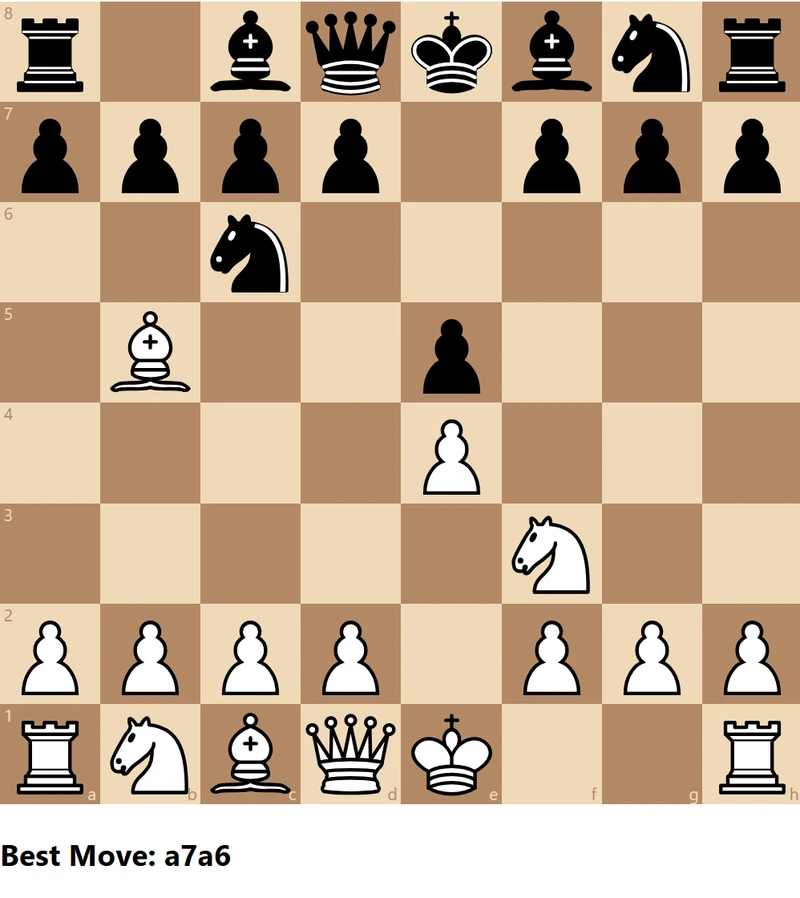
Stockfish Evaluations
In addition to finding the best move, Stockfish can provide an evaluation of the current board position. This evaluation helps us understand which player has the advantage and by how much. Stockfish’s evaluations are typically shown as a numerical score: positive values favor White, and negative values favor Black. In this section, we’ll add code to capture both the best move and evaluation from Stockfish, interpret it based on whose turn it is, and display this information below the chessboard.
Step 1: Add State for Evaluation
First, let’s add a new state variable called evaluation to store Stockfish’s assessment of the board position. We’ll display this evaluation beneath the best move on the screen.
Add this line to the existing useState declarations in App.js:
const [evaluation, setEvaluation] = useState("");This initializes evaluation with an empty string, ready to be updated with evaluation data from Stockfish.
Step 2: Create getEvaluation Function to Parse Best Move and Evaluation
We’ll create a helper function called getEvaluation that handles parsing both the best move and the evaluation from Stockfish’s messages. This function will look for messages with “bestmove” to extract the best move and messages containing “info score” to calculate the evaluation. By passing the game’s current turn to getEvaluation, we’ll ensure that the evaluation score is interpreted correctly (positive for White, negative for Black).
const getEvaluation = (message, turn) => {
  let result = { bestMove: "", evaluation: "" }; // Initialize with default values

  // Check for "bestmove" in the message to get the best move
  if (message.startsWith("bestmove")) {
    result.bestMove = message.split(" ")[1];
  }

  // Check for "info score" message to get the evaluation
  if (message.includes("info") && message.includes("score")) {
    const scoreParts = message.split(" ");
    const scoreIndex = scoreParts.indexOf("score") + 2; // "cp" or "mate" is two words after "score"

    if (scoreParts[scoreIndex - 1] === "cp") {
      // Extract centipawn evaluation and adjust based on turn
      let score = parseInt(scoreParts[scoreIndex], 10);
      if (turn !== "b") {
        score = -score; // Invert score if it was Black's turn
      }
      result.evaluation = `${score / 100}`; // Convert centipawns to pawns

    } else if (scoreParts[scoreIndex - 1] === "mate") {
      // Extract mate score if available
      const mateIn = parseInt(scoreParts[scoreIndex], 10);
      result.evaluation = `Mate in ${Math.abs(mateIn)}`;
    }
  }

  return result;
};
This function:
- Initializes
resultwith default empty values forbestMoveandevaluation. - Extracts the best move from any message that starts with “bestmove.”
- Interprets evaluation scores, converting centipawns to pawns and accounting for whose turn it was.
- Returns an object containing both
bestMoveandevaluation.
Note: If you’re curious to see what messages Stockfish returns, you can add a console.log(message) inside the getEvaluation function or in the onmessage listener. This will print Stockfish’s messages to the console for debugging.
To view the debug messages in Chrome:
- Open Chrome’s Developer Tools (press
F12or right-click on the page and select Inspect). - Go to the Console tab.
- Reload the page or make moves on the chessboard, and you’ll see Stockfish’s output messages displayed here.
Other browsers, like Firefox and Edge, also have similar developer tools that allow you to view debug messages in the Console tab.
This can be a helpful way to understand the data Stockfish sends back and explore additional information you may want to display in your app.
Step 3: Update onDrop to Use getEvaluation
Next, we’ll modify onDrop to request Stockfish’s evaluation each time a move is made. After sending the board position to Stockfish, we’ll set up a listener for Stockfish’s messages and use getEvaluation to parse both the best move and evaluation.
Here’s how to update onDrop:
const onDrop = (sourceSquare, targetSquare) => {
  const gameCopy = new Chess(game.fen());

  try {
    const move = gameCopy.move({
      from: sourceSquare,
      to: targetSquare,
      promotion: "q", // Always promote to a queen for simplicity
    });

    if (move === null) {
      return false; // Invalid move
    }

    setGame(gameCopy);

    // Send the updated position to Stockfish to calculate the best move and evaluation
    if (stockfish) {
      stockfish.postMessage(`position fen ${gameCopy.fen()}`);
      stockfish.postMessage("go depth 15"); // Set depth for Stockfish analysis

      // Listen for Stockfish messages and update best move and evaluation
      stockfish.onmessage = (event) => {
        const { bestMove, evaluation } = getEvaluation(event.data, game.turn());
        if (bestMove) setBestMove(bestMove);
        if (evaluation) setEvaluation(evaluation);
      };
    }

    return true; // Valid move
  } catch (error) {
    console.error(error.message);
    return false; // Catch any error and return false
  }
};- After sending the board position to Stockfish, we set up a listener on
stockfish.onmessageto handle the response. getEvaluationparses both the best move and evaluation, and if either is available, we update thebestMoveandevaluationstate.
Step 4: Simplify useEffect
Since we’ve moved the message handling to onDrop, we can simplify useEffect to just initialize the Stockfish Web Worker.
useEffect(() => {
  // Load Stockfish as a Web Worker once when the component mounts
  const stockfishWorker = new Worker("/js/stockfish-16.1-lite-single.js");
  setStockfish(stockfishWorker);

  return () => {
    stockfishWorker.terminate(); // Clean up the worker when the component unmounts
  };
}, []);
Step 5: Update the return Statement to Display Evaluation
Finally, update the return statement to display both the best move and evaluation below the chessboard:
return (
  <div>
    <h1>Chess Game with Stockfish</h1>
    <Chessboard
      position={game.fen()}
      onPieceDrop={onDrop}
      boardWidth={500} // Set the board width to 500px
    />
    <div>
      <h3>Best Move: {bestMove || "Calculating..."}</h3>
      <h3>Evaluation: {evaluation || "Evaluating..."}</h3> {/* Display the evaluation */}
    </div>
  </div>
);- The best move is displayed with the line
<h3>Best Move: {bestMove || "Calculating..."}</h3>, showing “Calculating…” until Stockfish provides a suggestion. - The evaluation is displayed with
<h3>Evaluation: {evaluation || "Evaluating..."}</h3>, which will similarly display “Evaluating…” if Stockfish hasn’t yet calculated the position.
Final App.js Code
Here’s the complete updated code with both best move and evaluation handled by getEvaluation in onDrop:
import React, { useState, useEffect } from "react";
import { Chessboard } from "react-chessboard";
import { Chess } from "chess.js";

// Function to extract best move and evaluation from Stockfish's message
const getEvaluation = (message, turn) => {
  let result = { bestMove: "", evaluation: "" }; // Initialize with default values

  // Check for "bestmove" in the message to get the best move
  if (message.startsWith("bestmove")) {
    result.bestMove = message.split(" ")[1];
  }

  // Check for "info score" message to get the evaluation
  if (message.includes("info") && message.includes("score")) {
    const scoreParts = message.split(" ");
    const scoreIndex = scoreParts.indexOf("score") + 2; // "cp" or "mate" is two words after "score"

    if (scoreParts[scoreIndex - 1] === "cp") {
      // Extract centipawn evaluation and adjust based on turn
      let score = parseInt(scoreParts[scoreIndex], 10);
      if (turn !== "b") {
        score = -score; // Invert score if it was Black's turn
      }
      result.evaluation = `${score / 100}`; // Convert centipawns to pawns

    } else if (scoreParts[scoreIndex - 1] === "mate") {
      // Extract mate score if available
      const mateIn = parseInt(scoreParts[scoreIndex], 10);
      result.evaluation = `Mate in ${Math.abs(mateIn)}`;
    }
  }

  return result;
};

const App = () => {
  const [game, setGame] = useState(new Chess());
  const [stockfish, setStockfish] = useState(null);
  const [bestMove, setBestMove] = useState("");
  const [evaluation, setEvaluation] = useState(""); // State to store Stockfish's evaluation

  useEffect(() => {
    // Load Stockfish as a Web Worker once when the component mounts
    const stockfishWorker = new Worker("/js/stockfish-16.1-lite-single.js");
    setStockfish(stockfishWorker);

    return () => {
      stockfishWorker.terminate(); // Clean up the worker when the component unmounts
    };
  }, []);

  const onDrop = (sourceSquare, targetSquare) => {
    const gameCopy = new Chess(game.fen());

    try {
      const move = gameCopy.move({
        from: sourceSquare,
        to: targetSquare,
        promotion: "q", // Always promote to a queen for simplicity
      });

      if (move === null) {
        return false; // Invalid move
      }

      setGame(gameCopy);

      // Send the updated position to Stockfish to calculate the best move and evaluation
      if (stockfish) {
        stockfish.postMessage(`position fen ${gameCopy.fen()}`);
        stockfish.postMessage("go depth 15"); // Set depth for Stockfish analysis

        // Listen for Stockfish messages and update best move and evaluation
        stockfish.onmessage = (event) => {
          const { bestMove, evaluation } = getEvaluation(event.data, game.turn());
          if (bestMove) setBestMove(bestMove);
          if (evaluation) setEvaluation(evaluation);
        };
      }

      return true; // Valid move
    } catch (error) {
      console.error(error.message);
      return false; // Catch any error and return false
    }
  };

  return (
    <div>
      <h1>Chess Game with Stockfish</h1>
      <Chessboard
        position={game.fen()}
        onPieceDrop={onDrop}
        boardWidth={500} // Set the board width to 500px
      />
      <div>
        <h3>Best Move: {bestMove || "Calculating..."}</h3>
        <h3>Evaluation: {evaluation || "Evaluating..."}</h3>
      </div>
    </div>
  );
};

export default App;
Now, if we run our web page, we’ll see the following:
- Best Move: After each move, Stockfish will suggest the best move directly below the chessboard.
- Evaluation: Stockfish’s evaluation of the current board position will display underneath the best move. A positive evaluation indicates White’s advantage, while a negative evaluation favors Black. If a checkmate is detected, it will display “Mate in X” moves.
This enhanced functionality transforms our chess application into a dynamic analysis tool, providing real-time feedback on each move and helping players understand the position better.
Summary
In this blog, we started with a basic chessboard application built with React, react-chessboard, and chess.js. Our goal was to enhance the app by integrating Stockfish, a powerful chess engine, to provide real-time analysis.
We began by setting up Stockfish as a Web Worker, allowing it to run in the background without affecting the main interface. From there, we implemented functionality to display Stockfish’s best move suggestion after each player’s move. This alone turned our chessboard into a helpful tool, but we wanted to take it a step further.
To add depth to our analysis, we introduced evaluation scores from Stockfish. These scores reveal the engine’s assessment of the position, giving insight into which side has the advantage and by how much. We parsed both the best move and evaluation using a custom helper function, then displayed these insights beneath the chessboard. Now, each move provides real-time feedback, helping players understand the position and see how each move shifts the game’s balance.
In the end, we transformed our simple chess app into an interactive analysis tool, displaying Stockfish’s best moves and evaluations for each position on the board. This feature-rich setup not only assists players in finding optimal moves but also serves as a learning tool for understanding chess positions more deeply.
Learn more
- React – A JavaScript library for building user interfaces.
- react-chessboard – A React component for rendering a chessboard.
- chess.js – A library for handling chess game rules and move validation.
- Stockfish – A powerful open-source chess engine.
- stockfish.js – A JavaScript and WebAssembly version of Stockfish for web applications.
Leave a Reply